[5 Unique Ways] How to Speed Up a Video on iPhone (2026)

Have you ever wanted to speed up a video on your iPhone but needed to know how? Well, this guide is for you! This guide will show you five unique ways to speed up a video on your iPhone. The built-in setting is usually the safest place to start before you try extra tools.
Whether using an app or editing your video in iMovie, we'll walk you through each method step-by-step so that you can get your video up to speed in no time. So let's get started! That gives you another route if the built-in iPhone tools feel too limited for the result you want.
Use iMovie for Videos at Regular Speed
The first method for speeding up your videos on iPhone is using the iMovie app. iMovie is free to download from the App Store and is already pre-installed on new iPhones and iPads.
With this app, you can easily speed up your video. Plus, iMovie makes it easy to cut or slow down your videos, combine multiple clips, apply a soundtrack, add transitions, insert photos, and use other effects.
Steps
Launch the iMovie app on your iPhone. When you see a welcome screen, tap Continue.
A window for New Projects will emerge. Tap Movie.
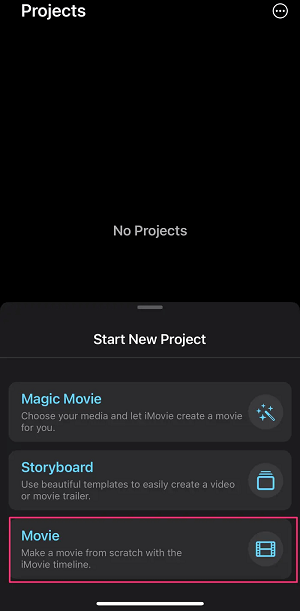
Choose a video from your camera roll on the following screen, then press Create Movie at the bottom.
Wait for the video editing tools to emerge after tapping the video clip in the timeline before picking the speed tool, which looks like a speedometer.
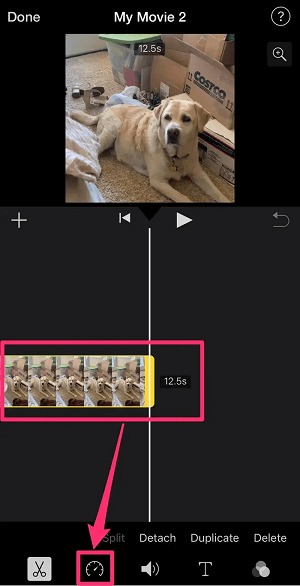
Drag the yellow slider at the bottom to the right to speed up or slow down your video. You can speed up to 2x the original or slow down to 1/8th the original.
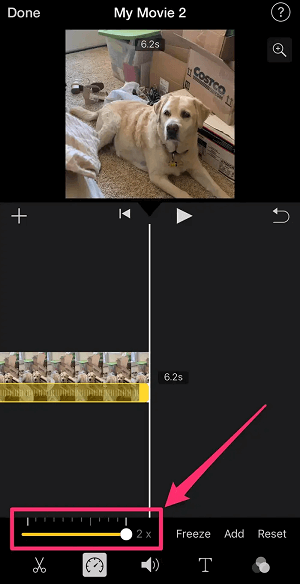
Note: Tap the Play button in the centre of the screen to preview your changes.
In the upper-left corner of the screen, tap Done.
At the bottom of the screen, click the Share option and select how you wish to save the completed video.
Tips: How To Find iMovie App On Your iPhone
For iPhone or iPad was purchased on or after September 1, 2013, and you've updated to iOS 8, it should already be installed on your device, or you can open the App Store app, search for iMovie, and install it for free. In addition, Apple still offers iMovie for $4.99 in the App Store.
Open Photos App for Slo-mo Video On iPhone
Slo-mo Video allows you to record videos in slo-mo (slow motion) mode, which captures 120 or 240 frames per second. When played at a slower speed, this creates a slow-motion effect. The process is relatively simple. It is helpful when you want to polish the clip a bit more before you export and share it elsewhere.
Steps
Launch the Photos app and go to the Albums tab at the bottom of the screen.
Scroll down to the Media Types section on the Albums page and tap Slo-mo.
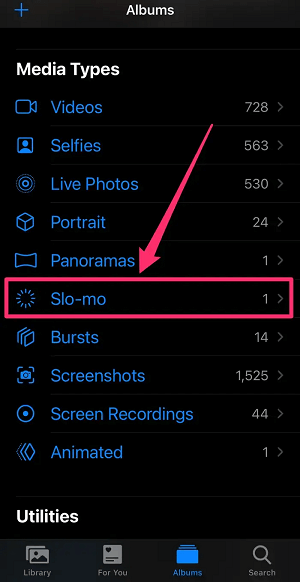
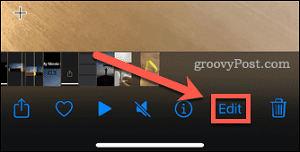
Tap Edit in the top-right corner after selecting the video you wish to speed up.
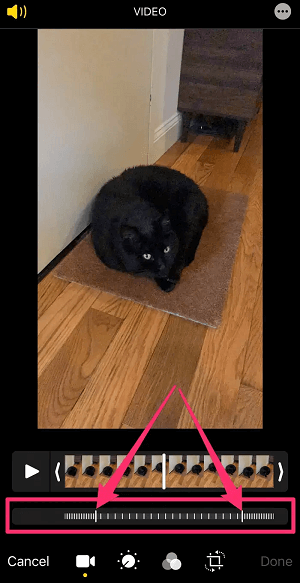
Pull the two taller vertical bars together in the white hatching line beneath the video timeline to remove the Slo-Mo effect and speed up the video.
Tap Done in the bottom-right corner.
Tip:You may return to the file and use the drag bars to restore slow motion wherever in the video. Recording in slow motion first usually looks cleaner than slowing a regular clip after the shot has already been captured.
Use Third-Party Apps
Although iOS provides a way to speed up video, it sometimes doesn't meet the demand. You'll need to turn to third-party professional video editing software if you're looking for more advanced editing, control, and better quality. Here are some of the best options:
Slow Fast Motion Video Editor
The Slow Fast Motion Video Editor is an easy-to-use video editing app that lets you speed up and slow down your videos. It offers different effects, such as smooth slow motion, fast motion, time-lapse, and stop motion effects, to help you create professional-looking videos with just a few clicks.
More interestingly, you canapply speed variationsto different sections of your video clips depending on your needs. The app automatically adjusts the audio pitch and allows you to save a full-resolution video. This helps when you want to export the clip, send it quickly, and avoid another round of cleanup edits.
BeeCut Video Editor
BeeCut is another powerful video editing app that helps you create professional videos on your iPhone. It allows you to quickly speed up, slow down, and reverse videos and add multiple background songs to videos.
It also lets you easily add filters, text, titles, and transitions to your project to enhance the overall look of your video. It also lets you use BeeCut to crop, cut/split, and merge videos, making it a useful tool for beginner and advanced iPhone video editors. It gives you finer control when only one moment should stay slow and the rest of the recording should play normally.
Video Speed Editor Slow & Fast
Video Speed Editor Slow & Fast is an excellent tool for creating professional-looking videos. The app lets you dividetheir video into multiple short clips thatneed different speeds. Each short clip can be set up to 8xslow or fast motionspeeds. This is useful when the speed change should affect only one section instead of forcing the whole clip to slow down.
The app also lets you merge all the short clips back into one and apply several overlay shapes and filter effects for each short clip before merging. Also, Video Speed Editor Slow & Fast offers a library of beautiful background music, making creating an engaging and professional-looking video easy. If the screen looks different on your device, compare software version, model, and account state first.
SloMo Video Editor
SloMo Video Editor lets you control the speed of your videos. With SloMo Video Editor, you can speed up your videos up to240fps or 12x fasteror slow them down to create stunning slow-motion effects. That can save time when you want the video ready for social posting without moving it into another editor first.
It also lets you adjust the speed of your videos from particular frames and even record live videos with speed control options. SloMo Video Editor also lets you add music to your videos and share your edited creations on Instagram, YouTube, Facebook, Twitter, and other social media platforms. That makes it easier to keep a copy of the edited result and post it right away from the same device. Testing the change on a short clip first is a quick way to avoid re-editing a longer video from the start.
Slow Fast Slow
Slow Fast Slow is a video editor that allows you to manipulate the speed of videos you've shot on your iPhone. You can quickly slow down or speed up your videos with an intuitive interactive timeline. It also lets you add pitch control and clip reversal. That matters when you only want one part of the video to play back slower while the rest keeps its normal speed.
Slow Fast Slow makesimporting videos from your Photo Libraryand editing them quickly. One of the best features is exporting videos in theoriginal ratio or square.Slow Fast Slow is a great video editor for those who want more control over their video editing process. If a step looks different on your device, the app version is usually the first thing to compare before assuming the feature is missing. If the result still looks off, compare a built-in method with one app-based method so you can see which handles your clip more cleanly.
Tempo Video Editor
Tempo is a video editor that allows you to shoot and speed up video playback on your iPhone. It creates a fast-forward motion effect and can make a slow-motion effect in just a few clicks.
With Tempo, you can easily edit videos with music and pic to create innovative and unique quarantine videos. The Tempo app also offers stylish face stickers to help you further personalize your videos.
How Many Videos Can You Record on an iPhone?
The amount of video you can record on your iPhone depends on your available storage space. If you have 100 MB of storage free, that's your limit for recording video. Every user has a different amount of storage space available, and, in case you're wondering, you can't expand an iPhone's memory. But iCloud storage space is expandable.
How to Adjust Zoom Effects in iMovie on iPhone
The zoom feature in iMovie on your iPhone is an easy and quick way to add extra visual interest to your videos. You can adjust how big or small photos or videos appear on the screen.
How to Adjust the Movement of Photos Ken Burns Effect
Open a movie project on your iPhone's iMovie app.
Tap the photo you want to adjust in the timeline.
The Ken Burns effect controls display in the viewer's lower-right corner.
Tap the Start button to set how the photo is framed at the start.
Pinch to zoom in or out, then drag the image in the viewer to frame it the way you like.
Tap the End button to choose how the shot is framed at the end.
Pinch to zoom in or out, then drag the image in the viewer to frame it the way you like.
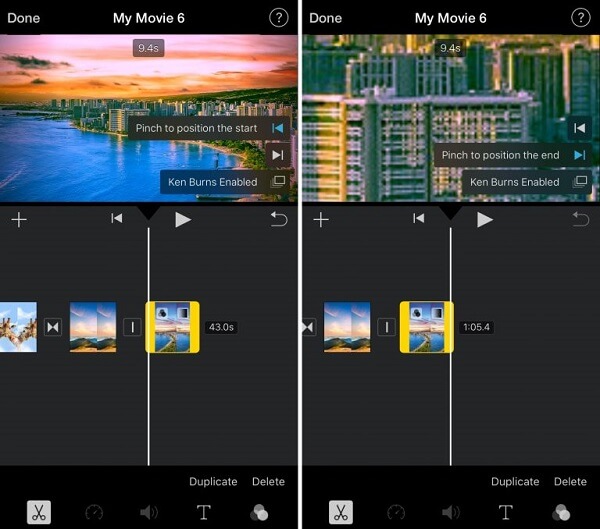
To close the controls, tap outside of the clip.
To turn off the Ken Burns effect for the photo, tapKen Burns Enabled.To turn on the Ken Burns effect, selectKen Burns Disabled.
How to Adjust a Video Clip's Zoom Level
Open a movie project with the iMovie app on your iPhone.
Tap on a video clip in the timeline to select it.
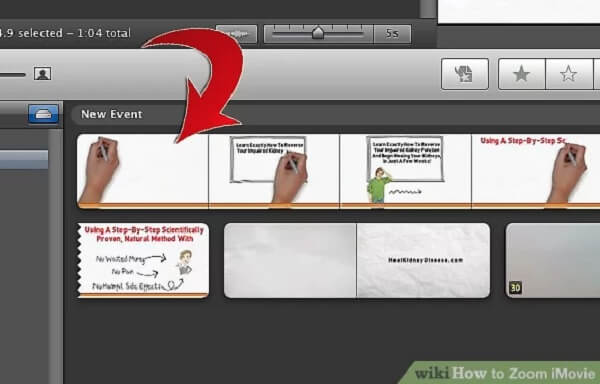
Tap the Zoom Control button in the viewer to adjust the viewing area within the clip.
Pinch to zoom in or out, then drag the image in the viewer to resize it.
Tap the Play button to see a preview of your adjustments.
How to Edit Freeze Frame With iMovie?
With the iMovie app on your iPhone, you can edit your videos to add a freeze frame, a single still image that displays the length of your video. This effect is commonly used to create dramatic moments or emphasize a vital scene within your video.
You can change how long a freeze frame lasts or remove it to return the clip to its original length.
How to edit a freeze frame in iMovie on iPhone
Open a movie project with the iMovie software on your iPhone.
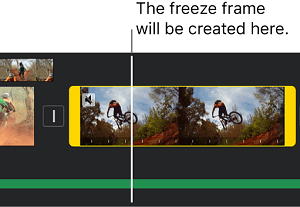
Touch and hold a clip in the timeline, and then swipe left or right to find the frame you want to freeze.
When you tap the video clip in the timeline, the inspector will appear at the bottom of the screen.
Tap the button for Speed.
At the bottom of the clip's bottom is a yellow bar with range handles at each end.
Tap Freeze in the inspector.
The frame at the position of the playhead is frozen, but it is still connected to the source clip at both ends. Drag the yellow range handles to change how long the freeze frame is.
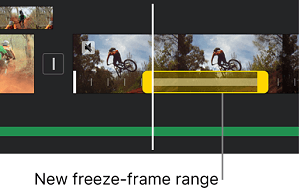
To get rid of the freeze frame, tap anywhere in the range of the clip where the freeze frame is, and then tap Freeze in the inspector.
Note that there is no audio during the freeze-frame portion of the clip.
When you're done, tap anywhere else to remove the inspector.
How to Take Photos While Recording Video on an iPhone
You can take a single photo while continuing to record the video. Also, you can pause and resume capturing photos during a recording or stop filming and start again. Built-in slow-motion capture often looks smoother than stretching a normal recording later in an editor.
How to take photos while recording video on an iPhone
Open the Camera app by tapping on it.
Select Video by swiping up from the bottom of the screen (it will be centered above the large circular red button).
To start recording a video, press the red button. When the video recording process begins, a white circle appears in the bottom-right corner of the screen. It all depends on how you hold the device and whether it's at the top or bottom. Press the white button to take a photo of what's on the screen without stopping the video.
All still photos you capture while making a video are stored in the Photos app, similar to regular images.
Conclusion
If you're looking for ways to speed up a video on your iPhone without compromising quality, these five unique methods should do the trick! These tips can help you create amazing time-lapse or fast-paced videos without hassle. That usually makes the steps easier to follow on a real device.
If you found this guide helpful, check out our other posts for more tips and tricks on using your iPhone! That gives you a clearer way to choose the method that best matches your device, setup, and time.
