
Pop-ups can be annoying, so many people block them by default. Still, some legitimate websites use them for sign-ins, downloads, payment windows, or confirmation pages.
So, when exactly should you turn pop-ups off or on?
This guide shows how to turn Safari's pop-up blocker off when a site needs it, how Chrome handles pop-ups on iPhone, and when you should turn the blocker back on.
Disable Pop-Up Blocker for Safari
You need to do this from your iPhone's Settings app because Safari uses a system-level pop-up setting. It only takes a few taps to allow pop-ups on your iPhone with Safari.
- From your iPhone home screen, open settings.
- Tap Apps, then find Safari and open it.
- Turn off block pop-ups which you can find under general. When you do this, the switch will turn grey, meaning Safari can show pop-up windows.
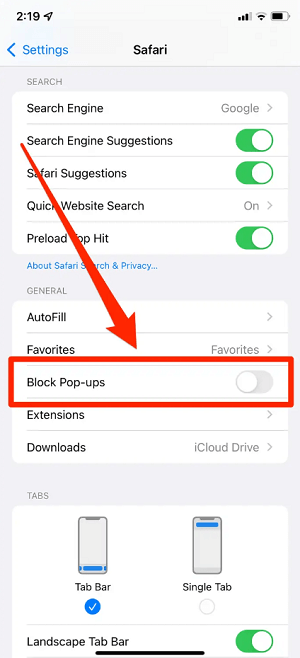
Pop up Blocker Is Disabled
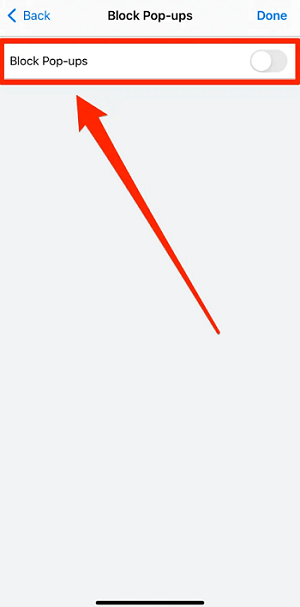
Pop up Blocker Is Disabled
Block or Allow Pop-Ups in Chrome
Chrome is a third-party browser by Google. You will have to change the pop-up from Chrome's in-app settings menu, and here is how to do so.
Turn Pop-Ups On or Off
- From your iPhone home screen, open Chrome.
- Click on the three dotsat the bottom of your screen in the right corner.
- Click on settings.
- Scroll down till you get to content settings, then click on it.
- Click on block pop-ups.
- Turn off or on block pop-ups by tapping on the toggle. It will turn grey when off and blue when on.
- Click on done at the top right corner of your screen to save your changes.
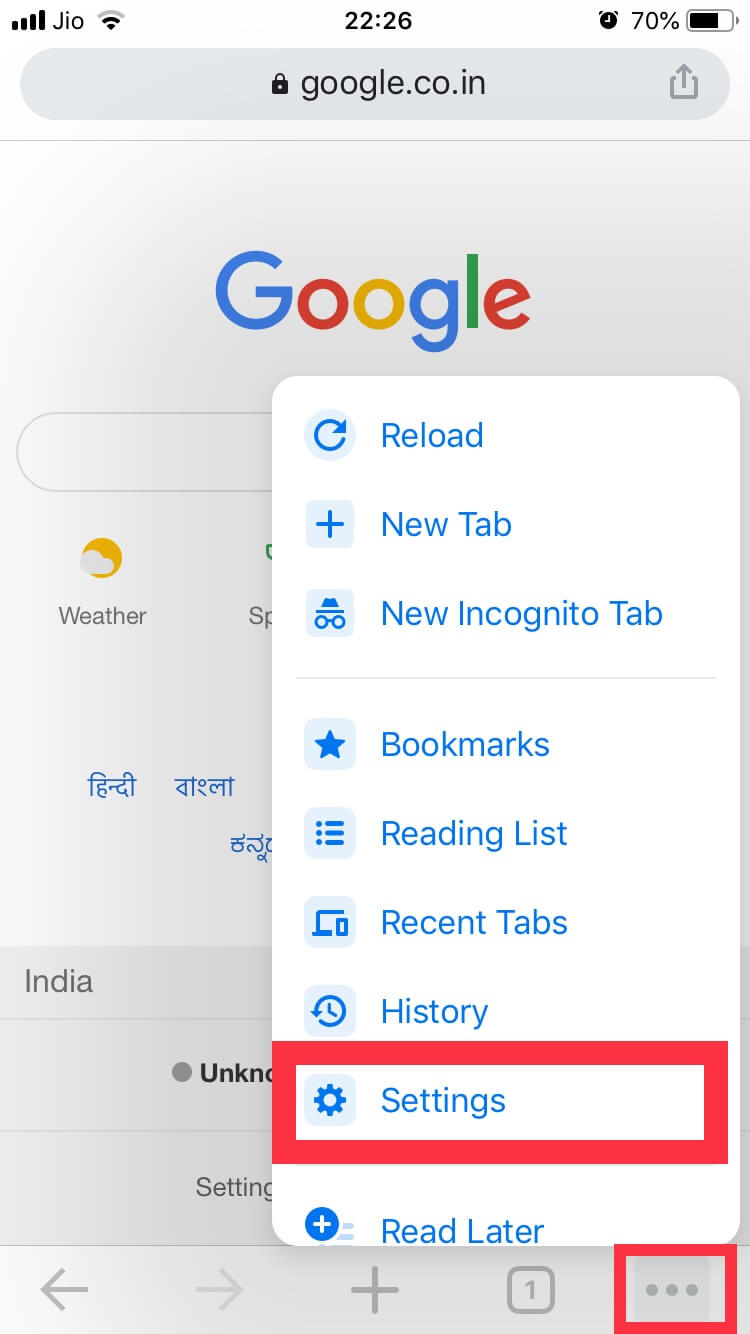
Settings of Chorme
Allow Pop-Ups for a Certain Site
- From your iPhone home screen, open Chrome.
- Open the specific site or page where pop-ups are blocked.
- Click on Always show, which you can find under pop-ups blocked at the bottom of your screen.
Fix the Problems with Pop-Ups on Chrome
If you are on a site on Google and there is a dialogue or pop-up box that refuses to go away, you can fix the issue with the steps below.
- Put your iPhone on airplane mode.
- Quit Google Chrome.
- Close the tab that has the dialogue or pop-up box that refuses to go away.
Should I Always Turn on the Pop-Up Blocker?
This depends on the website you are using. Keeping the blocker on usually gives you better protection from scam pages and surprise ads, but some legitimate websites need pop-ups for logins or checkout.
It is best to leave the pop-up blocker on unless you have a clear reason to allow pop-ups on a site you trust.
You can turn it off for the task you need, then turn it back on when you are done. That reduces annoying pop-ups without breaking sites that need an extra window.
Avoid Interacting With Pop-Ups
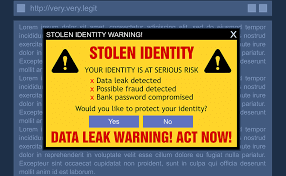
Pop-Ups Scams
It is best to only interact with pop-ups when you are sure that the pop-up is a legitimate ad or is required before you can use a site.
Some pop-ups are not legitimate – they are third-party ads that use tactics like prizes or warnings to steal financial or personal information. The tips below will help you to manage pop-ups on your iPhone.
- Whenever you try to close pop-ups, always be careful, as some have fake buttons that look like a close button. It is best to avoid interacting with them altogether. Instead, you should close the tab.
- If an annoying pop-up appears in Safari while using it, use the search bar to enter a new search term or URL and go to a new site. If you cannot find the search field on your iPhone, simply tap the top of your screen, and it will appear.
Update your Software to Better Control the Pop-Up
The best way to have better control of pop-ups on your iPhone is to make sure you install the latest software updates always. Most software releases come with essential security updates; sometimes, these updates have improvements that will help you control pop-ups.
It is advisable always to download any app you want from the App store and if it is not available, get it from the developer directly. If you cannot get it from the developer, try getting it from a reliable source but make sure you avoid downloading through a link or ad to prevent potential virus.
After reading this article, you know how to turn pop-ups on or off in Safari and Chrome on your iPhone.
Pop-ups are not always bad, but the blocker should usually stay on. Turn it off only when a trusted site needs it, then switch it back on when you are done.
