
Want to share a photo album with friends or family without making the pictures public? You can do that on iPhone with Shared Albums, which let invited people view, comment on, and sometimes add items.
This guide walks you through the setup, the sharing steps, and the main fixes to check when an album will not send or load. One useful detail up front is that Shared Albums are meant for convenient sharing, not full-quality backup copies of your originals.
Before You Begin
Before you begin to share an album, there are a few things you'll need to do. This ensures everything goes smoothly and avoids any issues down the line. These include:
Update Your iPhone to the Latest iOS
Using a current version of iOS helps because the Photos app and sharing menus can change between releases. If Shared Albums already appears in your Photos settings, you can continue with the steps below.
Set Up iCloud on All of Your Devices
iCloud is required for sharing your albums, allowing you to keep all your devices' photos and videos in the same cloud. This keeps them accessible on all your devices with just a few taps.
Steps
- Go to Settings > [your name] on your iPhone, iPad, or iPod touch. If you don't see [your name], tap "Sign in to your [device]", then enter your Apple ID and password.
- Choose one of the following options:
- iOS 16, iPadOS 16, or later: Tap iCloud, then enable each app or feature you need. To view more apps, select Show All.

iCloud on iPhone Settings
- iOS 15, iPadOS 15, or earlier: Tap iCloud, then enable each app or feature you need.
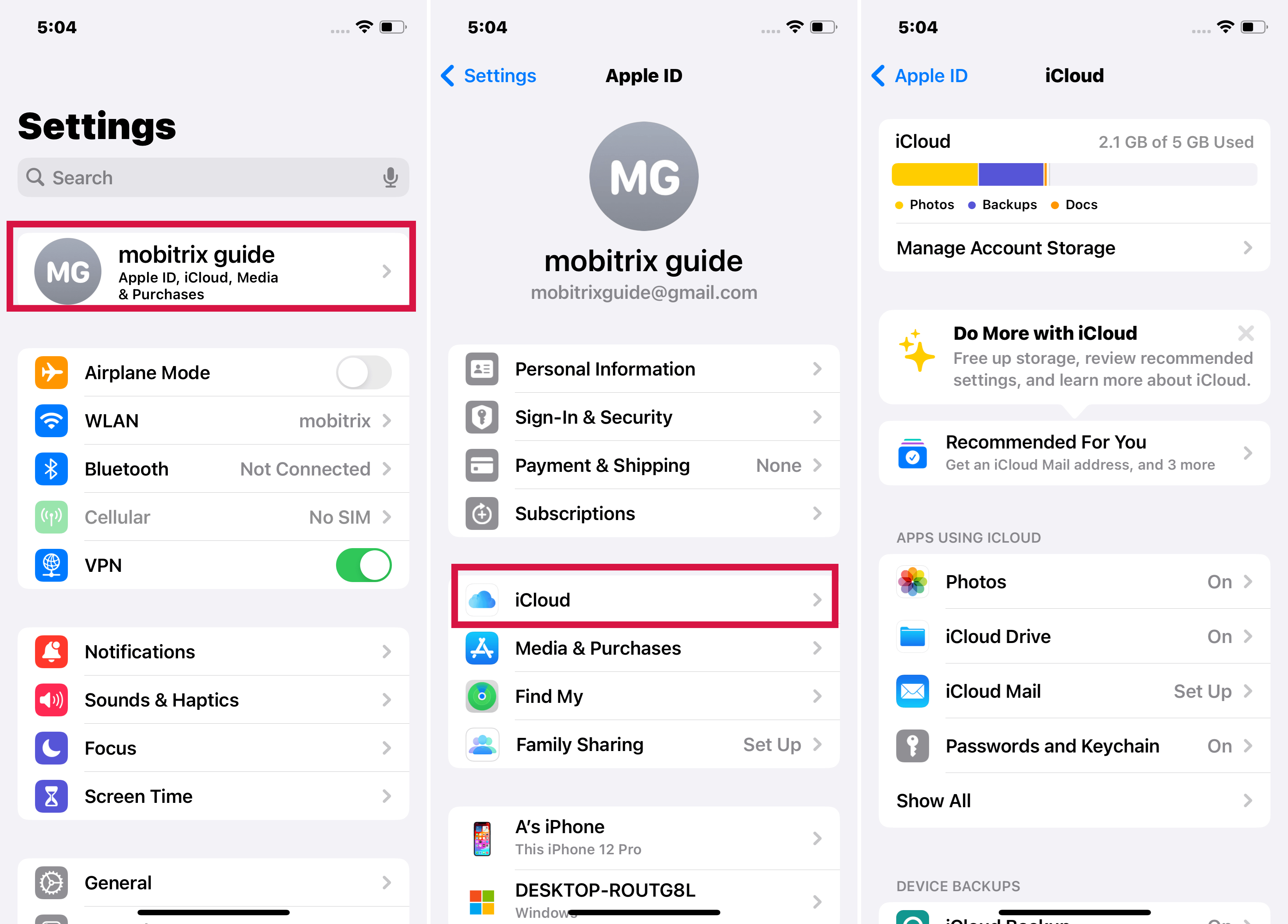
Check the Apple ID
On all of the devices that you intend to use with Shared Albums, ensure you are signed into iCloud with the same Apple ID.
Set Up iCloud Photo Sharing
Before you can create or share anything, make sure Shared Albums is turned on in Photos settings. On newer iPhone software, you may need to open Settings, tap Apps, then tap Photos to find the same switch.
Steps
- Go to the Settings app on your iPhone, iPad, or iPod touch.
- Select Photos.
- Enable Shared Albums.
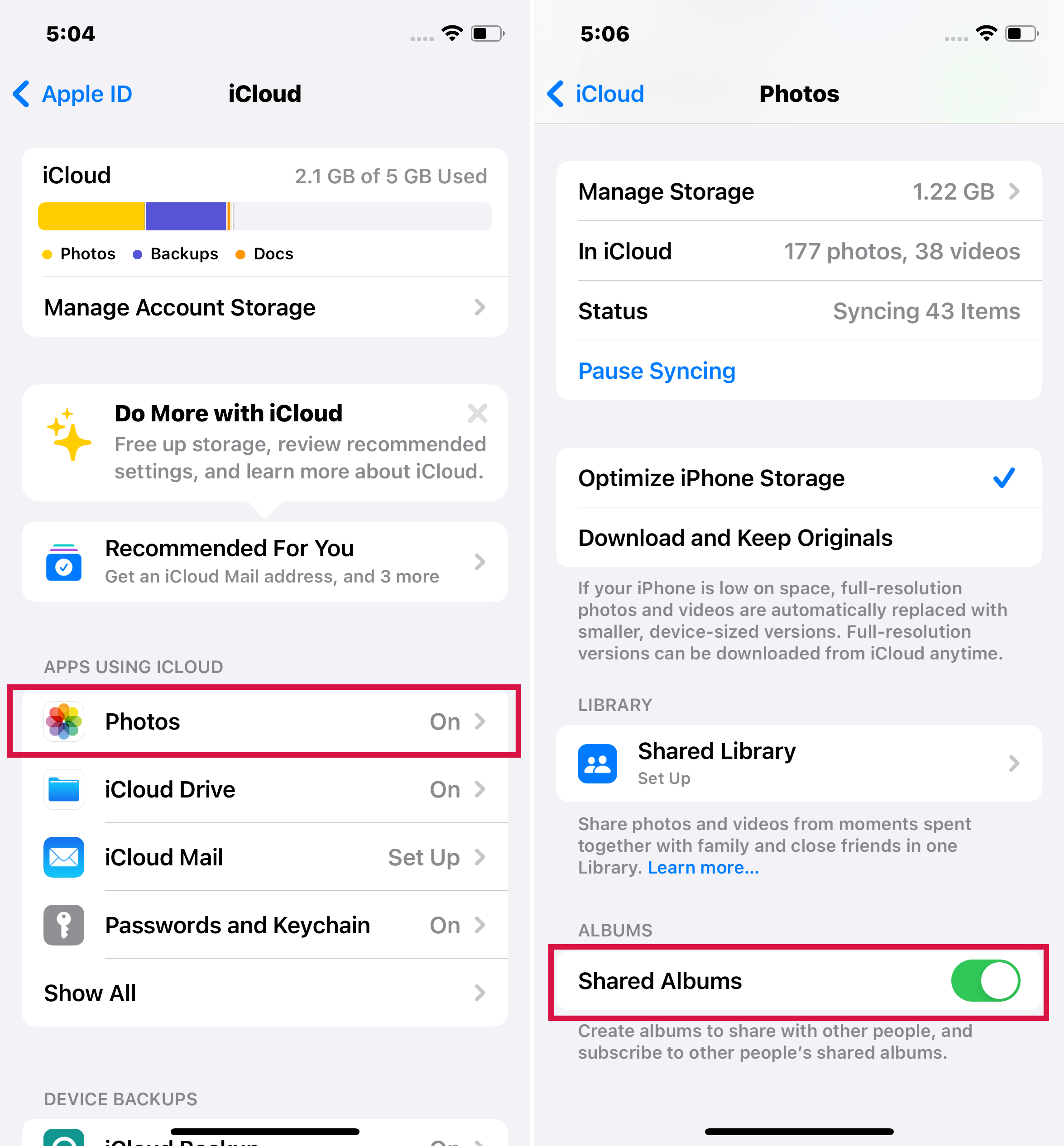
Shared Albums via iCloud on iPhone Settings

How to Share an Existing Photo Album on iPhone
To share an album with others, you have to create a shared album instead of a regular album. If you've already got a photo album that you want to share, you can easily do so by copying the photos to a new Shared Album.
Steps
- Launch the Photos app.
- Select the album that you want to share.
- Choose Select > Select All.
- In the lower left, click the Share icon.
- Tap Add to Shared Album in the popup menu.
- Tap Shared Album, then New Shared Album.
Note: Instead of making a new Shared Album, you can also add pictures to one that already exists.
- Tap Next after giving your Shared Album a title.
- Add persons with whom you want to share the album.
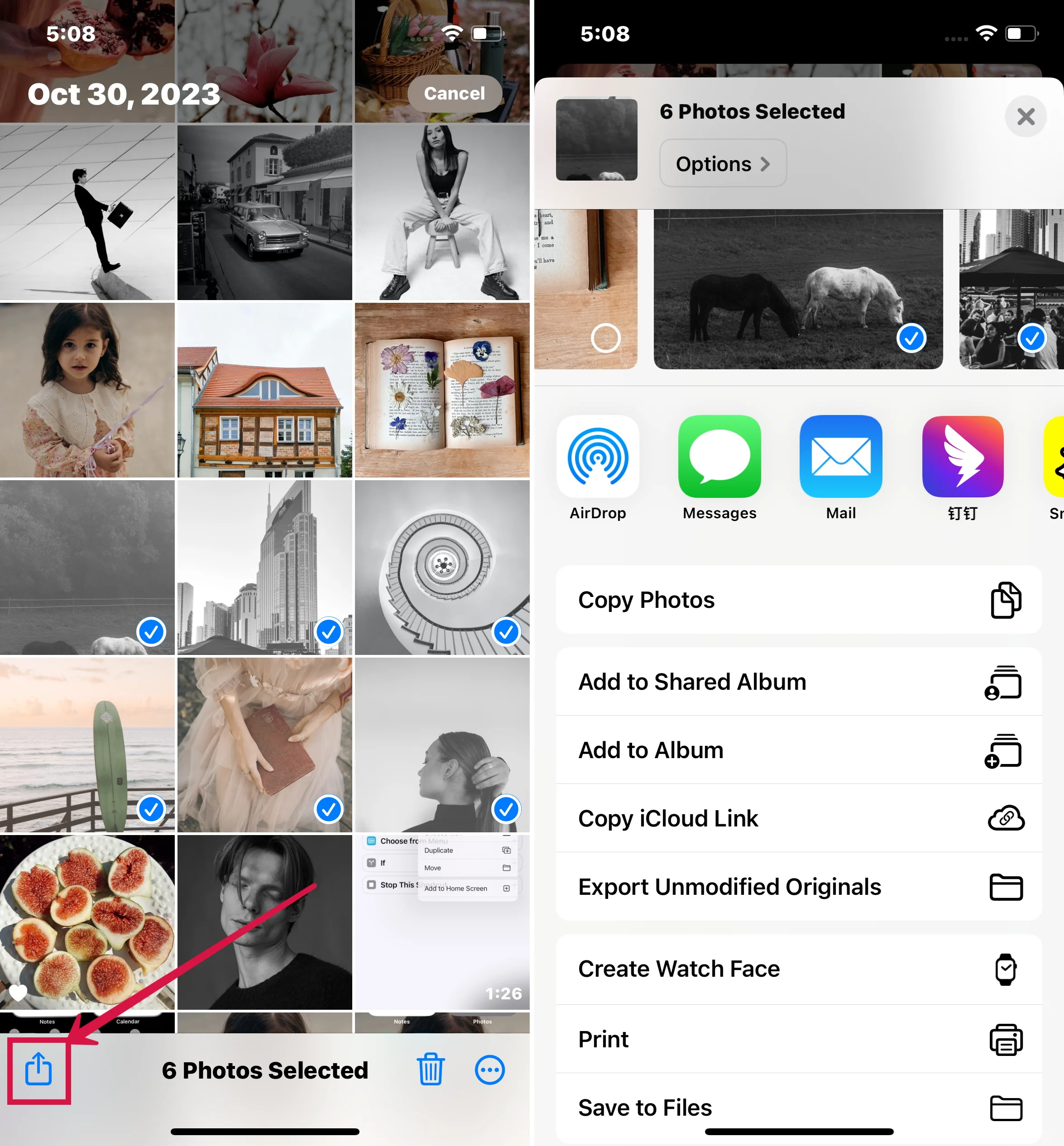
Add to Shared Album in Photos
How to Create a Shared Album on iPhone
For this task, you want a Shared Album rather than iCloud Shared Photo Library. A Shared Album is the simpler option when you want to invite specific people to view the album or add their own photos to it.
Steps
- Open the Photos app on your iPhone and select the Albums tab from the bottom menu.
- Tap the + Plus icon on the Albums screen, then select the New Shared Album option.
- On the next box, give your Shared Album a name and click Next.
- Tap the Create button to add a Shared Album to your iCloud account.
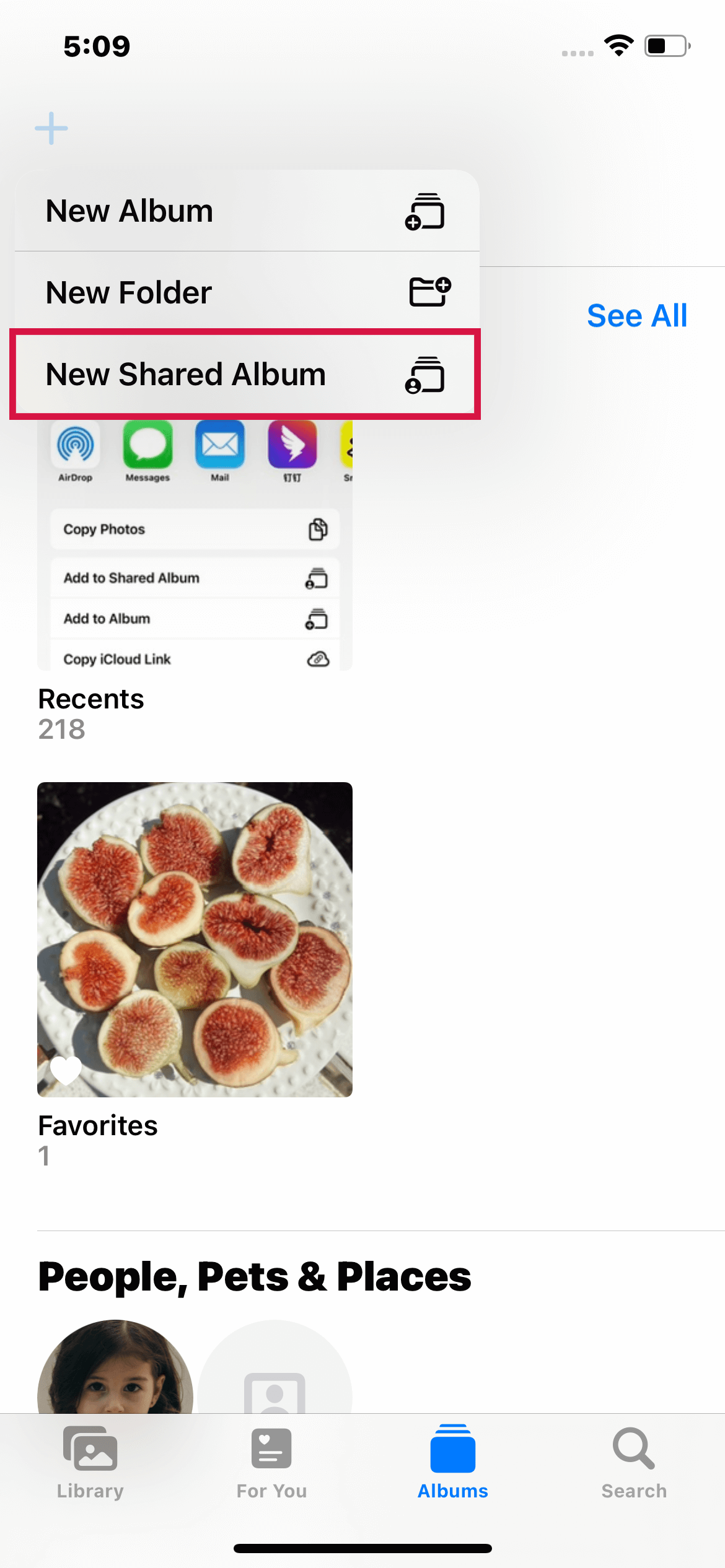
New Shared Album in Photos
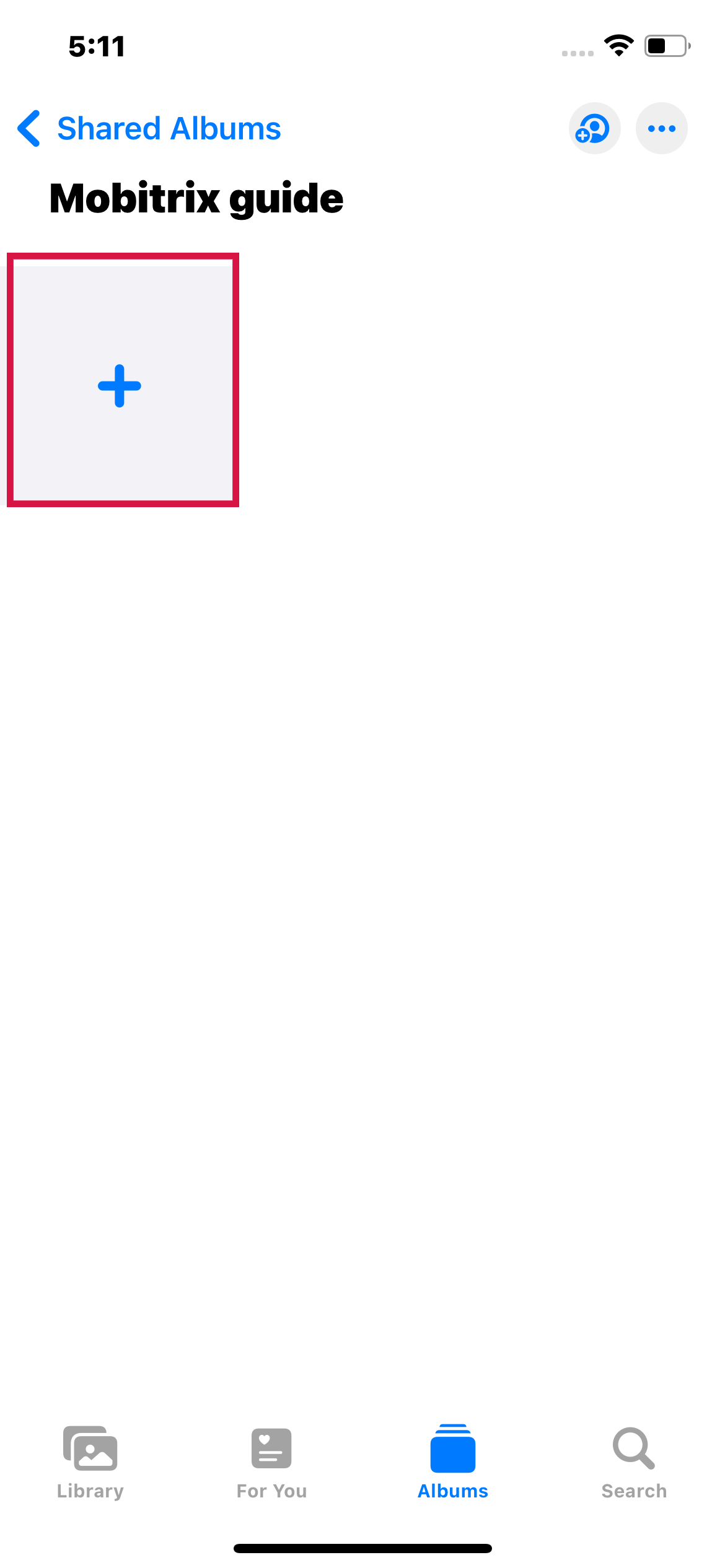
New Shared Album in Photos
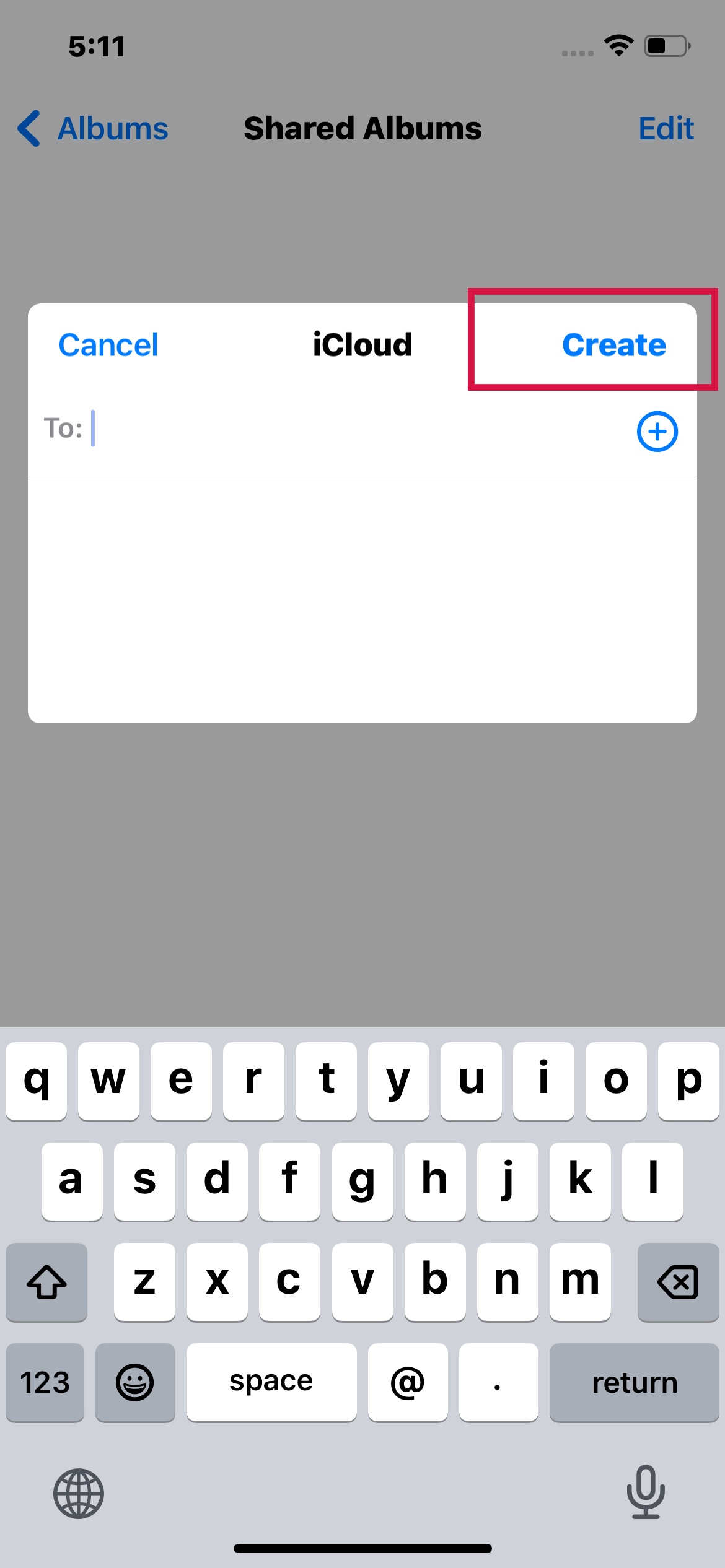
Create Shared Albums in iCloud
Why Can't I Share an Album?
If you are having difficulty while trying to share an album over iCloud, here are a few more common concerns as well as potential solutions to those problems:
- It's a private album. You may have mistakenly made a private album rather than a shared one. You can share the album with others by following the steps outlined earlier.
- Shared Albums are not enabled. Follow the steps outlined above to enable Shared Albums.
- Examine your Wi-Fi network. If your iPhone doesn't have a strong Wi-Fi connection, it won't be able to upload or share photos with iCloud. Change networks or use cellular data.
- Ascertain that iCloud Photos is functioning.
How to Add Photos and Videos on Shared Album?
Once you have created a shared album, you may need to add or import photos and videos from your iPhone to that album.
Steps
- Launch the Photos app, select the Albums option from the bottom menu, then scroll down and select Your Shared Album.
- Tap the + Plus symbol once you're in the Shared Album.
- Tap on Done after selecting the photos you want to share with others.
- To add the selected photos to the shared album, tap on Post.
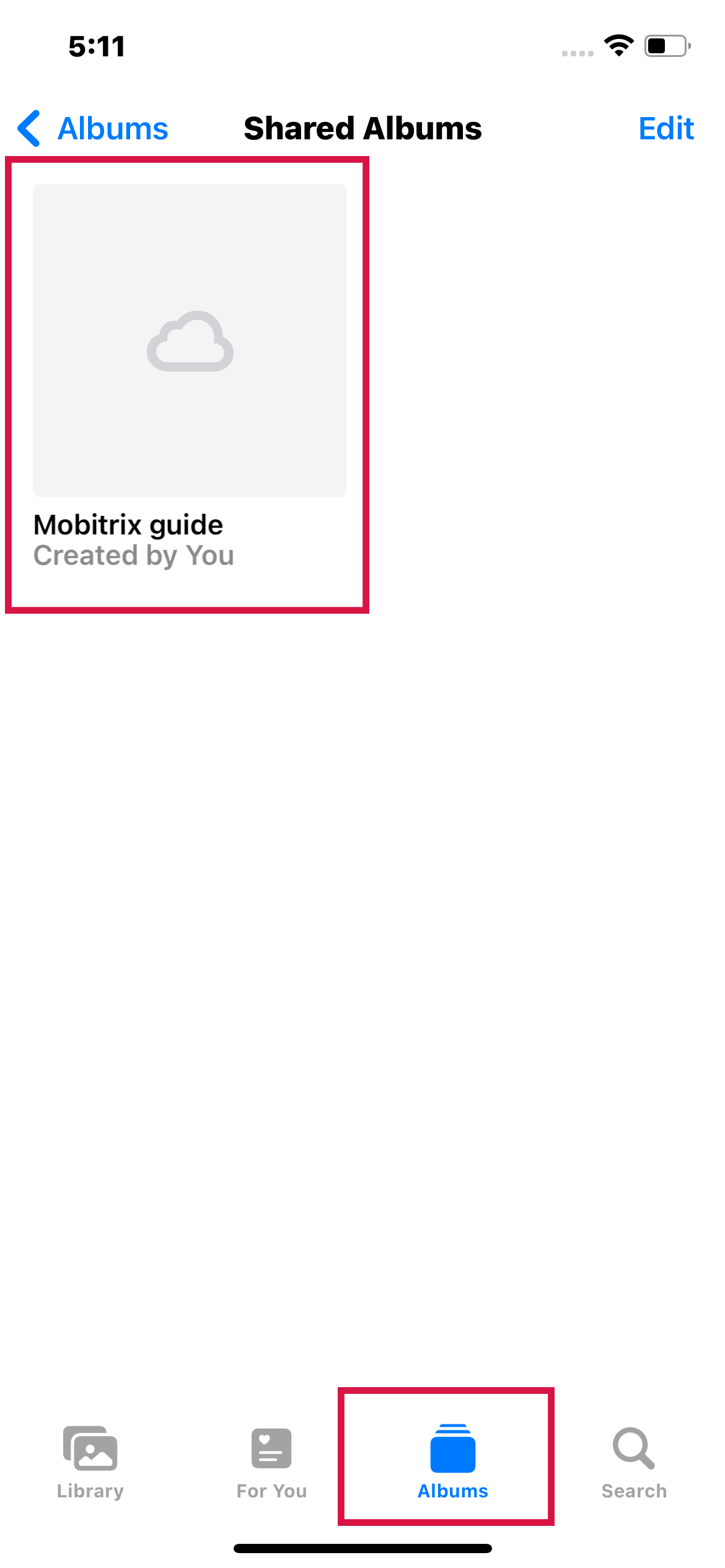
Select Your Shared Album
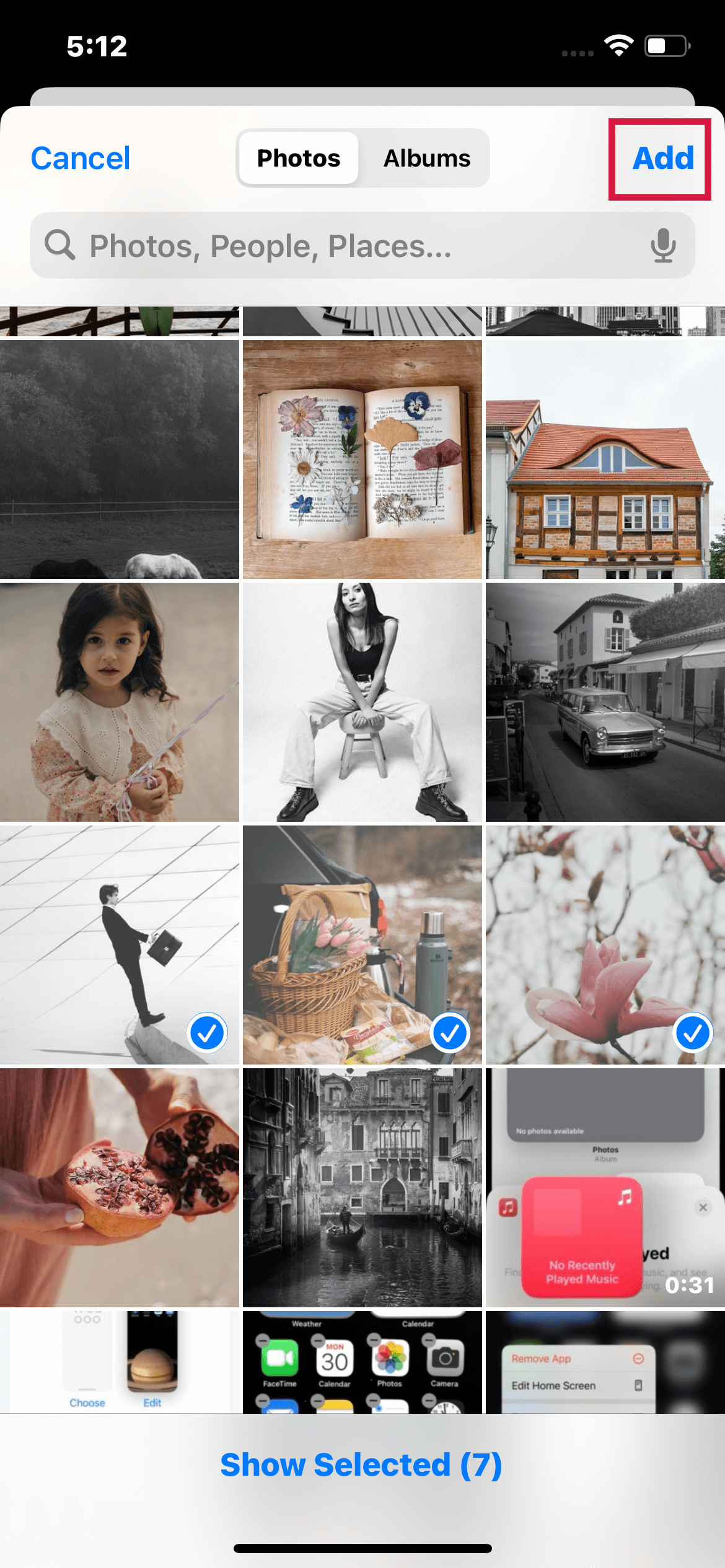
Post the Photos on Shared Album
How to Manage Subscribers and Notifications on a Shared Album?
After an album is shared, you can control who sees it, who can post, and which alerts you receive. These settings are useful when you want others to contribute without giving everyone the same level of control.
Steps
- Launch the Photos app > select the Albums option > scroll down and select your Shared Album.
- Tap the People tab at the bottom of the screen, and then do any of the following:
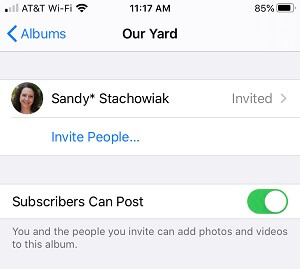
- Add new subscribers: Tap Invite People, then type in the names of the subscribers you want to include.
Subscribers you invite can add their own photos and videos when the Subscribers Can Post option is on. If you switch it off, they can still view the album, but only you can upload new items.
Subscribers Can Post is On for the shared albums
- Add new subscribers: Tap Invite People, then type in the names of the subscribers you want to include.
- Remove subscribers: Tap the subscriber's name, then tap Remove Subscriber.
- Turn off notifications: Select the Notifications option. Tap a second time to enable notifications.
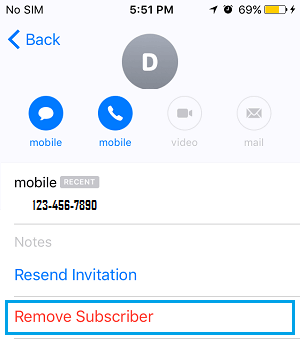
Remove Subscriber for the shared albums
What Else Can You Edit On The Shared Album?
Aside from managing subscribers and notifications on a shared album, other settings can be edited as well. For example, you can rename the album, add captions to your photos or videos, delete comments, or even delete the shared album.
Steps to Rename a Shared Album
- Launch the Photos app > select the Albums option.
- Scroll down to Shared Albums in Albums, and then tap See All.
- Tap Edit, select the album's name and type in a new one.
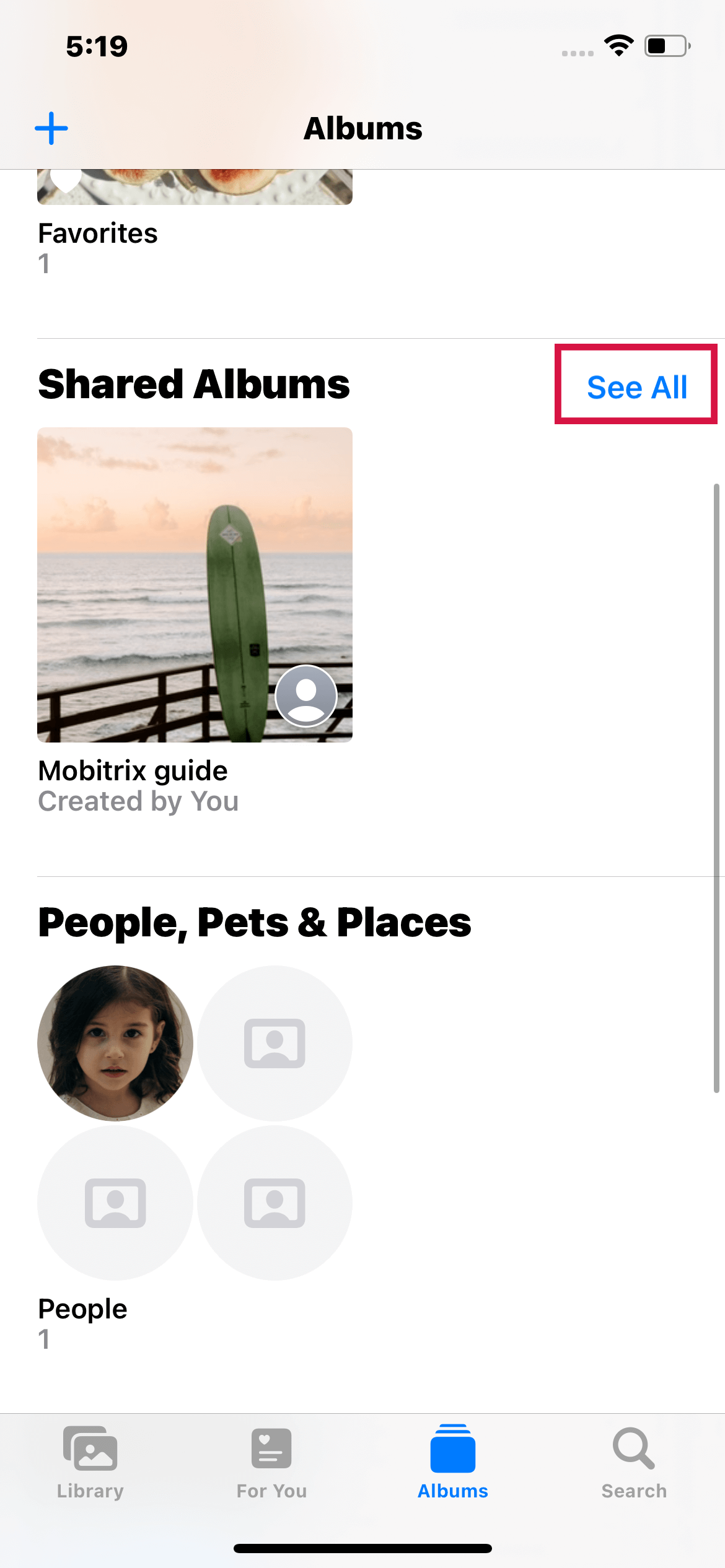
See All in Shared Albums
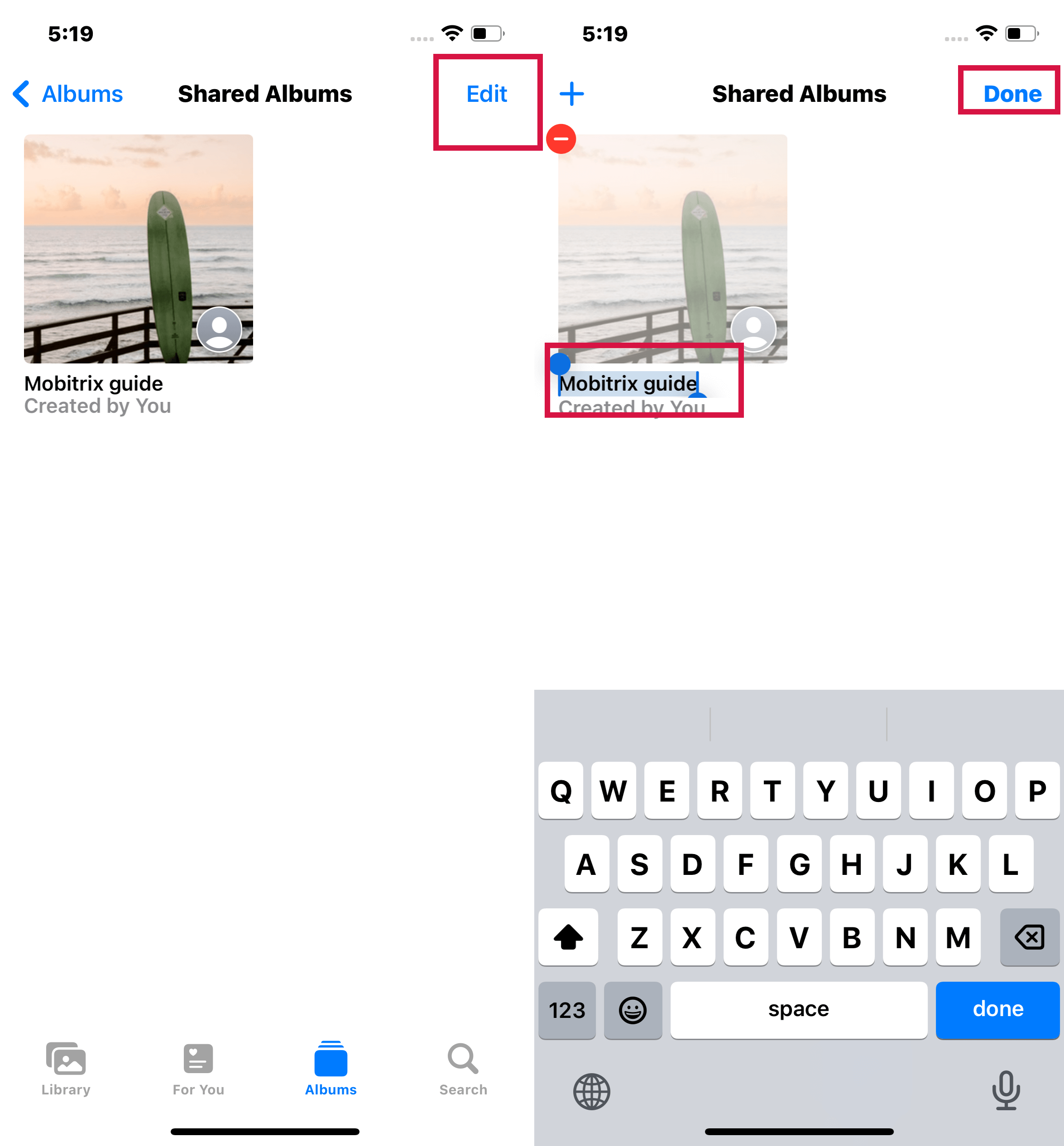
See All in Shared Albums
Steps to Delete Photos, Videos, and Comments
- To delete photos and videos: Tap Select in your Shared Album. Choose the pictures or videos you want to delete, and then click the trash icon.
- To delete comments: Touch and hold the comment on a shared photo, then tap the Delete button.
Steps to Delete Album
- Open the shared album.
- Open the People tab.
- Select Delete Shared Album.
Delete Shared Album
- When seeing your shared album list, you may tap Edit and then the Delete option to remove a shared album.
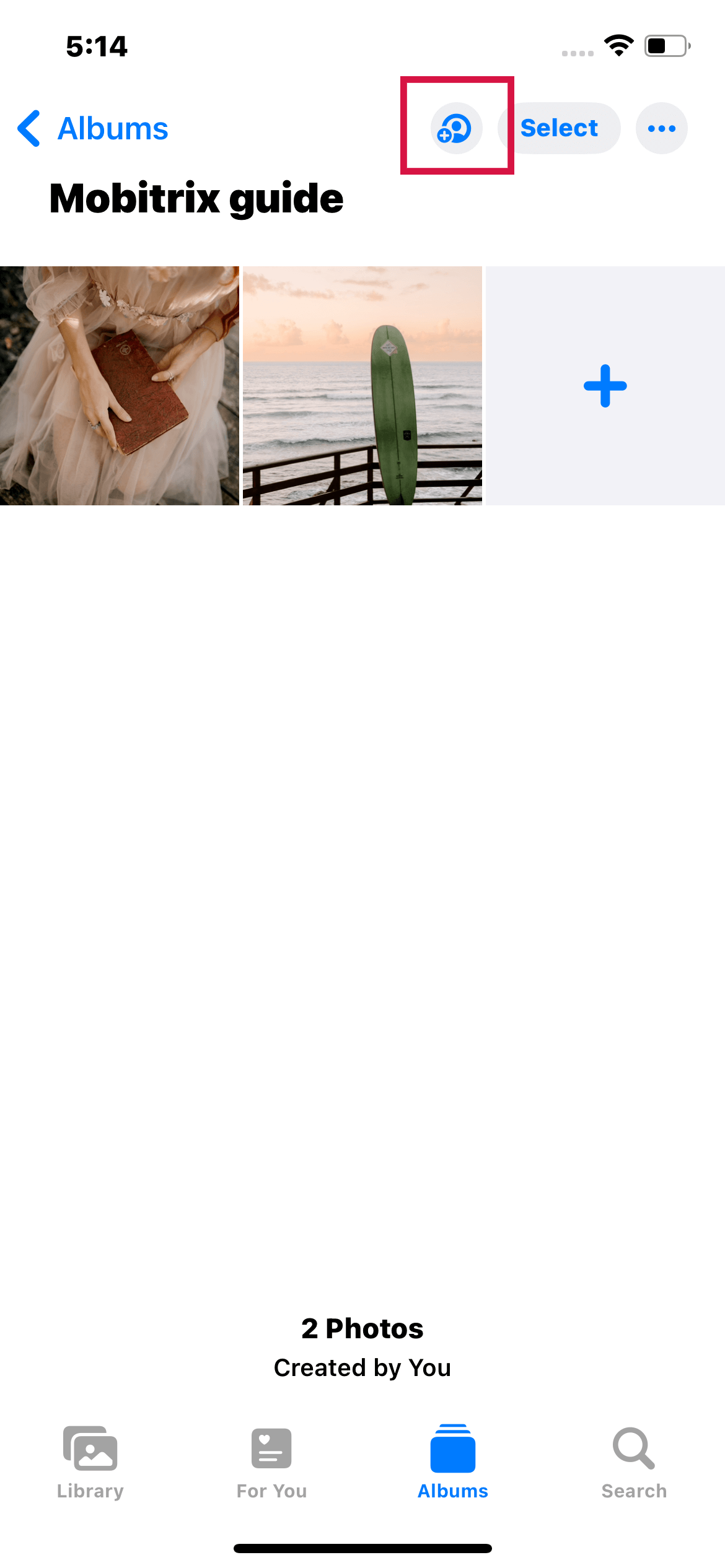
People tab in Shared Albums
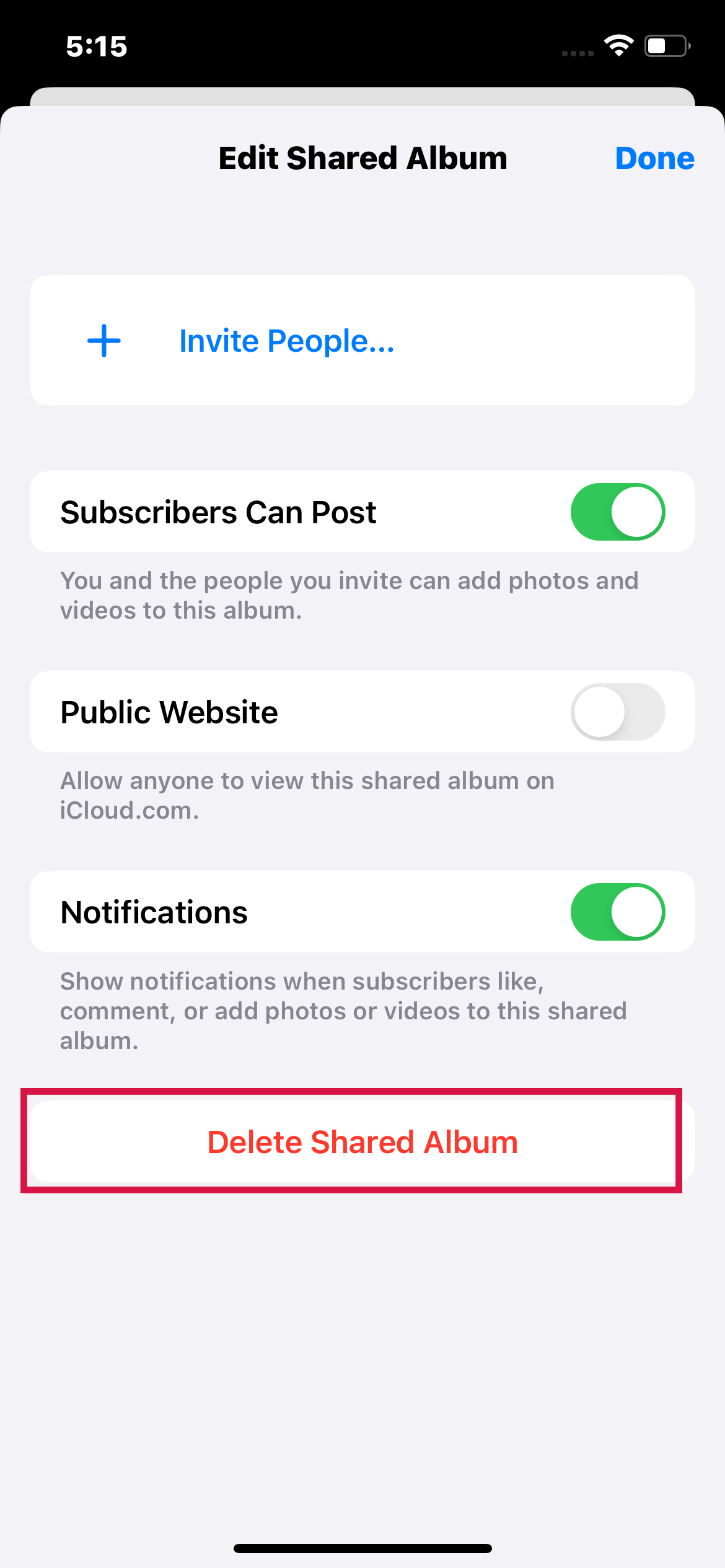
Tap Delete in the window that displays to confirm this action.
How to Accept Shared Album Invitation From Others?
If a friend or family member has shared an album with you, you may need to accept their invitation in order to view their photos and videos and participate in the shared album. This can be done by following the steps outlined below:
- Open your Photos app.
- Select the For You The invitation should be at the top of the list.
- Select Accept.
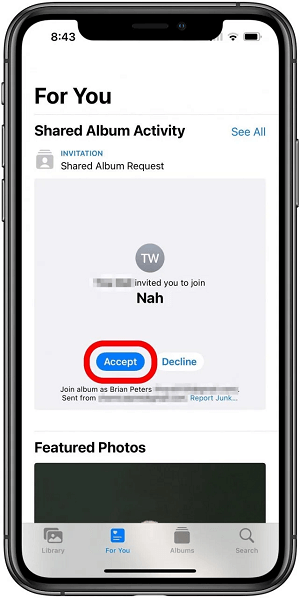
Accept Invitation in Shared Albums
How to Access a Shared Album on iPhone?
Your Shared album can be accessed from the Photos app on your iPhone. It's straightforward to locate.
Steps
- Launch the Photos app on your iPhone.
- Select the Albums option.
- Open the Shared Albums menu.
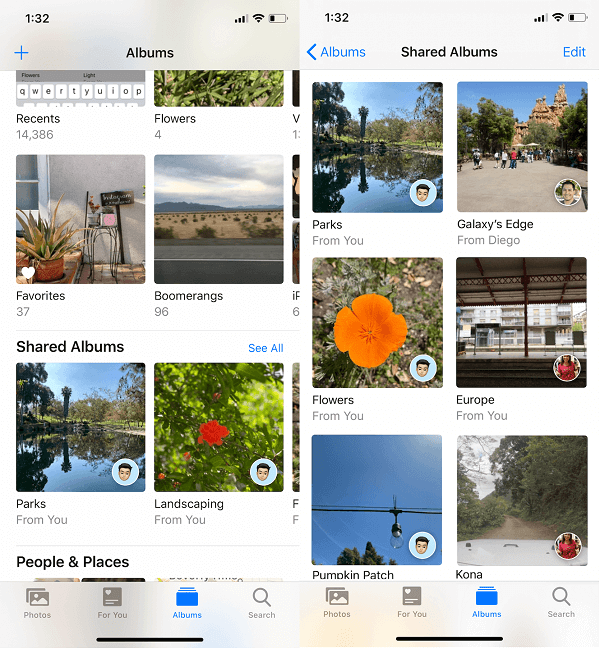
Shared Albums in iPhone Albums
Why Am I Unable to View Photos in a Shared Album?
If photos will not load in a Shared Album, the problem is usually tied to compatibility, connectivity, or a temporary iCloud issue. Work through these checks in order:
- Your iPhone does not meet system requirements. Shared Albums work best on supported Apple devices with reasonably current software.
- Photos can't use cellular data. Go to Settings > Cellular and turn on Photos to let Photos use cellular data.
- The iCloud Photos service is down. Check Apple's System Status page before changing settings, because a temporary outage can stop albums from loading or syncing.
- There isn't a good Wi-Fi connection. Try using your cellular data or connect your iPhone to another Wi-Fi network.
How to Share Photos Using My Photo Stream?
My Photo Stream was an older Apple syncing feature that sent recent photos to your other devices automatically. It is no longer Apple's current sharing option, so most iPhone users should rely on iCloud Photos or Shared Albums instead.
When it was active, My Photo Stream handled recent photos rather than a full photo-and-video library, and it was separate from Shared Albums. For current iPhone sharing, Shared Albums is more relevant because it lets you invite specific people and keep the album visible in Photos.
My Photo Stream only saves your photos for 30 days, and it did not use iCloud storage. Apple shut the service down in July 2023, so this older feature will not automatically appear as a current sharing method on modern iPhones.
Steps
- Open the Settings app.
- Then, select Photos.
- Select Upload to My Photo Stream from the menu.
- My Photo Stream will then appear as its own album in the Photos app. Go to the My Photo Stream album and select the Share icon > Save Image to save a photo.
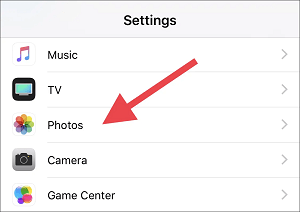
Photos in iPhone Settings
These are the main steps for how to create and share an album on your iPhone. Whether you want to share your photos with friends and family or back them up so they stay accessible, this article provides the information you need to get started.
Always visit Mobitrix for the latest tips and tricks on getting the most out of your iPhone. Thanks for reading!
