
You can share your iPhone, iPad, or Mac screen in FaceTime when you want to walk someone through an app, show a webpage, or review something together live.
This guide covers the current steps for FaceTime screen sharing, how FaceTime links work, and what still requires SharePlay support in 2026.
Share Screen On iPhone/iPad
FaceTime screen sharing allows anyone on the video call to see what's on the caller's display. A caller can share almost anything, including a photo, webpage, or app.
Here's what everyone needs:
- An iPhone or iPad.
- Update your iPhone or iPad to iOS 15 or iPadOS 15.1 or later.
Steps:
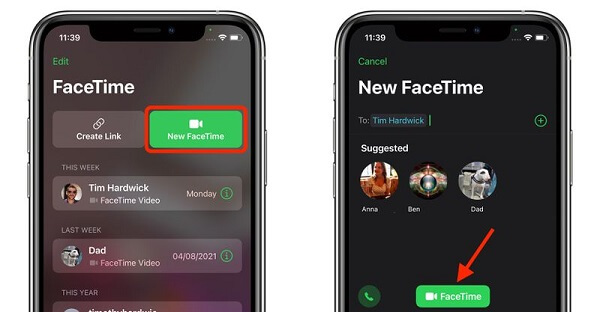
- Launch the FaceTime app on your iPhone or iPad.
- Tap New FaceTime and add contacts, then tap the FaceTime button. Alternatively, select a recent contact to initiate a video call.

Text: Start new FaceTime call
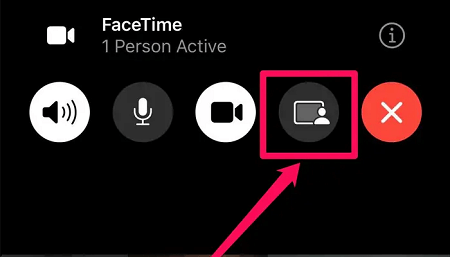
- Tap the Share Content button at the top of the screen.
The Share Content button
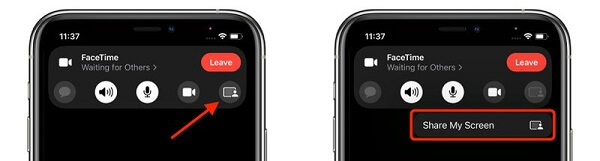
- In the pop-up window, tap Share My Screen.
Share My Screen popup
- You can now display any app or content you like and everyone on the call will see what you see on your iPhone or iPad.
Share FaceTime Screen On Mac
Sharing your Mac screen is useful for demos, troubleshooting, or reviewing a document together. In current macOS releases, you can share one window, all windows from one app, or the entire screen.
Here's what everyone needs:
- A Mac running macOS MacOS Monterey 12.1 or later.
Steps:
- Start a FaceTime call as usual.
- While on the call, open the app you'd like to share.
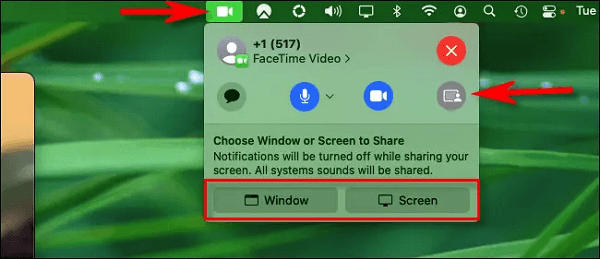
- On the Menu bar, click on the FaceTime icon.
- Tap the Screen Share button.
- Choose either the Window or Screen option.
Screen sharing on Mac
New Features of FaceTime in iOS 16:
If you're using a newer iPhone, many of the FaceTime changes introduced in iOS 16 still shape the current calling and sharing experience. Below are the updates from that release that still matter while you use FaceTime.
Transparent FaceTime Video Call UI
Apple has updated the UI in FaceTime video call iOS 16 to be transparent. The buttons for the camera, microphone, message, speaker, and SharePlay are now larger and easier to tap.

Transparent video UI
iMessage Mention Suggestions Now Include Contact Images
Mention suggestions now include a contact image in the Quick Tap bar for easier reference in group chats where multiple people may share a first name.
Entirely Redesigned Video Player UI
Apple has redesigned the stock video player UI in iOS 16 by highlighting basic controls such as volume, play/pause, and Picture in Picture.
Redesigned Voice Messaging Experience in iMessage
The redesigned voice messaging allows users to tap, hold, and record messages more quickly and record voice messages with the new Dictation button. Also, it's now possible to skim through voice messages on iOS 16.
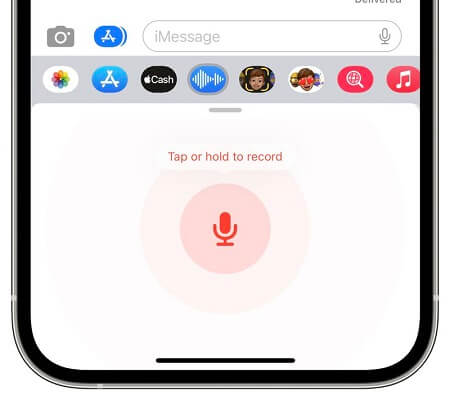
Redesigned voice message experience in iMessage
Privacy Access History
On iOS 16 users can check which apps have recently accessed their iPhones' camera, microphone, location, and other sensitive sensors. iPhone holders can access the new view by tapping on the top of the Control Center shortly after an app has used access.
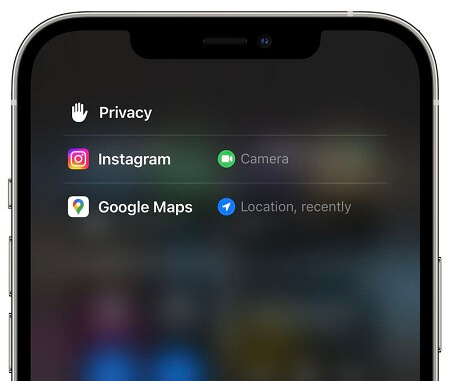
Apps privacy access history
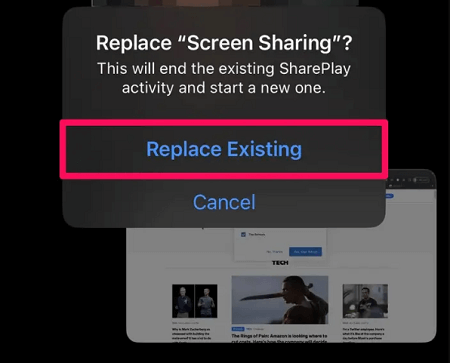
You Can Take Over Screen Sharing From Someone Else
If another participant is already sharing, you can start sharing your own screen instead. FaceTime then asks whether you want to replace the current shared screen for everyone on the call.
Steps:
- Tap the Share Content button.
- Click on Share My Screen.
- Tap Replace Existing.
Take over screen sharing from someone else
How To Join A Screen Sharing Session In Facetime
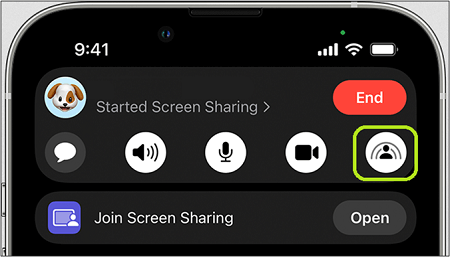
Sometimes, you might be on the receiving end of a FaceTime call. Probably, from a friend, family member, or perhaps a workmate who wants your input on a project.
Steps:
- Receive the FaceTime call.
- Tap Open next to Join Screen Sharing.
Join a screen sharing session on FaceTime call
How To Create a FaceTime Link For Others
Apple changed how FaceTime works in iOS 15. Like a Zoom link, you can create a FaceTime link that other people can tap to join your FaceTime call.
Steps:
- Open up the FaceTime app.
- Tap the Create Link option next to New FaceTime.
- Copy the link to share it in a text message, an email, or AirDrop it, and people can click it to join in.
Create and share FaceTime link

Fun Features Of Using FaceTime With Your Friends & Family
Sharing is caring. Use FaceTime to stream TV shows, movies, and music in sync with friends and family while on a FaceTime call together.
Watch Videos Together With Facetime
FaceTime's SharePlay feature lets you watch supported shows, movies, and live sports in sync during a call. Everyone on the call needs access to the same content, and some titles may still be limited by region.

Steps:
- Launch FaceTime call.
- In a streaming app like Apple TV, find a show you want to watch and check its details.
- Tap SharePlay.
- In the To field, enter the contacts you want to share with, then tap FaceTime.
- When the FaceTime call connects, tap Start or Play to begin using SharePlay while recipients tap Open.
Listen to Music Together With Facetime
You can also listen to music together during a FaceTime call. Anyone on the call can pause, skip, or add tracks to the shared queue in apps that support SharePlay.
Steps:
- Start a group FaceTime call.
- Launch a Music app that supports SharePlay.
- Select the music you want to listen to, then tap the Play button to begin listening to the music together.
Listen to music together with FaceTime

FAQs About Facetime
Q1: Most of my friends use Android and Windows. Can I share a screen during a FaceTime Call?
Android and Windows users can only receive FaceTime links and join meetings via the browser.
In regards to Apple, FaceTime has limited functionality on Android and Windows. Besides, SharePlay is designed to play only within the Apple ecosystem and can only be used if you have an iPhone, iPad, or Mac.
Q2: Can you screen share Netflix on FaceTime?
Only if the app supports SharePlay. Open the video app during the call and look for a SharePlay option before you assume synced playback will work.
Q3: Why do I find it hard to share my screen on FaceTime with iOS 15?
Apple recently announced that the SharePlay feature for FaceTime would arrive with iOS 15.
Updating your iPhone to the latest iOS version available for your device is still the best first step, especially if SharePlay or screen sharing buttons are missing.
FaceTime screen sharing is still one of the simplest ways to show an app, webpage, or photo live from your iPhone, iPad, or Mac. Just remember that everyone needs compatible software, and SharePlay video or music requires a supported app.
Eventually, I hope this article answers all your queries, and you'll be able to share content with your loved ones as if they were in the same room.
