
Running into the "Storage Almost Full" alert right when you want to take a photo is frustrating. If that keeps happening, the real fix is to figure out whether you need more cloud space, less clutter on the device, or another place to keep large files. This guide walks through five practical ways to get more usable storage on your iPhone.
Some options cost money and some only take cleanup time, so you can choose the method that fits your budget and how often your storage fills up.
Can I buy iPhone Storage?
No, you cannot add more built-in storage to an iPhone after you buy it. The internal capacity is fixed at purchase. What you can buy is extra iCloud storage, which gives you more online space for backups, photos, videos, and files.
iCloud works across Apple devices, so it is useful when you want your content backed up and available on the same Apple Account. It does not change the physical storage inside the phone, but it can reduce pressure on local space when you store more items in the cloud.
What's iCloud Storage?
iCloud storage is Apple's online storage service. It can hold photos, videos, documents, app data, backups, and other synced content, letting you open the same files on devices signed in to your Apple Account.
The key difference is simple: iPhone storage is the space built into the device, while iCloud storage lives online. That means iCloud can protect and sync your data, but it is not a hardware upgrade for the phone itself.
Apple includes 5GB of free iCloud storage with every account. If that fills up, you can upgrade to iCloud+. If you would rather avoid another subscription, the alternatives below can still help you free up room.
Way 1 Fastest but Not Free: Upgrade to Icloud+ Upgrade to iCloud+
iCloud+ is a premium subscription service that gives you more storage space for your photos, videos, and documents. It also provides other features, such as HomeKit Secure video, iCloud Private Relay, and three plans to choose from. If you need more storage, iCloud+ is the way to go.
Steps to Upgrade on Your iPhone, iPad, or iPod Touch
- Open Settings.
- At the top of the screen, tap your name.
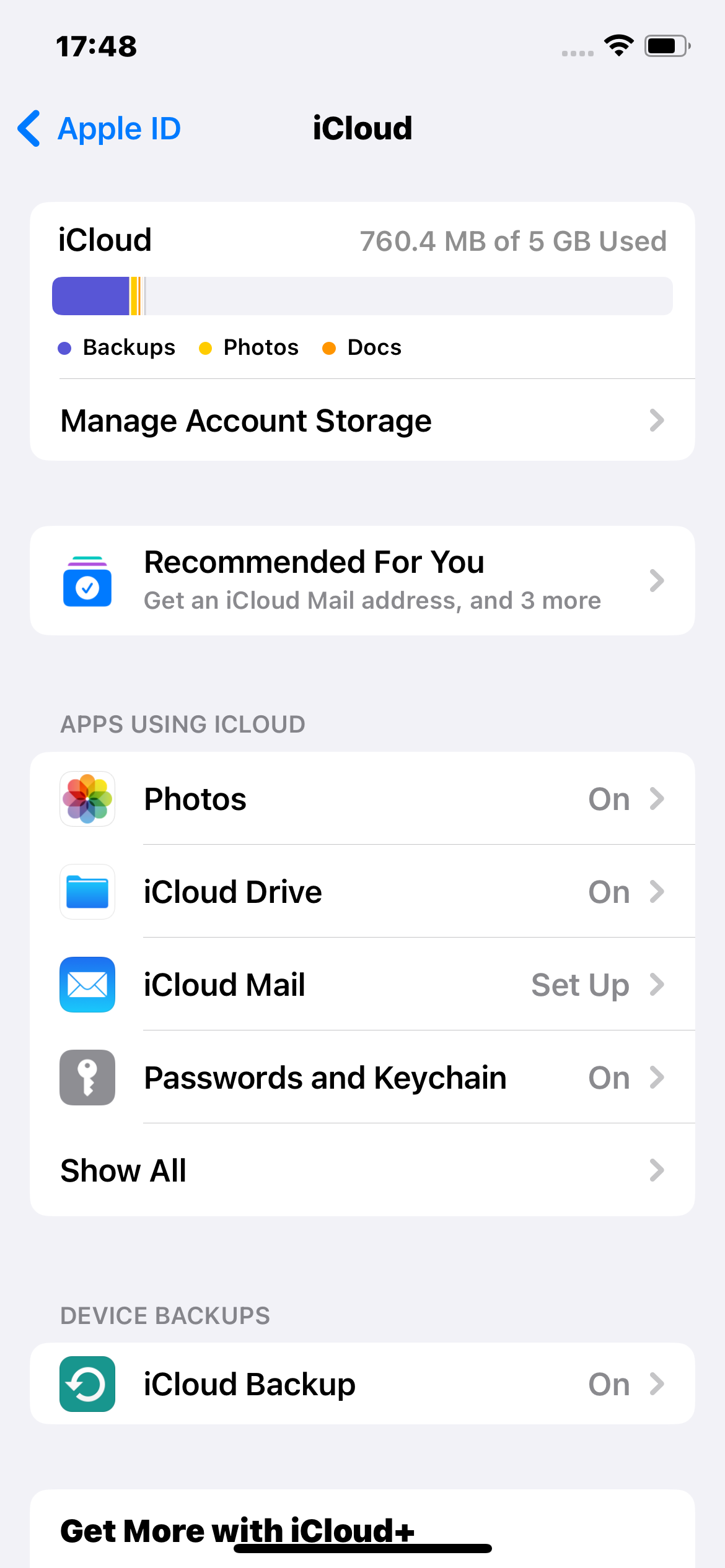
- Select iCloud.
- Choose Manage Storage (If you have never upgraded your iCloud storage plan) or iCloud Storage (if you have already upgraded your storage but need to do so again).
- Select Buy More Storage or Change Storage Plan.
- Select a plan and then respond to the on-screen instructions.

Upgrade iCloud Storage
After selecting a storage plan, double-press your phone's side button or enter your payment card details to confirm. After confirmation, Apple will charge you monthly unless you cancel.
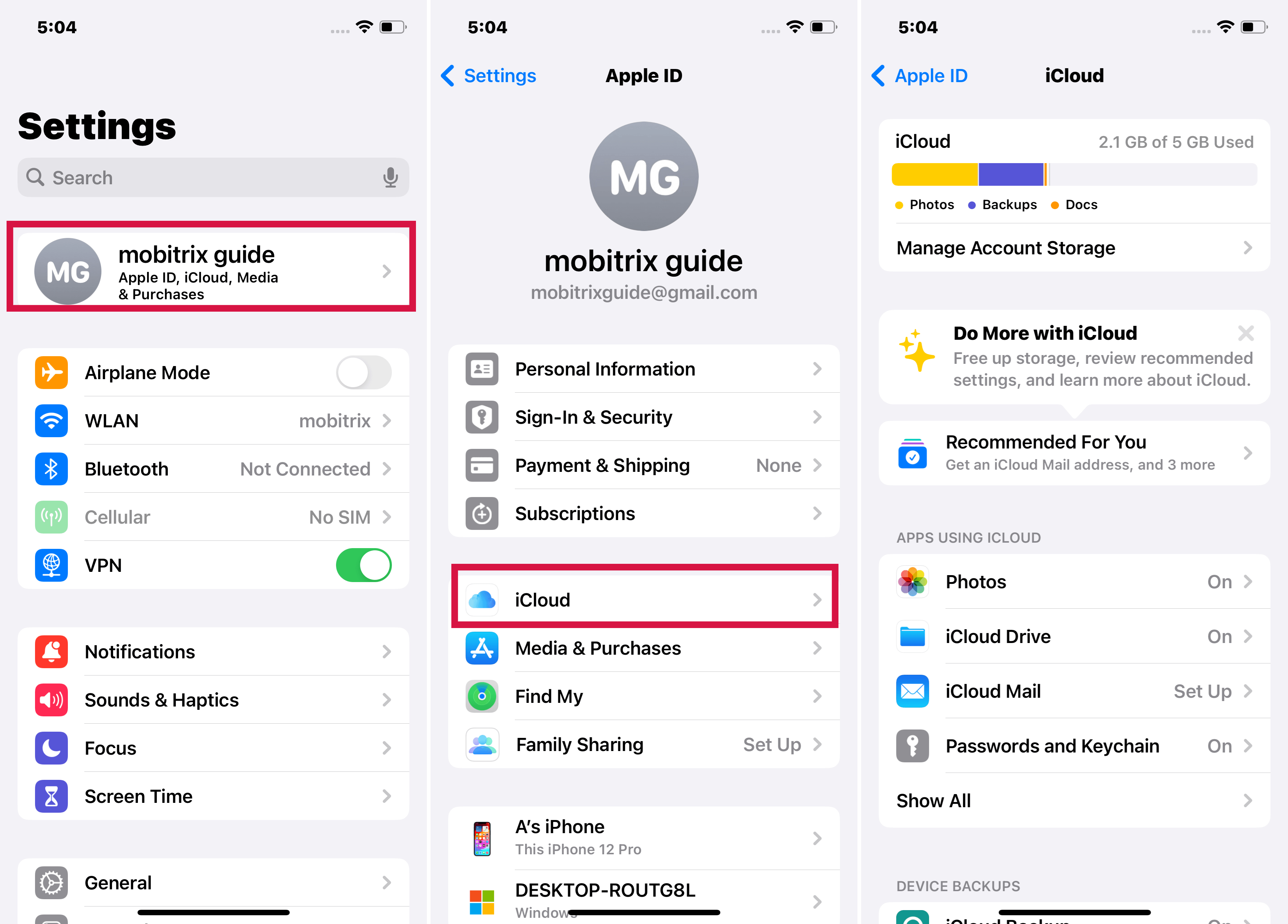
Click iCloud on iPhone Settings

Steps to Upgrade on Your Mac
- Select Apple menu > System Settings, then click your name.
- Select iCloud.
- In the lower-right corner, click Manage.
- Select a plan by clicking Change Storage Plan or Buy More Storage.
- Enter your Apple ID password and click Next.
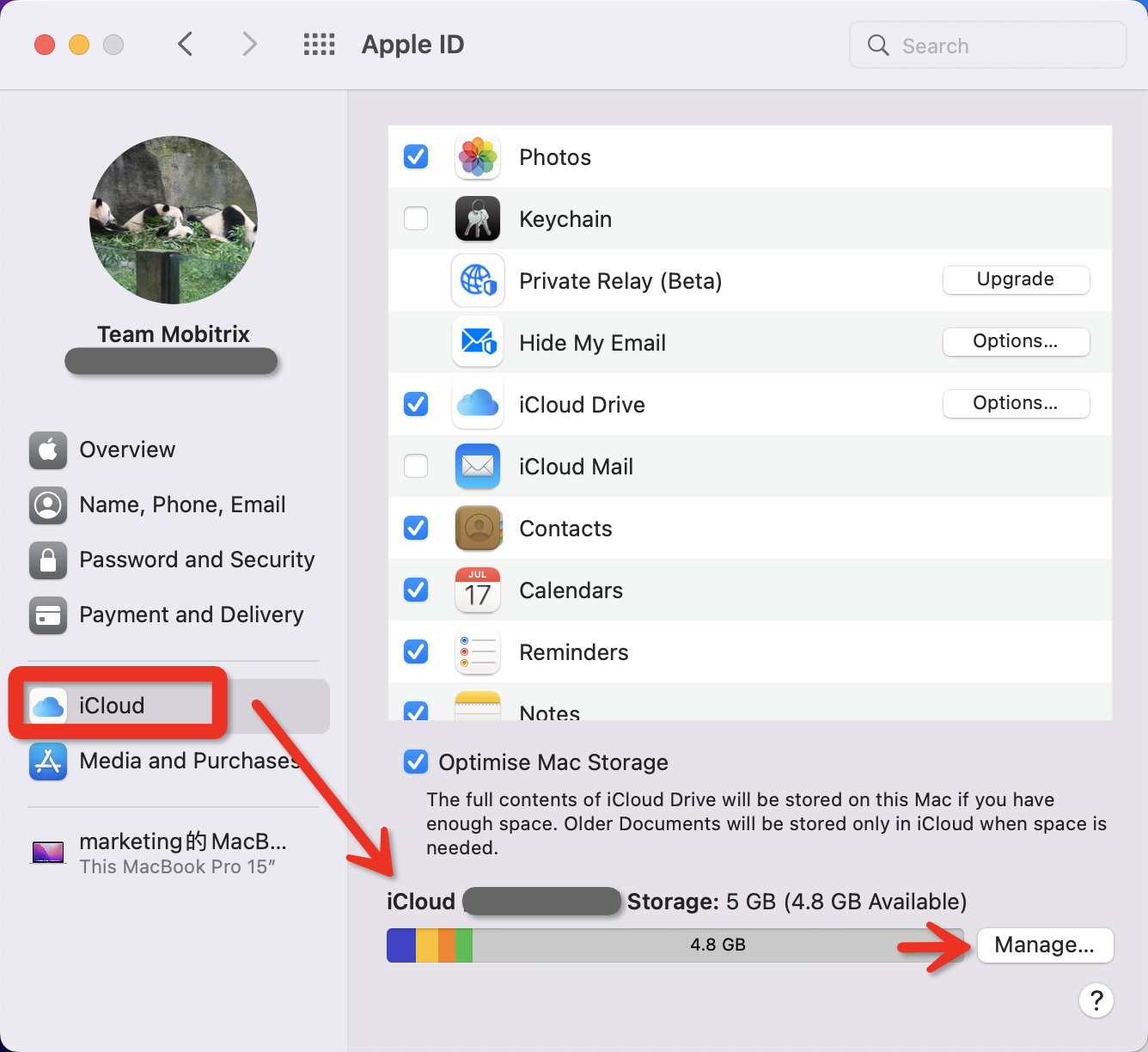
Manage iCloud Storage on Mac
Steps to Upgrade on Your Windows PC
- Open iCloud for Windows.
- Select Storage.
- Choose Change Storage Plan from the drop-down menu.
- Select a plan, then press the Next button.
- Enter your Apple ID password, followed by the Buy botton.
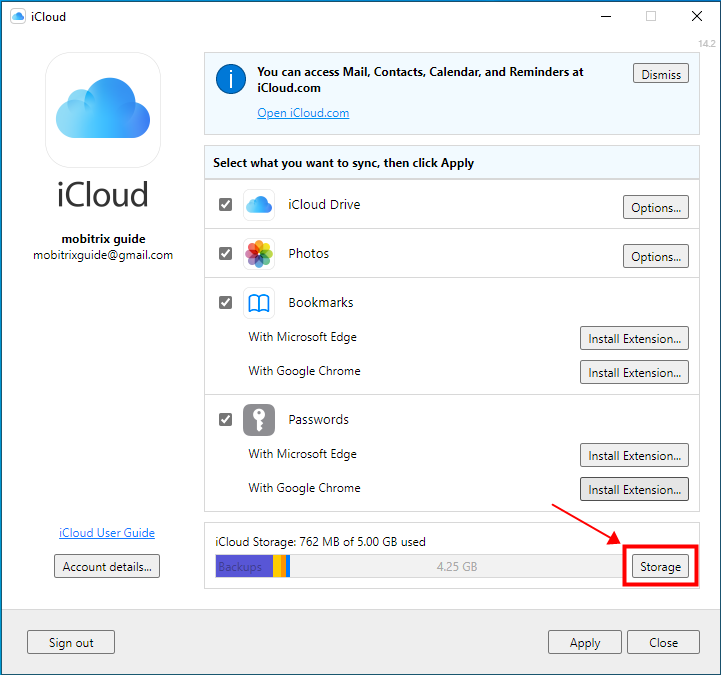
Manage iCloud Storage on Windows
How to Choose the iCloud+ Plan
To choose the right iCloud+ plan, consider your storage needs and budget. There are three different plans to choose from, so you can choose the one that best fits your needs.
| Plan | Price | Services |
|---|---|---|
| iCloud+ with 50GB storage | $0.99 each month, which is mostly sufficient to back up both an iPad and an iPhone using the same Apple ID. |
|
| iCloud+ with 200GB storage | $2.99 each month, which all the family's devices can use collectively. |
|
| iCloud+ with 2TB storage | $9.99 each month, which all the family's devices can use collectively as well. |
|
Tips: The pricing may vary depending on your region and country. Learn more about the iCloud+ plans and prices in your region.
Way 2 Alternatives to iCloud: Choose Other Cloud Drive
Consider choosing a cloud drive from a third-party provider if you are looking for an affordable alternative to iCloud+ storage. Many popular options are available, such as Dropbox, Google Drive, and Microsoft OneDrive. Each service offers different features, pricing tiers, and levels of security.
Google Drive is a cloud storage solution that gives users 15 GB of storage across Google Drive, Gmail, and Google Photos. You can buy more storage within Google Drive or upgrade to Google One to get extra benefits.
Steps to Buy Storage via Google Drive App on iPhone
- Open the Google Drive app on your iPhone or iPad (Download the Google Drive app if you don't have it installed).
- Tap Menu and select Storage in the upper left corner.
- Hit the Get more storage option.
- Select a new storage limit.
- Confirm your payment.
- Tap Done.
Steps to Buy Storage via the Google One App on iPhone
- On your iPhone or iPad, install the Google One application.
- Ensure that you are logged into your Google account.
- In the Google One app, tap Upgrade at the bottom.
- Select the cost and payment date for your new plan.
- Confirm your payment.
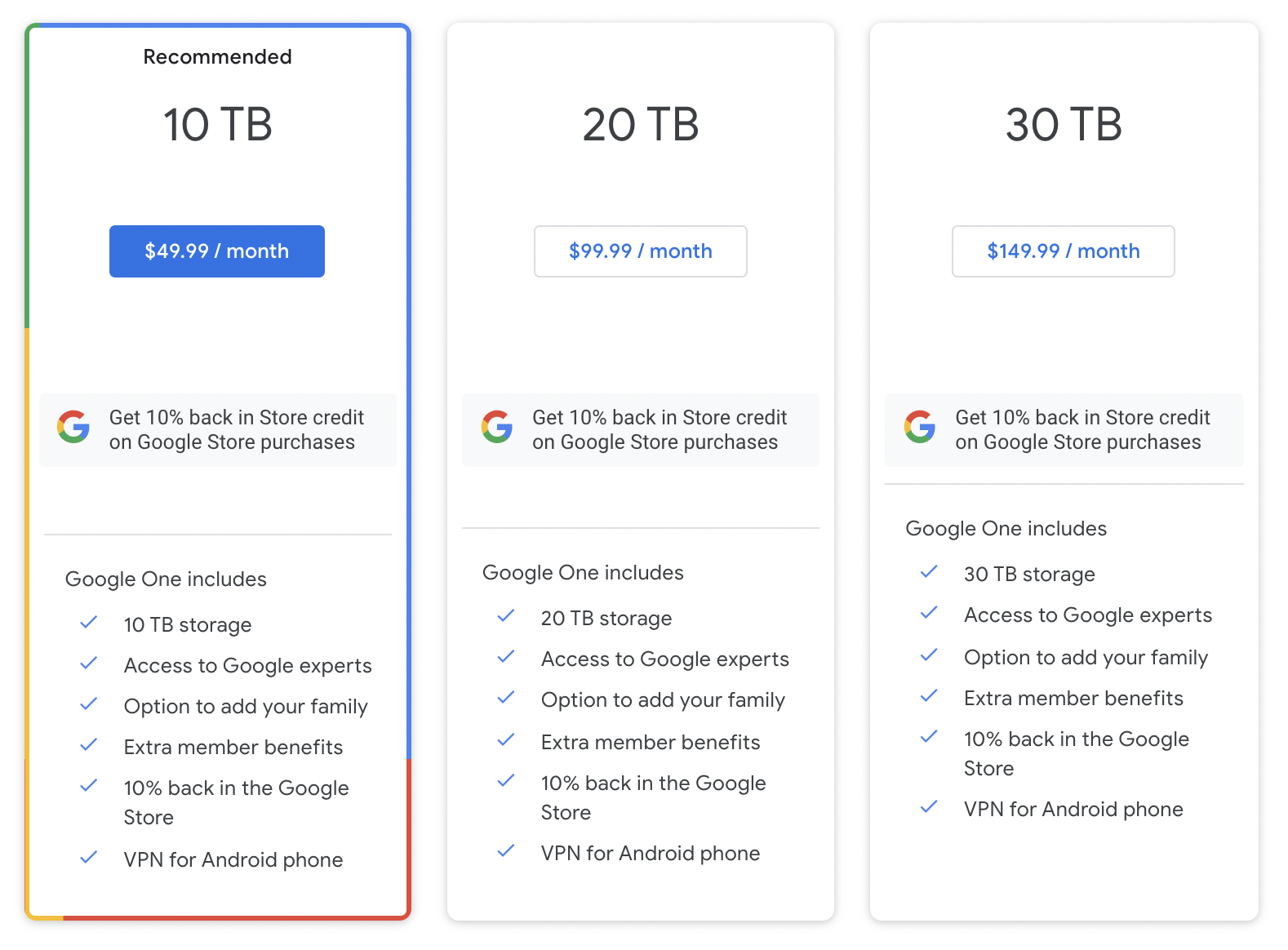
Price of Google One Plans

Way 3 Free but Time-Consuming: Clean Your iPhone's Storage
Another way to get usable space back is to clean up what is already on the iPhone through Settings. This costs nothing but time, and it works especially well when large apps, downloads, videos, and duplicate photos are taking up most of your storage.
Steps
- Go to Settings > Tap on General.
- Tap on iPhone Storage.
iPhone Storage
Here, you'll see a category-by-category breakdown of what is using space and how much room is still available.
To free up more storage space on your iPhone, you can delete duplicate photos and large files or uninstall unused apps. temporarily.
On newer iOS versions, this screen may also show recommendations such as offloading unused apps or reviewing large attachments. Offloading removes the app itself while keeping its documents and data, so reinstalling it later restores what was saved.
Way 4 Automated Storage Management but Not Free: Use Professional Tools
If you are looking for a more advanced way to manage your iPhone storage, several professional tools can help you get the most out of your device. These tools provide a variety of features, including the ability to clean up unwanted files, erase deleted files, and even erase fragments.
While each tool has its unique set of features, all of them can provide a great way to get more out of your iPhone's storage. If you are looking for an easy way to free up space on your device, consider using one of these tools.
Way 5 One-Time Cost, but Not Very Convenient: Use External Drive
Another way to work around limited space is to use an external drive. These accessories are often sold as flash drives, card readers, or portable SSDs for mobile devices, and they are useful when you want to move large videos, photos, or project files off the phone.
The exact connection depends on your iPhone model. Newer iPhones with USB-C can connect to many USB-C drives directly, while Lightning models may need a compatible adapter. After the drive is connected, you can browse and transfer files in the Files app.
Pros
- The hardware is purchased at a fixed, one-time cost; there are no recurring subscription fees.
- External storage is simple to use.
Cons
- If you intend to use an external hard disk, it may require a power source to operate correctly (or, at the very least, not drain your iPad battery) when connected.
- You must use the Files app to view your external device's contents.
How to Downgrade or Cancel Your iCloud+ Plan When You Don't Need It.
If you don't need your iCloud+ plan anymore, you may wonder how to downgrade or cancel it. While the process varies depending on where you started your subscription and your type of plan, there are a few steps to follow to help ensure a smooth transition.
Steps
- Launch the Settings app > Tap your name > Select iCloud.
- Choose either Manage Account Storage or Manage Storage.
- Select Change Storage Plan.
- Tap Downgrade Options and type your Apple ID password.
- Select a different plan:
- Choose a new storage amount to downgrade your plan.
- Choose thefree 5GB plan or None to cancel iCloud+.
- Select Done.
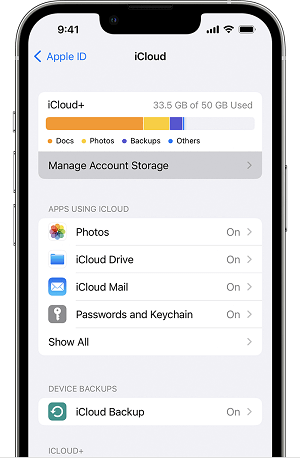
Manage Account Storage On iPhone
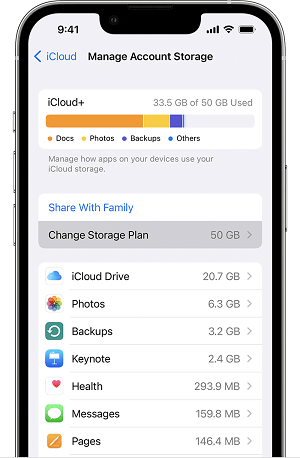
Change Storage Plan On iPhone
How to Save iPhone Storage
If you are looking for ways to save iPhone storage, one of the best options is to delete old files and unused apps. This can free up space for new photos, videos, files, or backups – allowing you to get more out of your iPhone's storage.
Steps
- Go to Settings > General.
- Select Storage, and a comprehensive memory breakdown will appear. Check to see how much space you have used up.
- To delete a file:
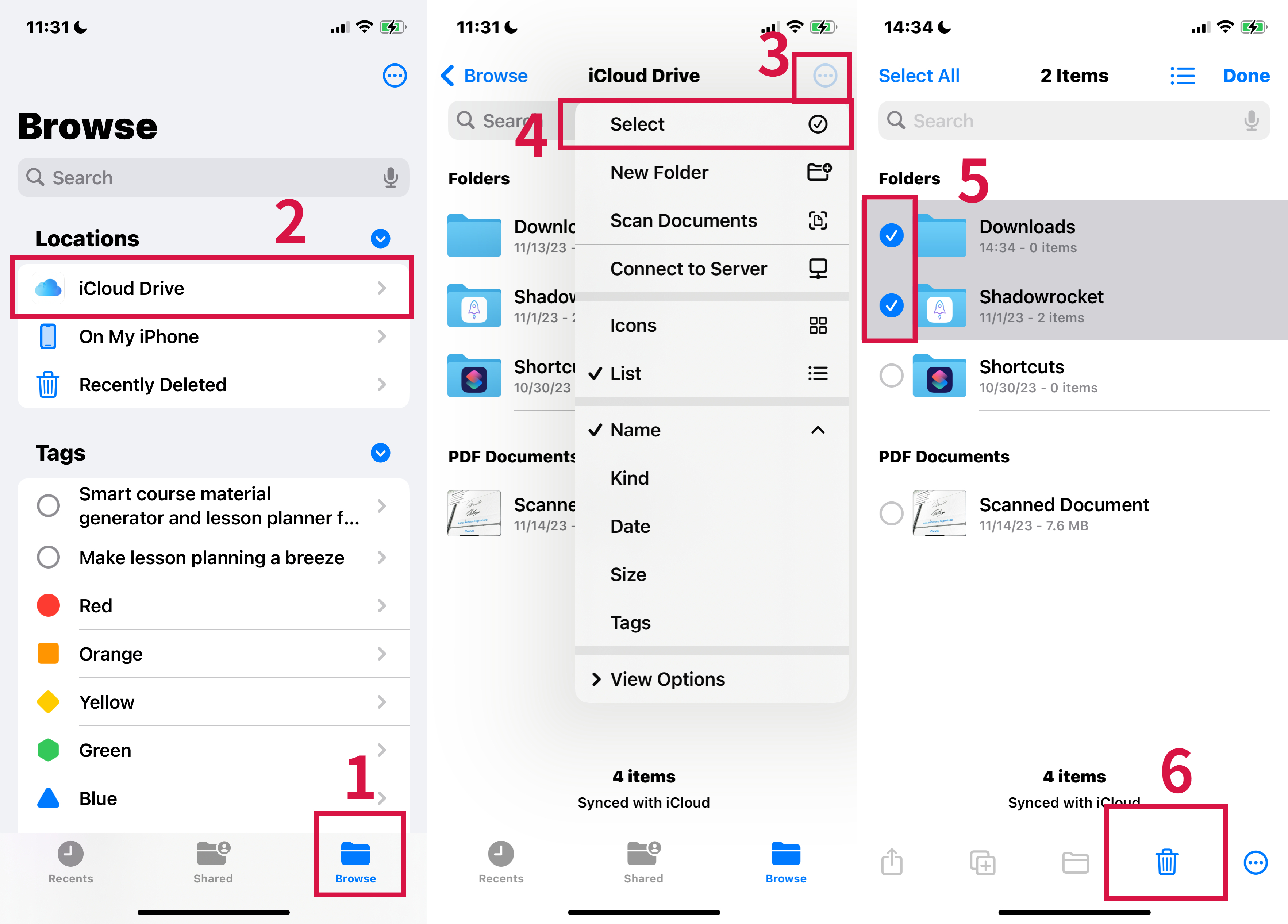
- Launch the Files app.
- Open the folder containing the file you wish to delete.
- Hold the file button down.
- From the pop-up menu, select Delete.
Steps To Delete Files from Files App
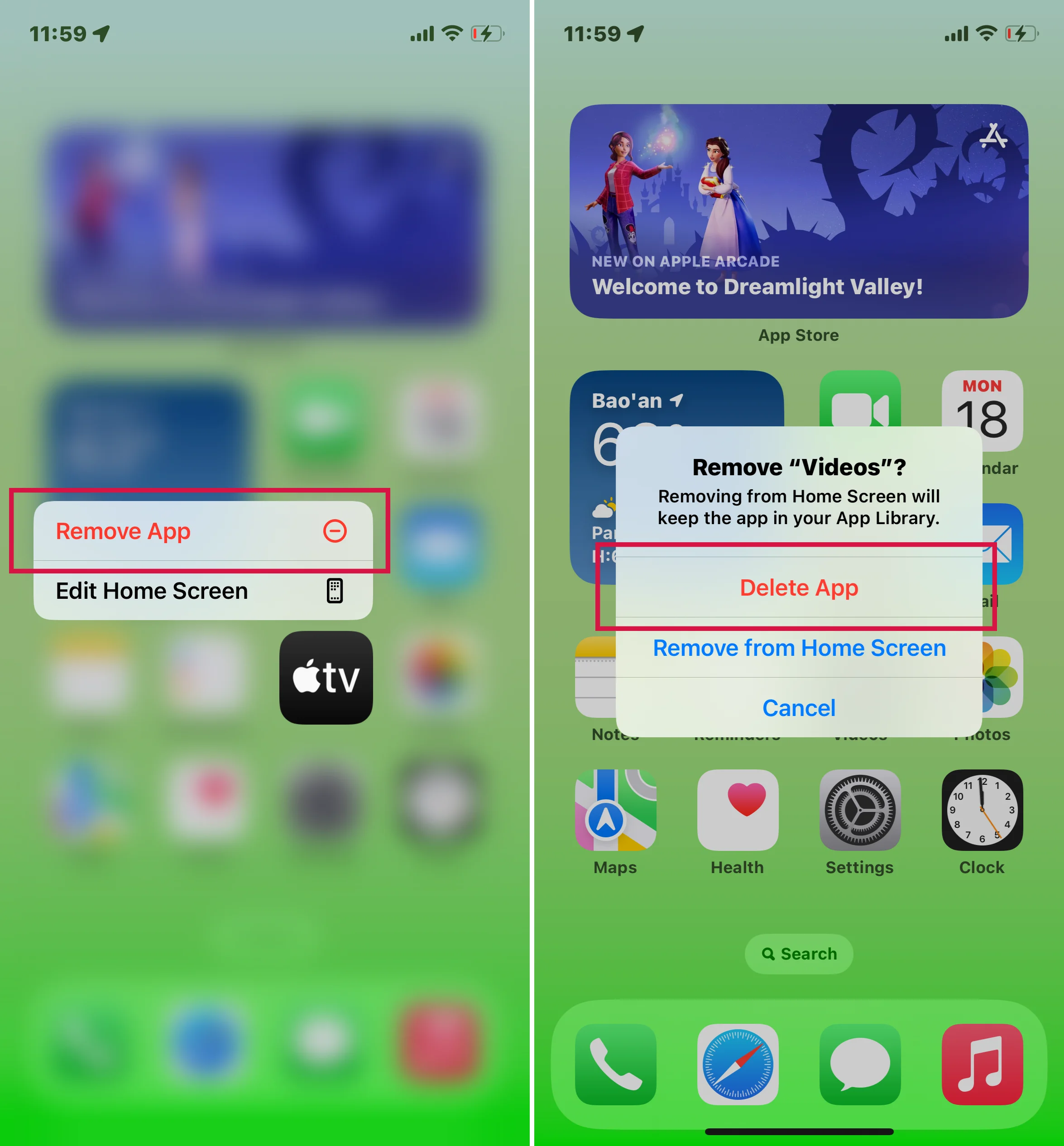
- To delete an app:
- Hold the app in question.
- Tap the Remove button.
- Select Delete.
CSteps To Delete Files from Home Screen
How to Get More Storage Available in iCloud via Optimizing File Size
When you run out of storage space in iCloud, your device won't back up, and new videos and photos won't upload to iCloud Drive and iCloud Photos. Other iCloud apps and messages won't sync between devices, and iCloud email won't work either. To free up more space in your iCloud storage, consider using one of these solutions:
Reduce the Size of Your iCloud Backup
You can reduce the size of your iCloud backup and free up some space in iCloud by stopping the automatic backup of apps you don't use or deleting old iCloud backups.
Delete Photos in iCloud Photos
If you are using iCloud Photos and have lots of photos taking up space, you can delete some old or unwanted photos to reduce the backup size. Remember to always back up your photos and videos before deleting anything.
Delete Folders or Files in iCloud Drive
If you are using iCloud Drive, you can quickly free up storage space by deleting old or unwanted files or folders in your drive. If you don't want specific files to be backed up on iCloud, consider moving them to a different cloud storage platform like Google Drive.
Delete Texts and Attachments in Messages
The Messages app can be a significant source of wasted space in iCloud. Deleting old messages and attachments, such as photos and videos, can help you reclaim storage space and make it easier to keep your messages organized.
Delete Messages and Manage Mail
The Mail app can also take up a lot of space, especially if you receive and send emails daily. To free up some space and keep your emails organized, consider deleting messages you don't need or setting up automatic rules to delete spam emails.
Delete Voice Memos
Using the Voice Memos app to record voice memos can take up a lot of space in iCloud. Deleting voice memos frequently is a great way to free up some extra space on your iPhone.
FAQs about iPhone Storage
To help you make the most of your iPhone's storage, we have compiled a list of frequently asked questions about managing iPhone storage.
1. What Exactly Is "Other" in iPhone Storage?
On current iPhone storage screens, that catch-all area is usually shown as System Data or a similar category rather than just Other. It can include caches, logs, fonts, voices, and other system-managed files that do not fit neatly into app or media totals.
For instance, to delete website data on Safari, go to Settings > Advanced > Website Data and select Remove All Website Data.
2. What Does "Media" Mean in the iPhone's Storage?
When you check your iPhone's storage, you might see a section called "Media." This includes any music, movies, or images stored on your device outside the Photos app. So, if you've downloaded tracks in Apple Music or saved videos to your device, they'll be included in this category.
3. Can I Insert a Sim Card Into My iPhone to Increase Storage?
No, you cannot insert a SIM card into your iPhone to increase storage. A SIM card helps your iPhone connect to your carrier network, but it has nothing to do with how much space is on your device.
4. Will an SD Card Increase the Storage on My iPhone?
No. MicroSD cards are external storage devices to increase your phone's storage. Many Android phones come with a MicroSD slot, making adding more storage easy. However, iPhones do not have a MicroSD slot. This means that you can't use a microSD card to increase the storage on your iPhone.
5. How Do You Check Your iPhone or iPad Storage?
To check your iPhone or iPad storage, open the Settings app, select "General", and tap "iPhone Storage."
This will display a breakdown of how much space is being used by apps and content on your device. You can also view individual apps' details to see which files take up the most space.
So there you have it, creative and professional ways to quickly buy more storage on your iPhone. With any of these methods, you can get the most bang for your buck regarding additional space. Be sure to try them out today and start enjoying more storage on your device.
Always check Mobitrix for more articles on iPhone tips!
