
Have you switch to a new phone? This guide will tell you how to transfer your WhatsApp backup on Google Drive to a new Android device or an iPhone.
This guide covers the normal Google Drive route for Android and the extra step you need when the destination phone is an iPhone.
Transfer WhatsApp Backup from Google Drive to new phone
Part 1: Transfer WhatsApp Chats to Android Phone via Google Drive Backup
If you recently got a new Android phone, Google Drive is still the standard way to move WhatsApp data between Android devices. First create the backup, then restore it on the new Android phone.
Step 1: Backup WhatsApp Data to Google Drive
Requirements- Active Google Account
- Stable internet connection
- Google Play (usually already installed on your phone)
- Adequate storage space on your phone to complete the back up
Google accounts still have limited storage, and WhatsApp backups on Android count toward that Google storage limit.
Keep in mind that information (media and messages included in your backup) are not protected by WhatsApp’s end-to-end encryption when transferred to Google Drive.
Manual and Automatic BackupsWhatsApp allows users to backup chat history automatically. You can also perform manual backups when needed.
Automatic Backup to Google DriveAutomatic Backups with WhatsApp will be completed based on the schedule you choose during configuration. If you have more than one Google Account, give close attention to which account you use. If you change your account later, you will lose access to those WhatsApp backups.
- Open WhatsApp and go to the “More Options” feature.
- Select “Settings - Chats - Chat backup”.
- Choose “Back up to Google Drive” so WhatsApp saves the backup to the Google account linked to the phone. If the account is not signed in yet, WhatsApp will prompt you during setup.
- Select a frequency for back-ups (Daily, Weekly, Monthly).
- Select the network for backups. Wi-Fi only is usually safer if the backup is large and you want to avoid mobile data charges.
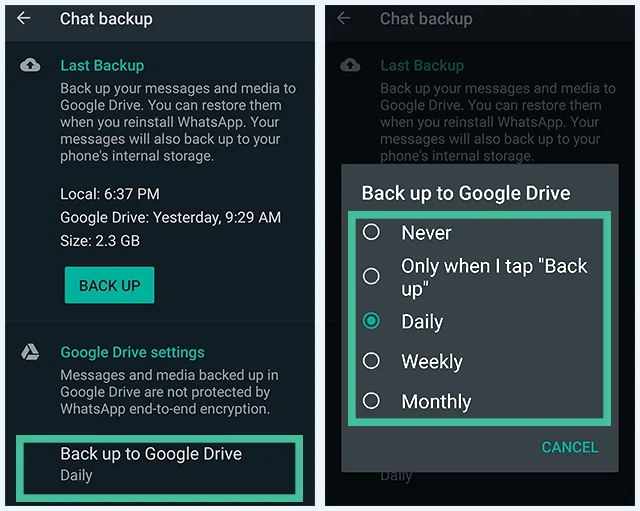
backup whatsapp to google drive on android
- Open WhatsApp and select the “More Options” feature.
- Select “Settings - Chats - Chat backup”.
- Then choose “BACK UP” to manually back up WhatsApp chat.
If your Google Drive is already configured on your Android phone, this will backup your WhatsApp Chat to your Google Drive, regardless of your configured automatic backup schedule.
Make sure you are connected to the internet when performing a back up to avoid extra data fees.
Why Can’t I Backup with Google Drive?
If you’re having trouble creating (or restoring) a backup with Google Drive, it could be due to several common issues:
- You aren’t signed in to your Google Account, or the same Google Account you used for the backup
- Your phone number has changed
- You are using cellular network instead of WiFi
You can read, download, or even delete your WhatsApp backups on Google Drive.
Step 2: Restore Google Drive WhatsApp Backup to a new Android Phone
If you have recently bought a new Android phone, you can easily transfer your WhatsApp chat history to your new phone.
Requirements:- Same Google Account used for backups
- Same phone number used for WhatsApp account
To restore your backup to a new Android device, follow these steps:
- Uninstall WhatsApp and then reinstall again.
- Verify your phone number (must be the same as previously used).
- Select “Restore” option, to restore chat history (including media) from Google Drive.
- Wait for restoration to finalize. When finished, you should be prompted to select “Next”.
- Media files (music, photos, videos) will restore once chat history is restored.
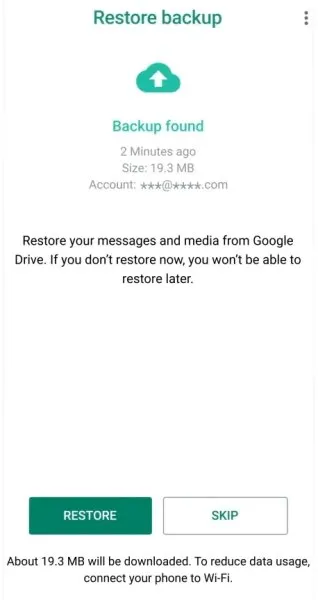
restore whatsapp data google drive
Pros
- Google Drive is the official backup solution recommended by WhatsApp.
- You do not need extra software if the move stays between Android phones and the same Google account is available.
Cons
- Users must reinstall WhatsApp during restore, which can slow the process down.
- The restore only works with the same WhatsApp phone number used for the backup.
- The restore also depends on the same Google account that created the backup.
- Messages are protected inside WhatsApp, but the Google Drive backup does not use WhatsApp's usual end-to-end encryption in the same way.
- The restoration process only works between Android phones. This option will not work if restoring a backup to an iPhone.
Part 2: Transfer WhatsApp Chats to iPhone Via Google Drive Backup
This option is not available with Google Drive.
The official recommendation from WhatsApp for completing backups is Google Drive. According to WhatsApp, this is the easiest way to transfer WhatsApp data to a new phone. But this option is only available to Android users: iPhone users, or those who are switching between iPhone and Android phones must consider third party tools in order to transfer data.
How to Use Mobitrix
Mobitrix WhatsApp Transfer is a safe third-party tool to manage your WhatsApp chats and data between Android and iPhones.

Here is how to restore a backup from Google Drive with Mobitrix:
- First, restore your backup from Google Drive to your Android phone.You will use your Android phone as the “source” and your new iPhone as the “destination” for transferring.
- Download the transfer tool from Mobitrix’s official page and select “Run” to start the program.
- Connect your two phones (Android and iPhone) to your computer using USB cables.
- Select the “Transfer” button and sit back while your data is transferred to your new phone!
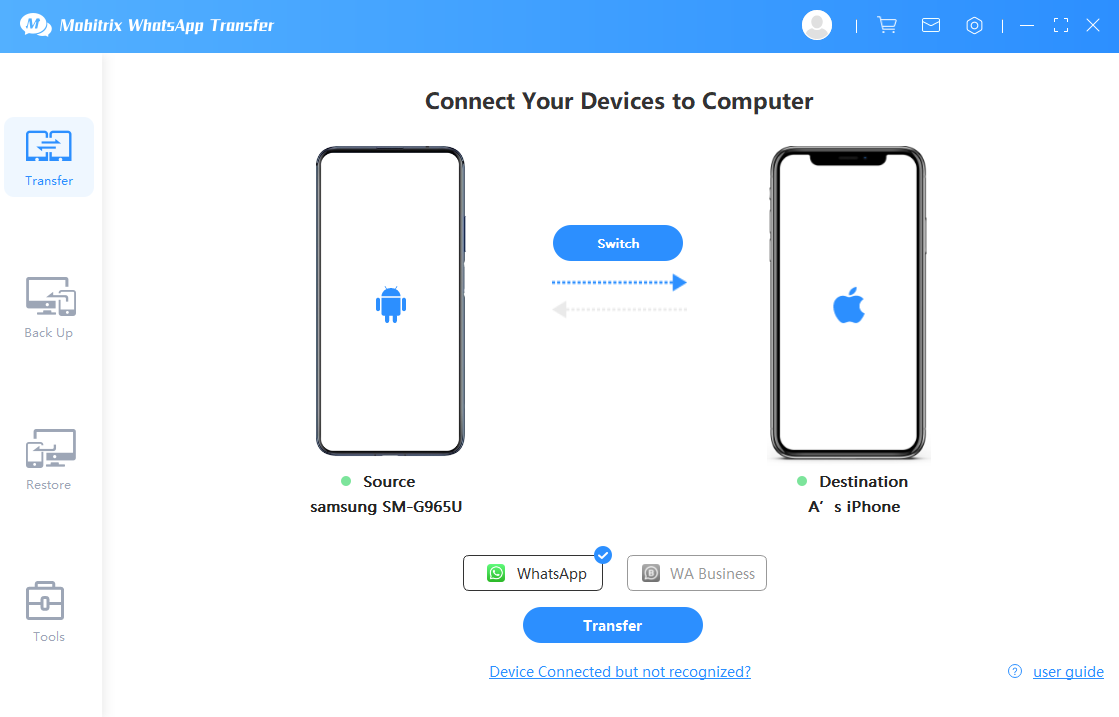
transfer google drive whatsapp backup via mobitrix whatsapp transfer
It’s really as easy as that.
Highlights of Mobitrix:
1. Easy-to-useMobitrix is so easy! You don't need to be tech-savvy or have lots of equipment, just push one button to transfer your WhatsApp data.
2. No need to Uninstall WhatsAppMobitrix offers users the option to transfer data without removing and reinstalling WhatsApp.
3. SecureMobitrix is a safe and secure way to transfer data. We respect that your WhatsApp data is important and we consider your privacy our top priority.
4. Works with Android and iPhoneThe software smoothly supports all Android and iOS device models, including the latest operating systems, Android 16 and iOS 26.
If you want to backup your WhatsApp chat history, the official recommendation from WhatsApp is to backup to Google Drive. But this option is not viable if you have an iPhone, or if you want to transfer data between an iPhone and Android.
Don’t worry! You can still restore your Whatsapp backups to a new iPhone, and restore from Google Drive with Mobitrix’s easy transfer tool. Mobitrix WhatsApp Transfer lets you keep those memories forever.
