
Need to backup your WhatsApp data to local storage on the phone or computer? This guide teaches you how to properly carry out a WhatsApp local backup.
This article is particularly useful for you. It guides you on how to effectively perform a local backup, employing Mobitrix WhatsApp Transfer, a third-party tool, to support the backup process.
Backup WhatsApp to local storage on Android phone
Android phones can lose WhatsApp data after resets, damage, or failed migrations, so a local backup is worth setting up before that happens.
- Open your WhatsApp, then tap on the three dots icon that is on top of your application screen and select the settings option from the dropdown.
- Select chats then go to chats backup option and select ‘1’.
- On the chat backup screen, select on Google Drive setting and check the never option.
- Now click on the backup option to create a WhatsApp local backup of your data.
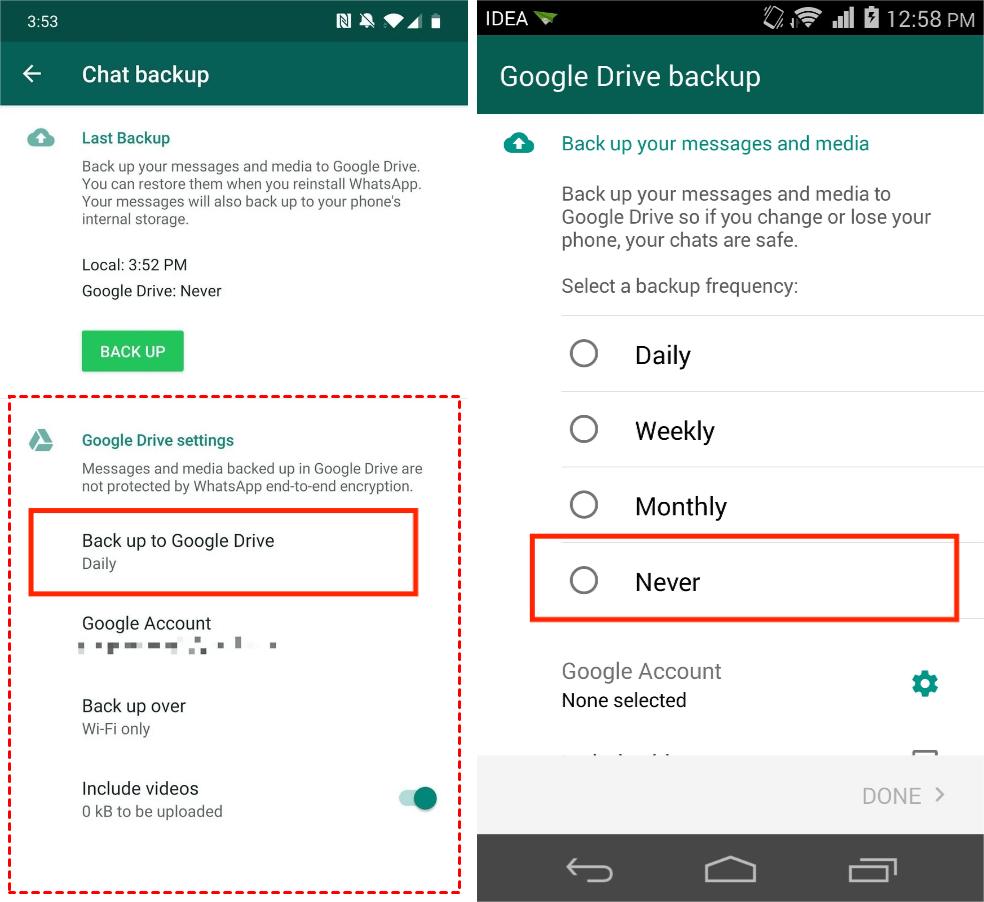
backup whatsapp google drive
With the above steps, a WhatsApp local backup will be created on your SD card (if you have any) or local phone storage in your phone.
A local backup gives you a copy on the phone itself, but it can still be lost if the device is damaged, reset, or wiped.
In an event where you need to access your WhatsApp local backup, just follow the steps below:
- Go to your file manager on your Android phone.
- Click on your device storage or SD card if you have it on your phone.
- Traverse to WhatsApp, then to the database folder. From there you can access the backup of WhatsApp chats.
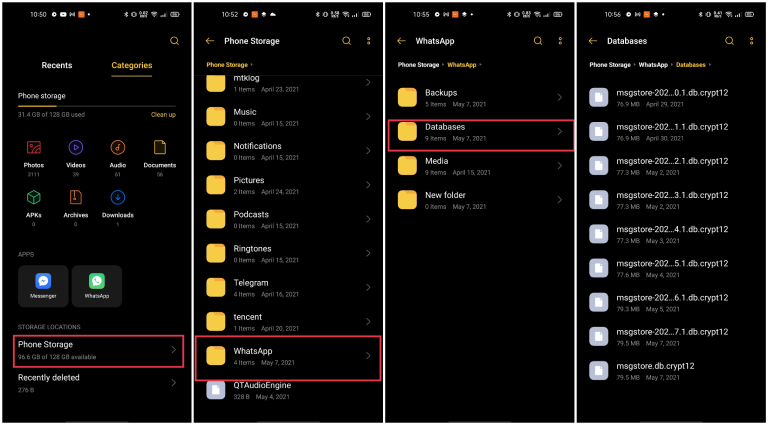
file manager whatsapp
And that’s it, you’ve successfully created and accessed your WhatsApp local backup.
Backup iPhone/Android WhatsApp messages to local storage
Creating a WhatsApp local backup is easy; but it has its bucket of disadvantages as highlighted below.
- Phone storage fills up faster than computer storage, which can limit how large a local WhatsApp backup can grow.
- If the phone is lost, damaged, or reset, the local backup on that device may be lost too.
- iPhones do not support local backups for WhatsApp data; they only allow backups to be stored on iCloud, which can be a limitation for users.
Considering all the above shortcomings of local backup, we bring to light another better and easy way of creating WhatsApp local backup via Mobitrix .

Mobitrix is one of the best ways of creating WhatsApp backup. The features below make it stand out as the best third-party tool for backups.
- The backup is stored on your computer, so the practical limit is the free space on that computer.
- Easy restoration of your WhatsApp backup without the need of restarting or reinstalling your application.
- It supports both WhatsApp Messenger and WhatsApp business.
- Mobitrix is compatible with different phone models.
For these reasons, Mobitrix becomes most suitable for WhatsApp local backups. The steps below will guide you on how to install and use Mobitrix.
- On your computer download the Mobitrix WhatsApp transfer tool and install it.
- Open the tool on your computer and select backup WhatsApp on devices.
- Via a USB cable, connect your iPhone or Android to the computer, and once it's detected, click on backup and the WhatsApp local backup process commences. Just wait till it completes.
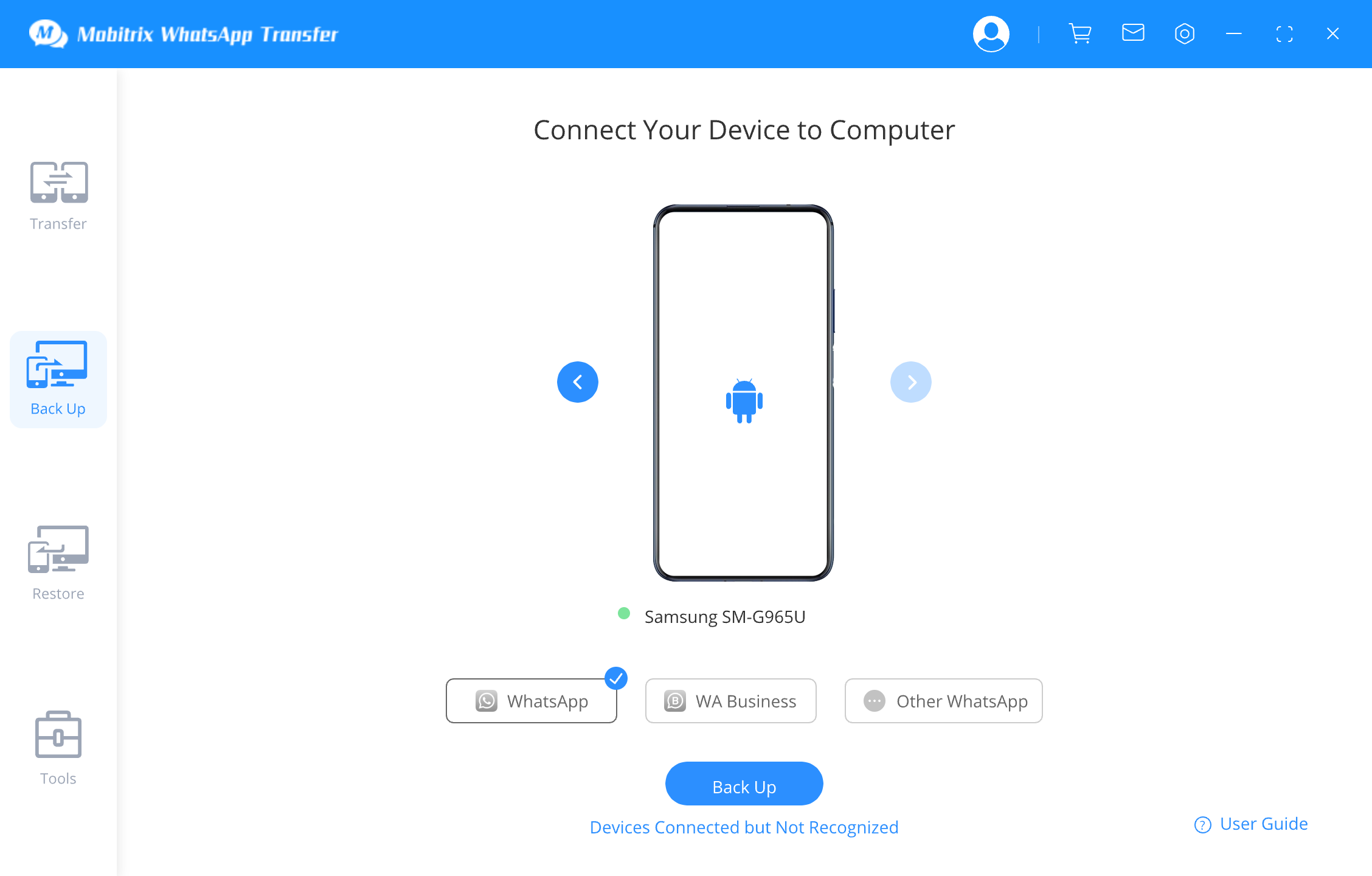
backup whatsapp to pc
The process goes to completion and a completion notification appears, and that’s it you’ve successfully used Mobitrix to back up your data.
In summary, having a local WhatsApp backup is a necessity for both efficiency and data security. Whether stored on your phone or computer, it's advisable to have a local backup for your WhatsApp data.
In particular, Mobitrix is a good tool for this task and offers an easy and friendly backup process hence more suitable for most models of phones.
