
‘I’m having an issue with WhatsApp backing up to Google Drive on an Android device. It started when the phone was on a bad network with lots of dropped packets and interference. From there the backup stalled at 30%. I can’t get it to continue, even on a solid network. Is there a way to force WhatsApp to start a fresh backup?’ — From forums.tomshardware.com
This guide covers 8 quick and useful solutions for WhatsApp not backing up on your iPhone or Android devices.
These fixes cover the usual failure points behind a stuck WhatsApp backup: account connection problems, low storage, unstable network, backup corruption, outdated software, or issues specific to iCloud or Google Drive.
Alternative Way to Backup WhatsApp for All Devices (Totally FREE)
One of the best third-party tools to use in this case is Mobitrix WhatsApp Transfer. As the name suggests, this program is ideal for the transfer of WhatsApp from one device to another, but it also has features that allow you to easily create a full backup of all the data on WhatsApp for free. All the WhatsApp backup files will be stored separately without overwriting the previous backup files. This backup feature is very easy to use, as we shall see shortly and completely free.

To use Mobitrix WhatsApp Transfer to Backup WhatsApp data, follow these simple steps:
- Download and install Mobitrix WhatsApp Transfer to your computer and launch the program. Run Mobitrix on your computer and then select “Back up WhatsApp on Devices” from the options listed on the left.
- Connect the device to the computer with USB cables and as soon as the program detects the device, click on “Back Up” to begin the process.
- Mobitrix will notify you when the process is complete and you can then disconnect the device from the computer.
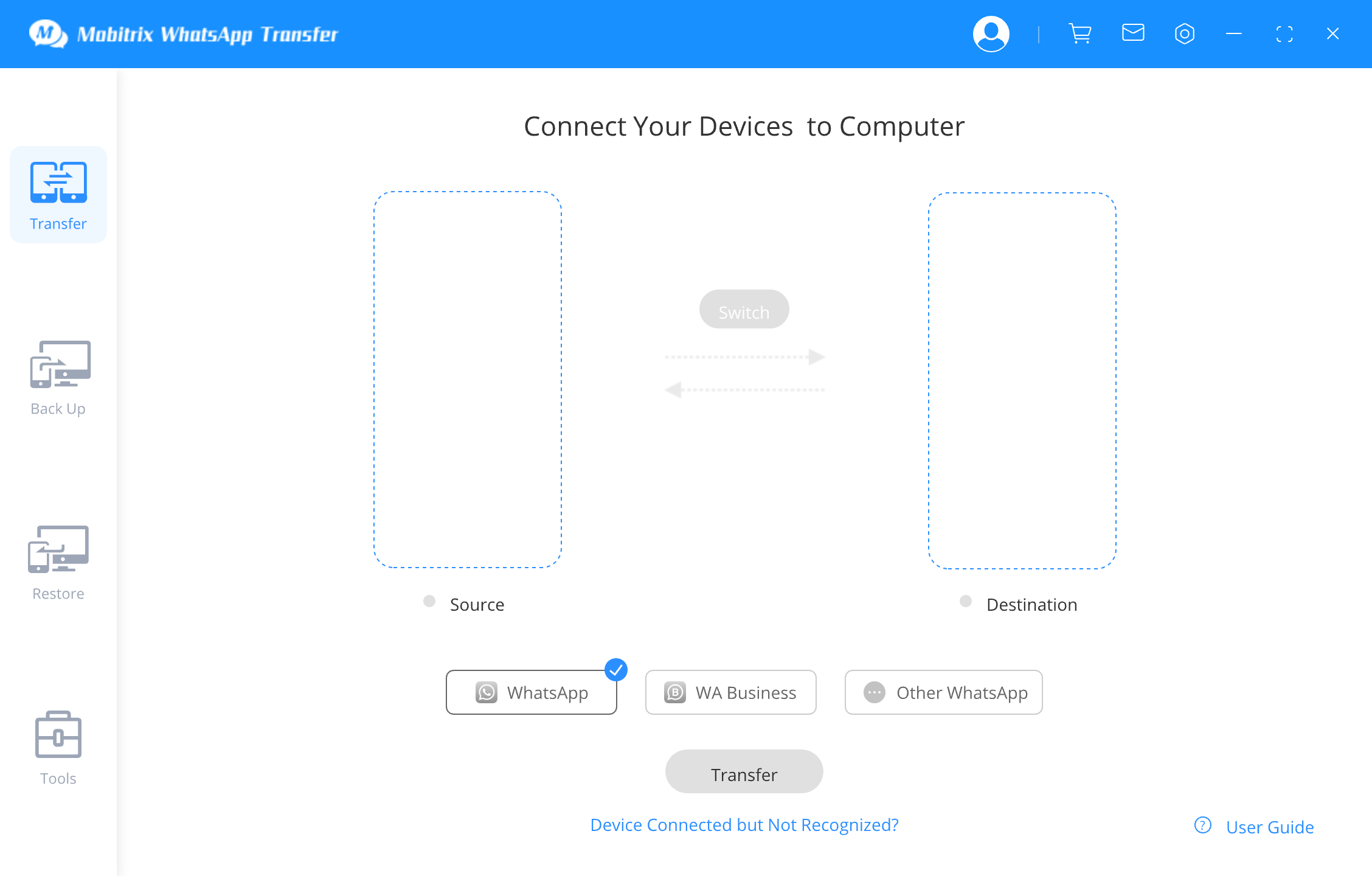
connect the 2 device to pc
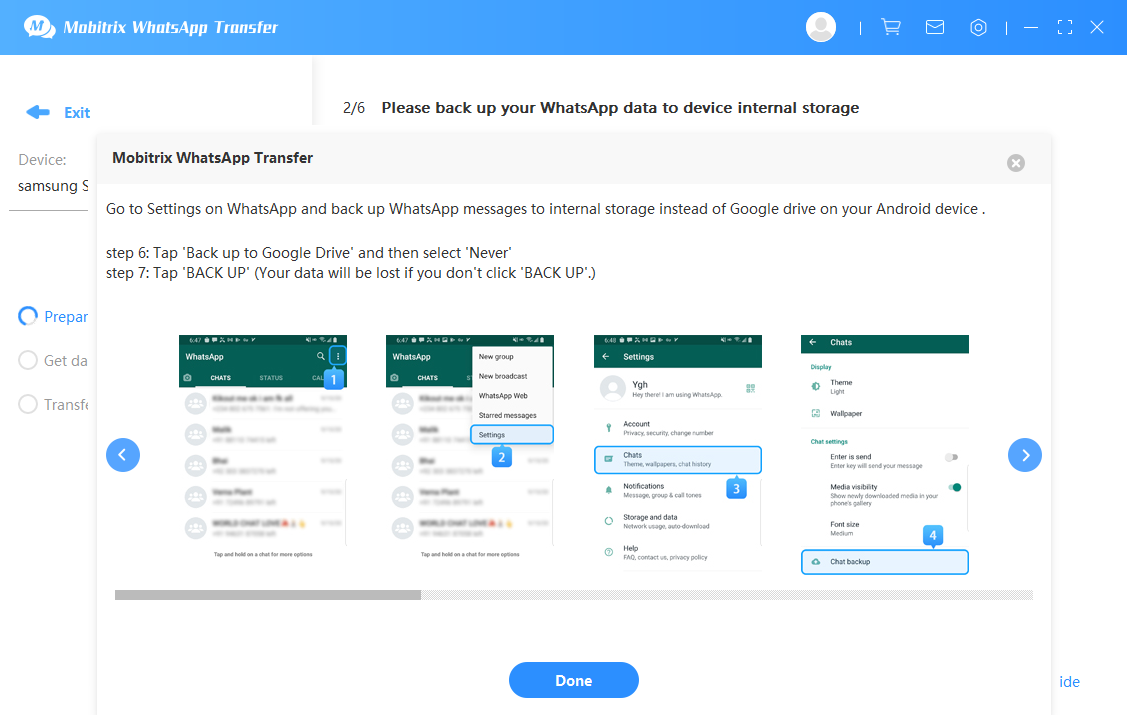
connect the device and start to backup
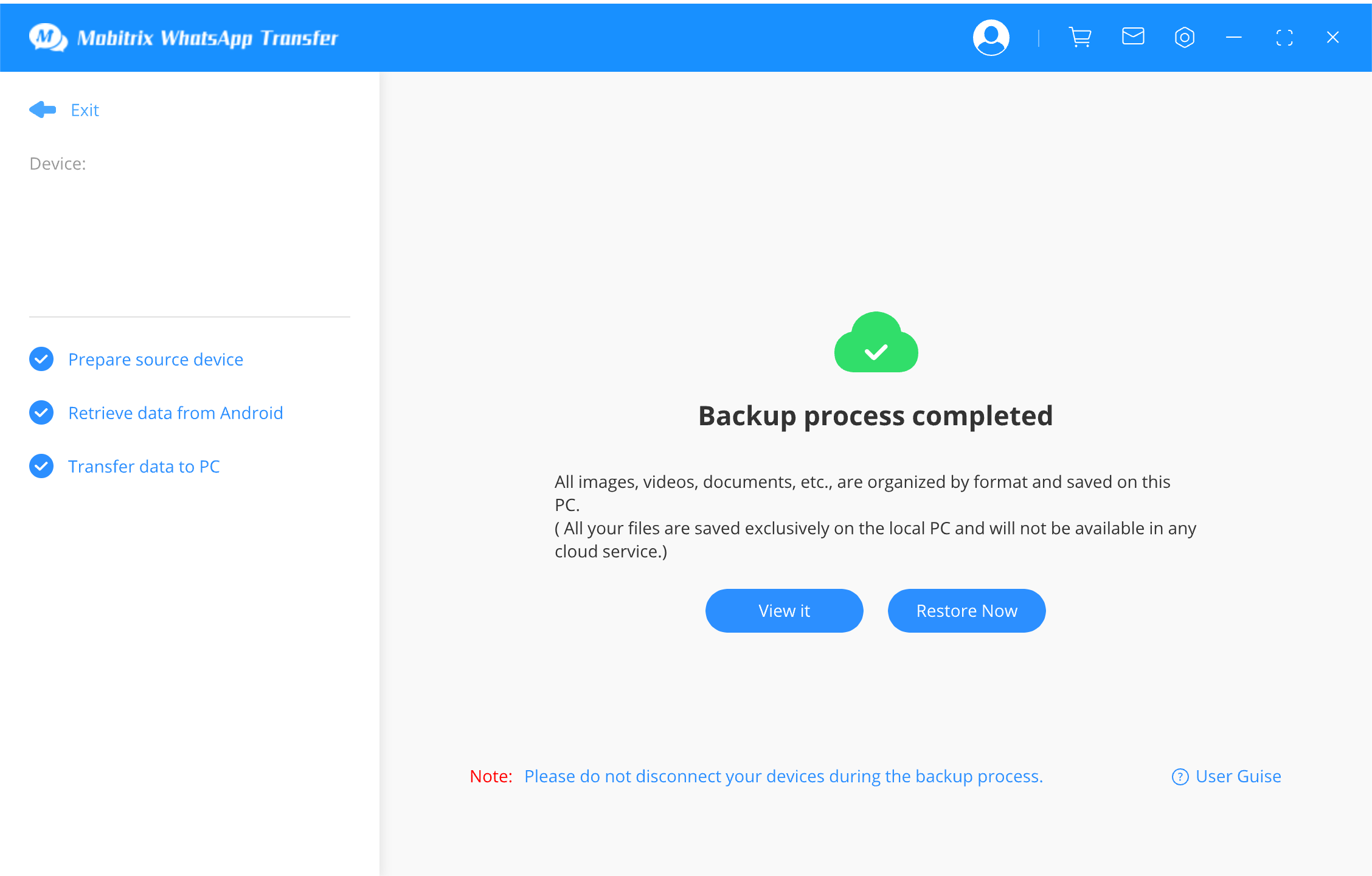
backing up whatsapp messages
There are more features you can get from Mobitrix WhatsApp Transfer software:
- There FREE backup storage is unlimited. (The free backup storage of iCloud is 5 GB while Google drive is 15GB.)
- All types of your WhatsApp chats can be backed up, such as images, audios, videos, and group messages, etc.
- Your privacy is well protected and your WhatsApp will only be saved on your own computer.
- The backup speed is very fast. It can be done without internet connection.
10 Ways to Fix WhatsApp Not Backing Up on iPhone
2.1. Enable WhatsApp Messenger from iCloud Backup
If you are attempting to backup WhatsApp via iCloud, you need to enable “WhatsApp Messenger” in iCloud for the process to work. Here’s how to do that.
- Open the Setting on your iPhone.
- Tap on your Apple Account at the top and then select “iCloud”.
- Scroll down to find “WhatsApp” and then tap on it to turn it on.
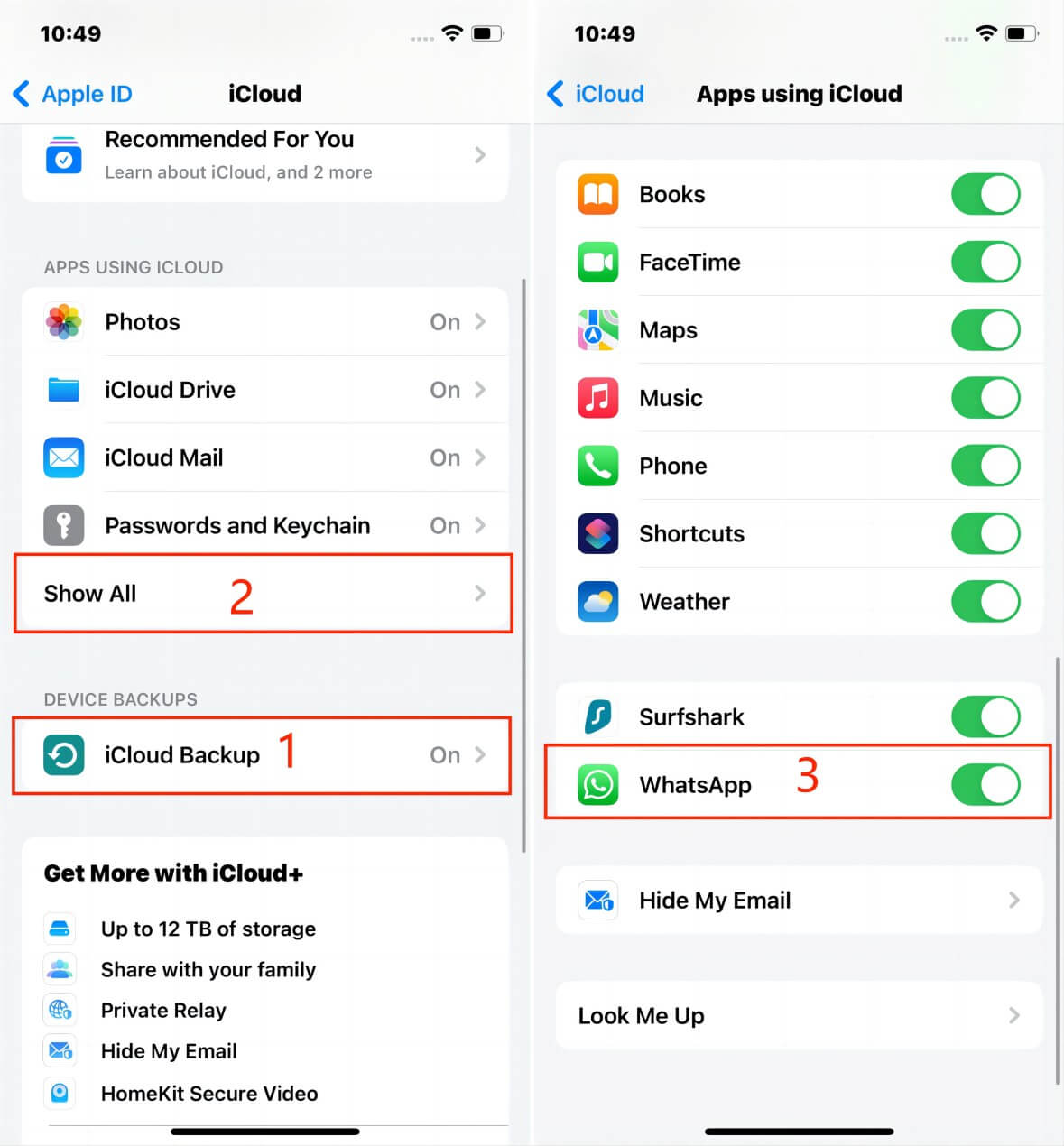
enable whatsapp icloud
2.2. Sign Out of and Sign into iCloud Account
Signing out of iCloud and then signing back in may also work to fix this WhatsApp backup not working problem. Follow these simple steps to do that:
- Open the “Settings” on the iPhone and then tap on your name at the top. Tap on “Sign out”.
- Enter your Apple Account and password when prompted and the tap “Turn Off”.
- Tap “Sign Out” and then tap on it again to confirm the action.
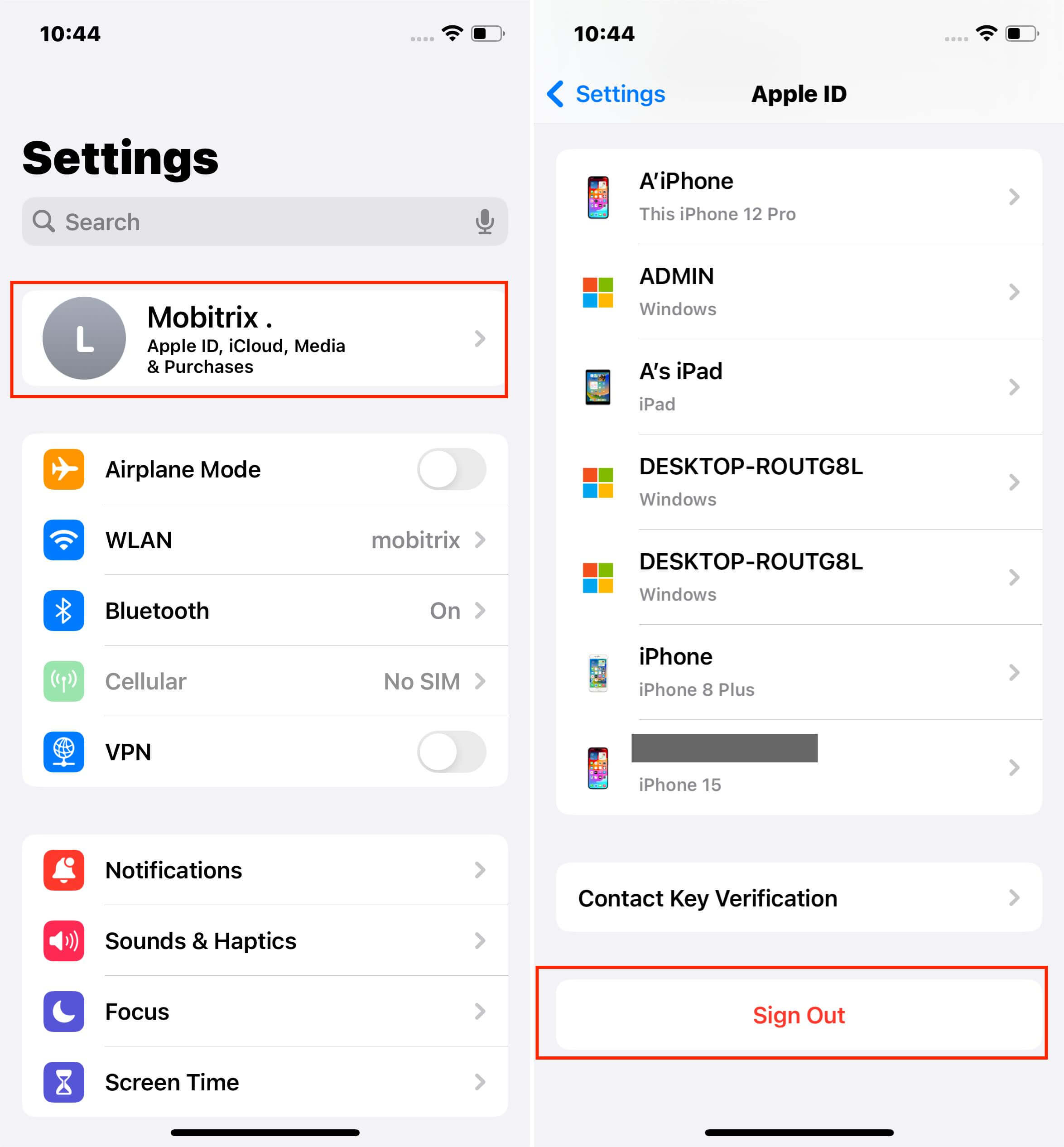
sign out of icloud
Wait a few moments and then sign back into the device.
2.3. Check iPhone Storage
If you don’t have adequate storage space on your iPhone to accommodate the backup, any backup attempt will fail. Therefore, when you face issues with WhatsApp backup, it's important to check iCloud storage to ensure you have enough space. Here's how you can do that:
- Open the Settings on the iPhone.
- Tap on “General” and then scroll down to tap on “iPhone Storage”.
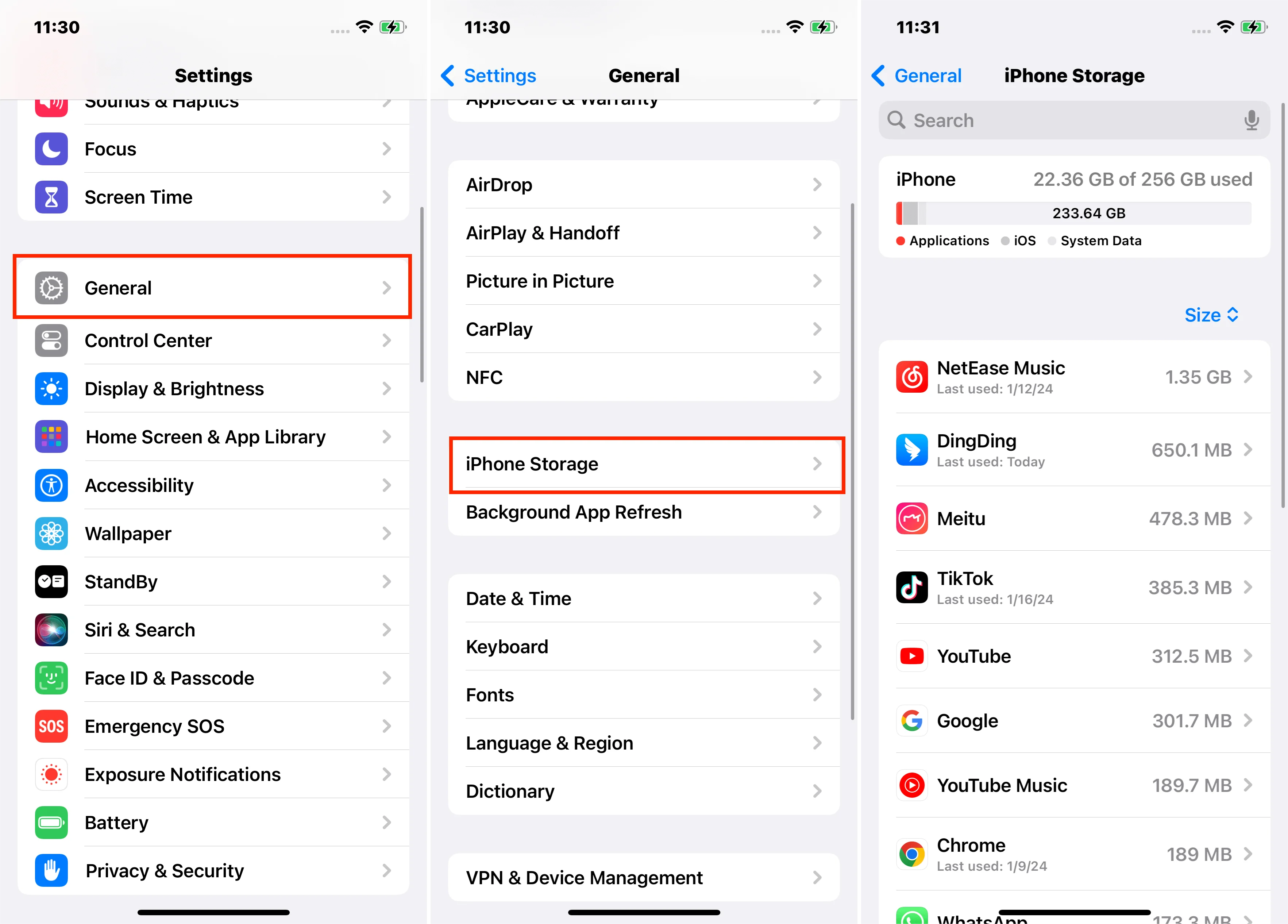
check iphone storage
2.4. Do You Have Enough Space on iCloud?
One of the reasons why backups are stuck is because you don’t have enough free space on iCloud to facilitate the backup. You can check the storage space in iCloud, by going to Settings > iCloud > iCloud Storage. Here, you should see the current status of your iCloud account. If you don’t have enough storage, you can choose to delete some data and apps in iCloud or you can tap “Change Storage Plan” to purchase additional storage space.
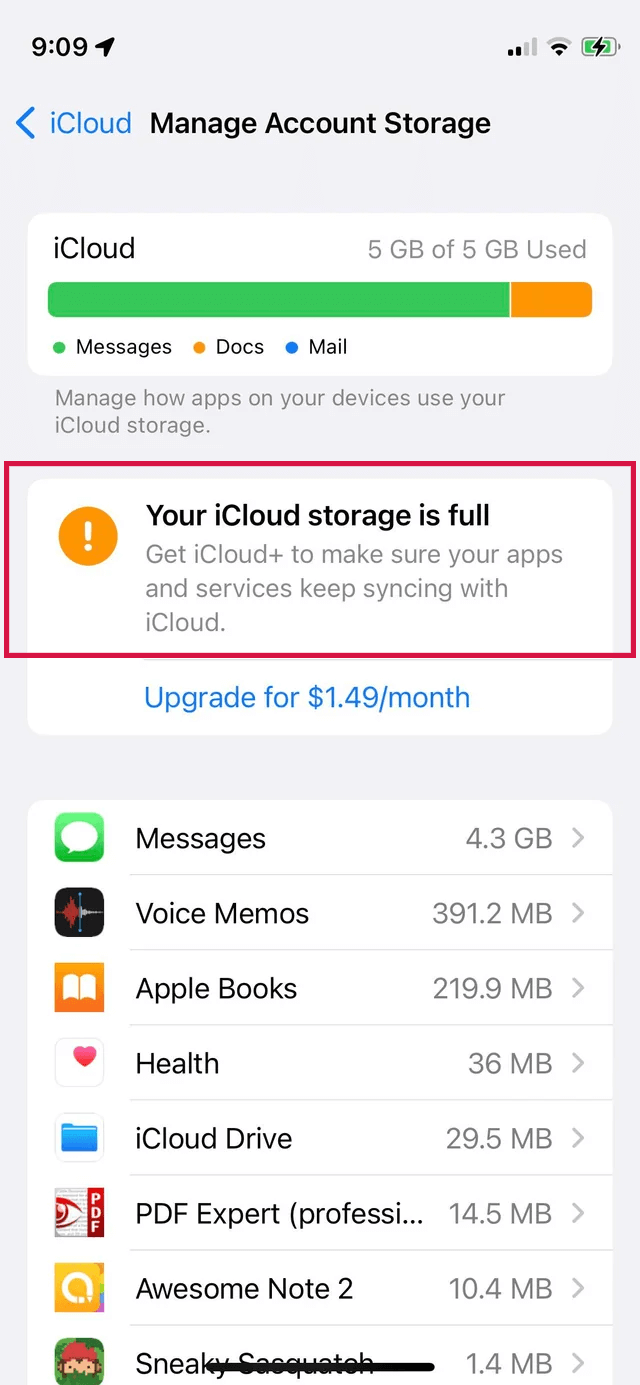
icloud storage
2.5 Check the iCloud Server
You may also have problems backing up WhatsApp on your iPhone if the iCloud Servers are down. This is rare, but it can happen under certain circumstances like when Apple servers are undergoing maintenance. Go to Mobitrix WhatsApp Transfer to check the server status. If it is down, consider trying the backup later.
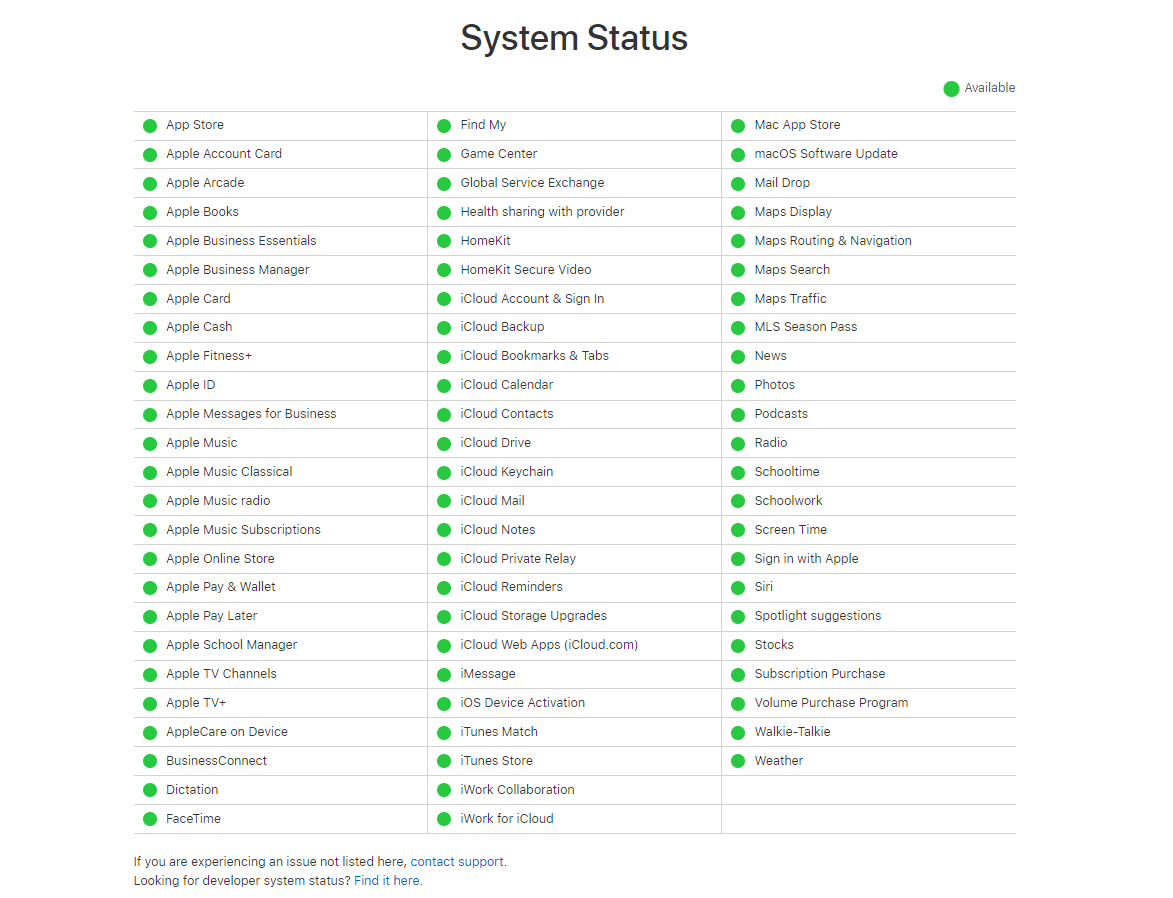
check icloud status
2.6 Delete Any iCloud Backups
An old corrupted or incomplete backup can also block a fresh attempt. If the same backup keeps freezing at the same point, removing the broken backup and starting a new one can be more effective than retrying the same stalled copy over and over.
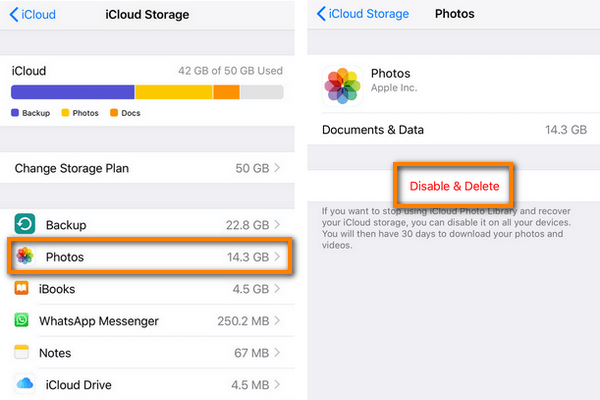
delete icloud backup
2.7. Restart the Device
It is also very likely that the device’s system and settings could cause the issue. The easiest way to remove some of the system cache that can cause these WhatsApp chat not backing up issues is to restart the device.
So close WhatsApp and then simply turn off the device completely before turning it on again. If the problem was with the system, WhatsApp should work normally as soon as you turn on the device again.
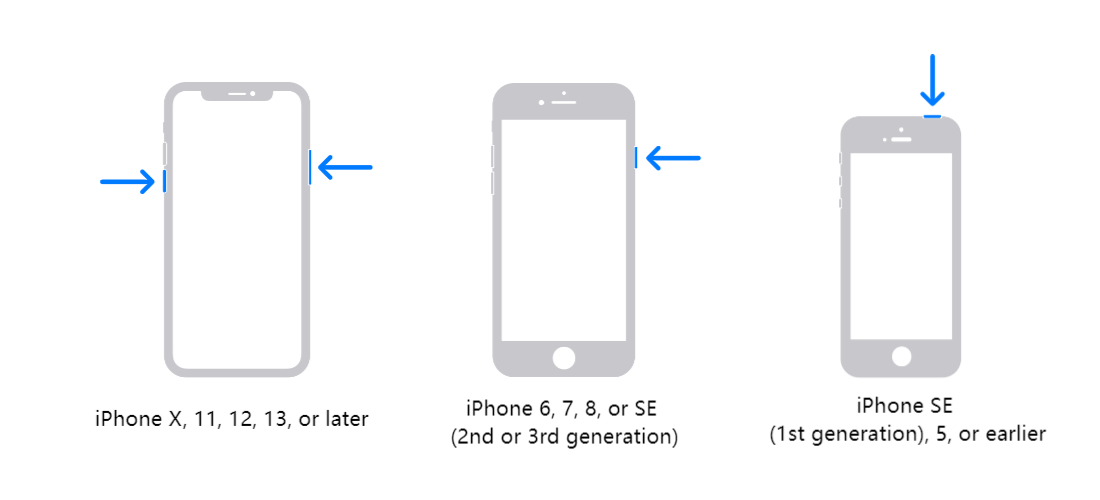
restart the device
2.8. Check Network Connection
Both iPhone and Android backups depend on a stable connection, especially when the chat history includes lots of media. If the backup keeps stalling at a percentage, treat the network as a likely cause before assuming the app itself is broken.
One of the easiest ways to check your network connectivity is to toggle Airplane Mode on and off. Enable Airplane Mode on the device, wait a few minutes and then turn it off again.
If the device is still unable to connect to a network, resetting the network settings on your iPhone might do the trick. Follow these simple steps to do it:
- Open the “Settings” on your iPhone.
- Tap on “General > Reset > Reset Network Settings”.
- Tap “Reset” to confirm.
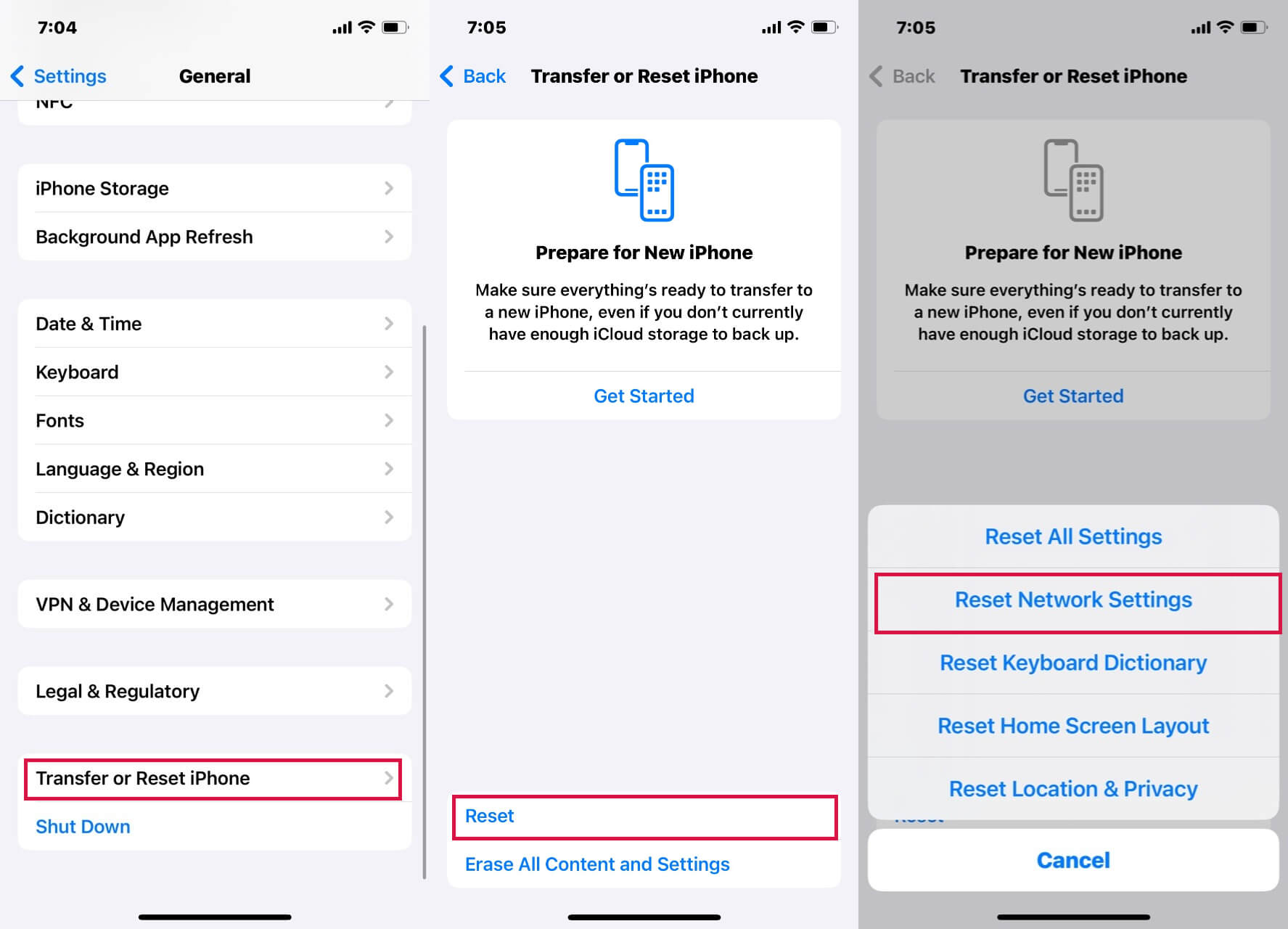
reset iphone network connections
2.9 Update iOS
When your device is running an outdated version of iOS, you may experience problems with several aspects of the device including backing up WhatsApp.So we recommend going to Settings > General > Software Update to check if an iOS update is available.If an update is available, tap “Download and Install” and wait for the new version of iOS to be installed. When the process is complete, the device will restart and you can then try to backup WhatsApp again.
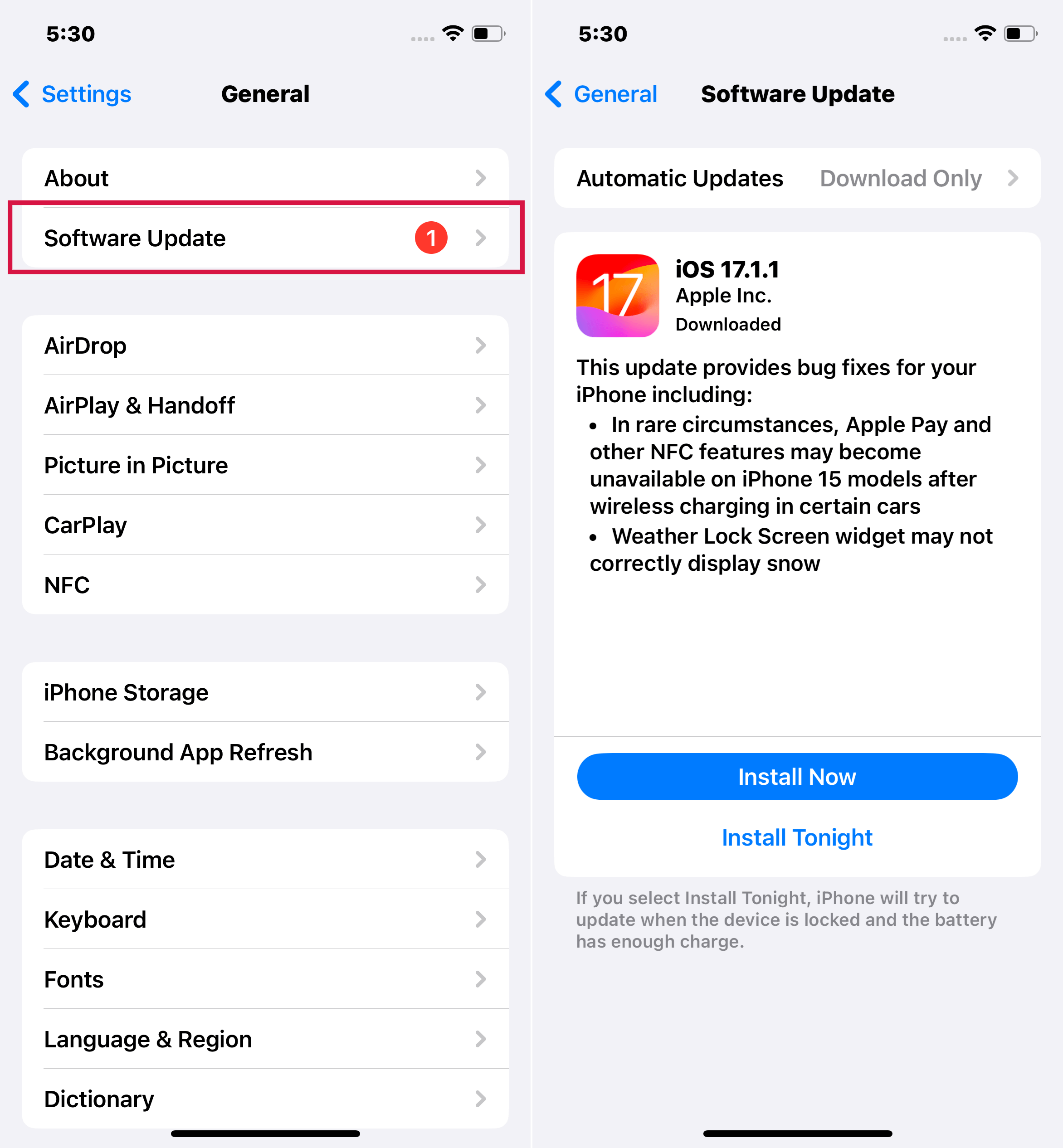
software update
2.10 Backup via iTunes
If iCloud still refuses to finish, a computer backup through iTunes or Finder is the practical iPhone fallback. That route backs up the device locally, which can help when the problem is specific to iCloud rather than to WhatsApp data itself.
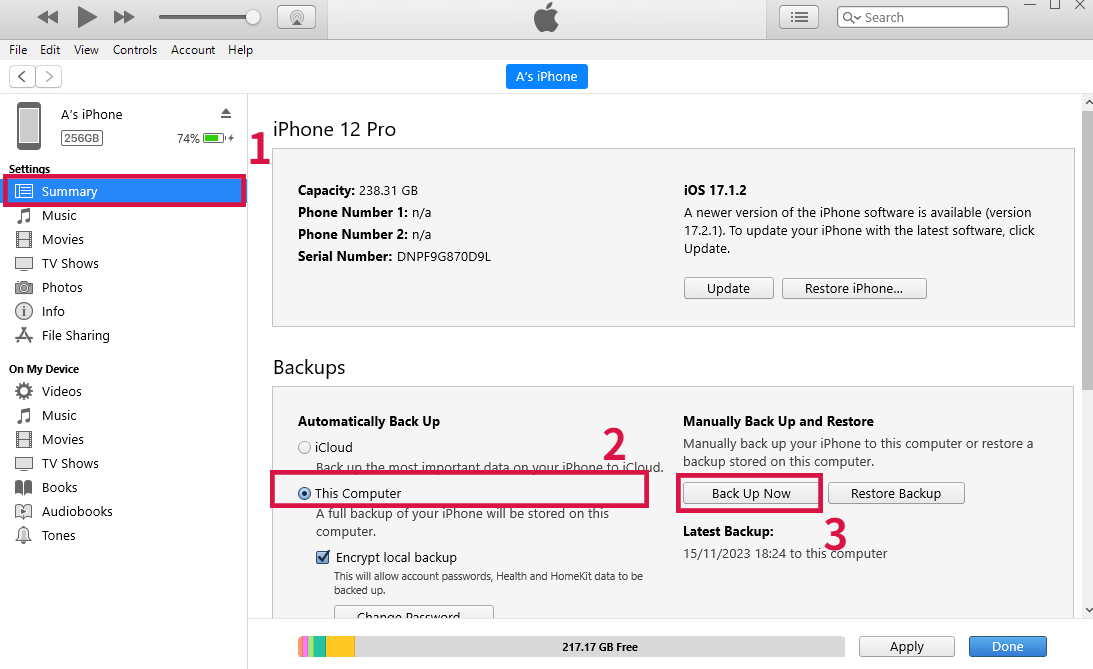
backup iphone via itunes
7 Ways to Fix WhatsApp Not Backing Up on Android
3.1 Is Your Google Account Active
On Android, first confirm that the Google account linked in WhatsApp is still active and signed in correctly. A broken or switched-out Google account can stop backup before it ever reaches the upload stage.
3.2. Update WhatsApp Messenger
Running a WhatsApp messenger app that is outdated can cause a lot of problems with the proper function of the device, including not being able to back up WhatsApp data. Follow these simple steps to update WhatsApp Messenger App on your Android device:
- Open the “Play Store” on your device and the tap on the 3 lines at the top
- Select “My apps & Games” and you should see all the apps that are installed in the device. Each app will have either “Open” or “Update” next to it.
- Locate “WhatsApp” on this list and the tap “Update” to update WhatsApp Messenger.
3.3. Re-sign into Your WhatsApp Account
This problem can also occur when the app fails to communicate properly with the WhatsApp server, preventing you from backing up WhatsApp. Thankfully this problem can be easily fixed by simply signing out of your WhatsApp account and then signing back in.
3.4. Check Your Android Device’s Storage
Android also needs enough local storage to prepare the backup before it reaches Google Drive. If the phone itself is almost full, clear space on the device before troubleshooting the cloud side any further.
- Open the Settings on the Android device.
- Locate the “Storage” option and tap on it to see how much storage space is available on the device.
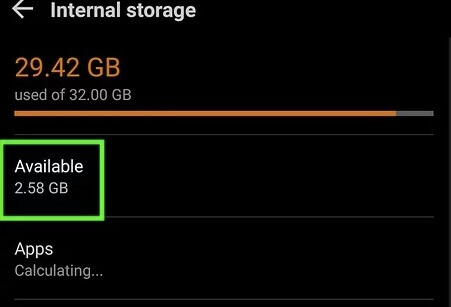
check android storage
Once the reset is complete, join your networks again and the try to backup WhatsApp.
3.5 Don’t Include Videos in the Backup
Large videos are a common reason a WhatsApp backup takes forever or never finishes. Turning off video inclusion is a good test when text chats back up but the full media-heavy backup keeps failing.
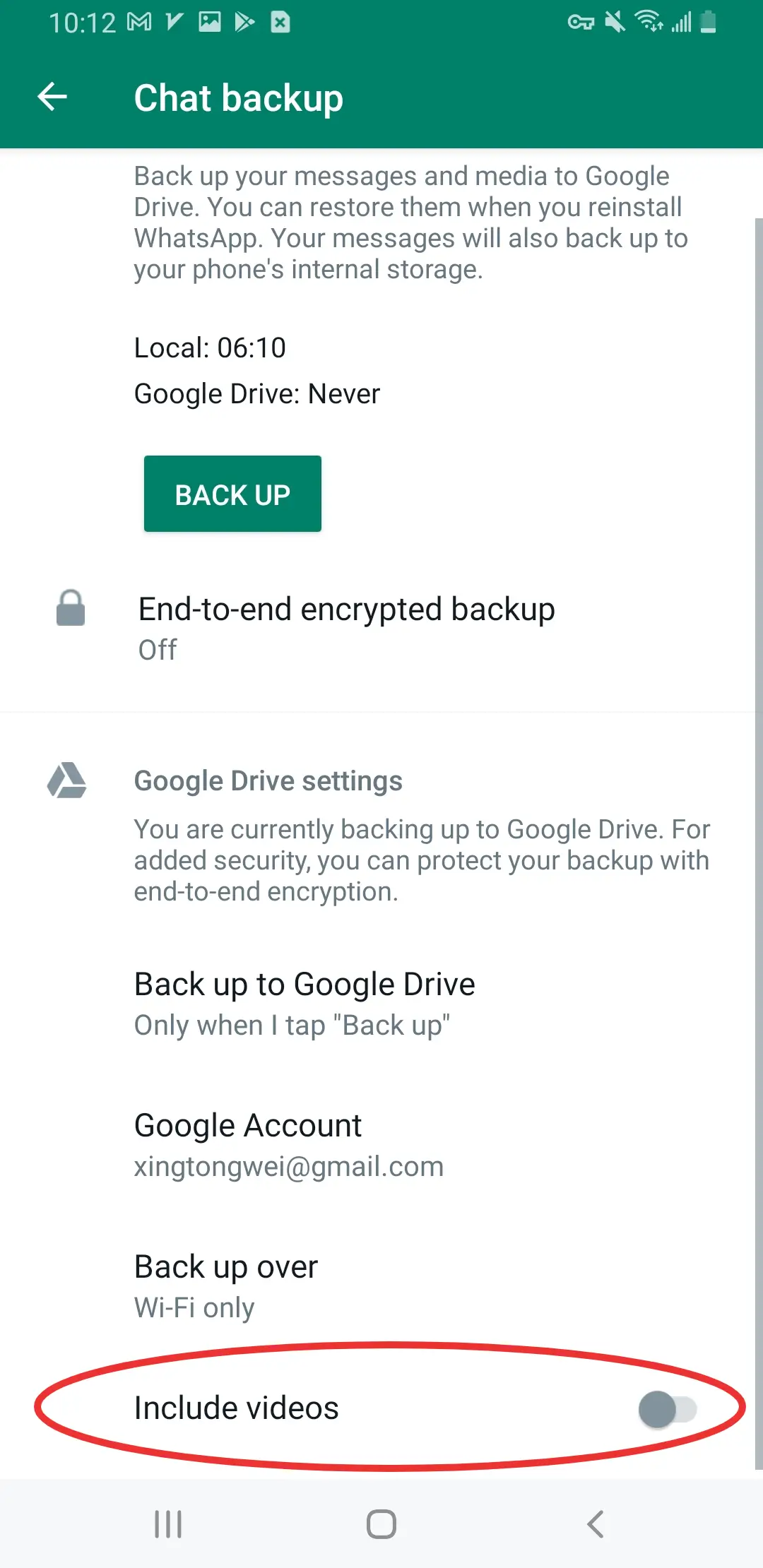
include photos
3.6 Close WhatsApp from Running in the Background
It is also possible that WhatsApp itself is stuck which can appear make it appear like the backup itself is stuck. So you may want to close WhatsApp from running in the background and then restart it to take the backup. To do this, tap on the app switcher icon on the device and the app cards will appear. Locate WhatsApp and then swipe it up and off the screen. Then relaunch it and retry the backup.
3.7 Leave the WhatsApp Beta Program
If you are running the beta version of WhatsApp, remember that backup bugs can come from the beta build itself rather than from your storage or network. Leaving the beta is a reasonable test when the issue appeared after a recent app change.
Backing up WhatsApp chats as required can be complicated by a lot of issues we have addressed in this article. One or more of the solutions outlined above will however help you overcome this problem and easily backup WhatsApp. But if you are unable to backup WhatsApp via the app, Mobitrix WhatsApp Transfer is an ideal solution that is both free and easy to use.
