
Your iPhone is suddenly showing an error 4013? You can’t make calls, send texts, watch videos, play games, or literally do anything with it at all? And you don’t know how to fix it? Troubleshooting usually works best when you move from the simplest checks to the more disruptive fixes.
Well, no panic. Working as a smartphone engineer, I encounter clients in this situation over 100 times a month. With my rich experience on iPhone repairs, I'll explain to you all theins and outs of iPhone error 4013, and provide you ten easy fixes — all tested as effective by my clients. That can save time when you want the video ready for social posting without moving it into another editor first. If the result still looks off, compare a built-in method with one app-based method so you can see which handles your clip more cleanly.
Let’s dive in without further ado.
What is Error 4013 and Why does it happen?
Error 4013 is an iOS system issue arising from an restore or update being interrupted. For example, your iPhone may have been disconnected to the computer during the iPhone restore or update process, or there’s something wrong with your USB cable or port. Once this error occurs, a message will pop up on the screen saying your iPhone[device] could not be restored. A quick check of the device model, software version, and account state usually explains why the same menu looks different on another device. If the process stalls, storage space, Wi-Fi stability, and available battery are usually the first three checks worth repeating.
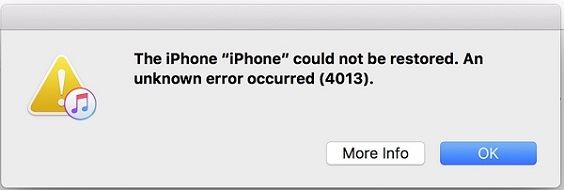
iPhone Error 4013
If your iTunes is not functioning well, let’s say it is outdated or not supported by your iPhone’s current iOS version, error 4013 is bound to happen too. In most cases, iPhone error 4013 is caused by a software or system issue. But it can also result from a hardware failure. If a step looks different on your device, the app version is usually the first thing to compare before assuming the feature is missing. If the first method does not work, compare software version, device compatibility, and account status before repeating the same step.
It is inconvenient if you have your iPhone but can’t use it. No chatting, gallery, games, etc., you name it. Why not check my focused solutions below for error 4013? All are arranged optimally to give you an easy time.
If you are anxiously looking for a fix, iTunes may come as an option. But it is too complex to use, and you will lose all your data. I would just recommend you go for Mobitrix Perfix (Check this Method) directly, as it is more user-friendly and easier to use. You can also keep reading to decide which one fits you better.
Method 1: Force Restart iPhone While Charging
Most random firmware crashes can be solved with a force restart, or a hard reset; and error 4013 is no different. You can fix it by force starting your iPhone. I will show you how to perform it below.
First, Make sure your iPhone has enough battery left. If not, force restart it while charging.
To force restart the iPhone follow these steps:
- iPhone 8, X, 11, 12, 13, 14, 15: Quickly press the volume up button, then the volume down button. After that, hold down the side button until you see the Apple logo, then let go.
- iPhone 7 Plus, iPhone 7, and iPod touch (7th generation): Long press both the Volume down and the Sleep/Wake button until the Apple logo appears.
This is the official solution from Apple, and no data is lost in the process. But it is a temporary fix and may not always work. Sometimes you may need deeper types of restore as I will show you next.
Method 2: Use Perfix to Fix iPhone Error 4013 in 20 Mins
Still stuck at the error 4013 even after a hard reset? I understand, in such cases, the best solution is to use Mobitrix Perfix. It is an advanced iOS system repair tool dedicated to fixing various iTunes and iOS software issues.
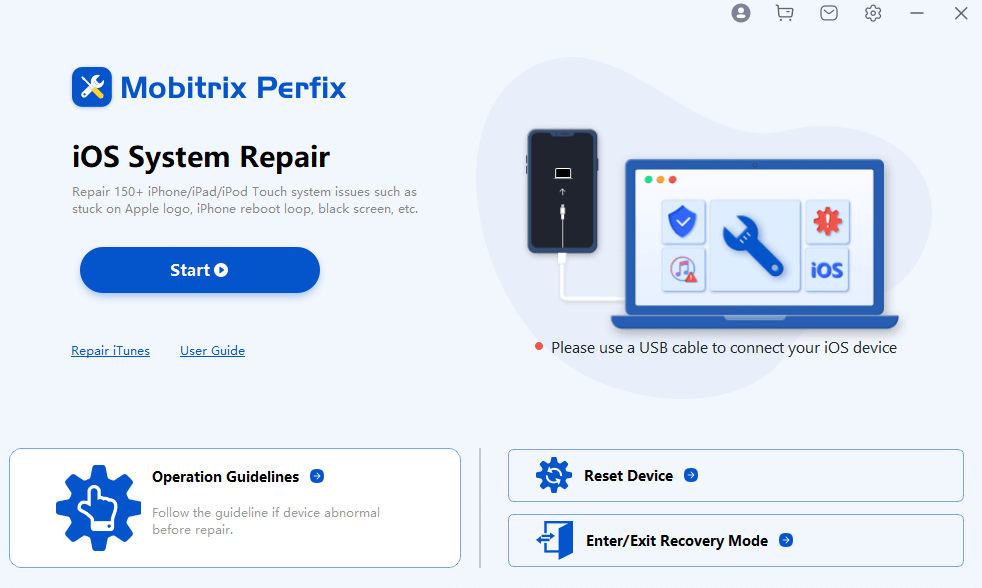
Mobitrix Perfix - Get Started! - Main Interface
Advantages of Perfix are:
- No need to download iTunes or Finder.
- There is no data loss incurred.
- The steps involved are easy to follow.
- It fully supports iPhone 5s to iPhone 17 and iOS 26 and earlier versions.
- Perfix is 100% safe and protects the privacy of users'data.

To use Perfix, do the following:
- Download and launch Perfix on your computer.
- Connect your iPhone to the computer.
- Once your iPhone is detected, click Start.
- Click the Standard Repair option to fix this error.
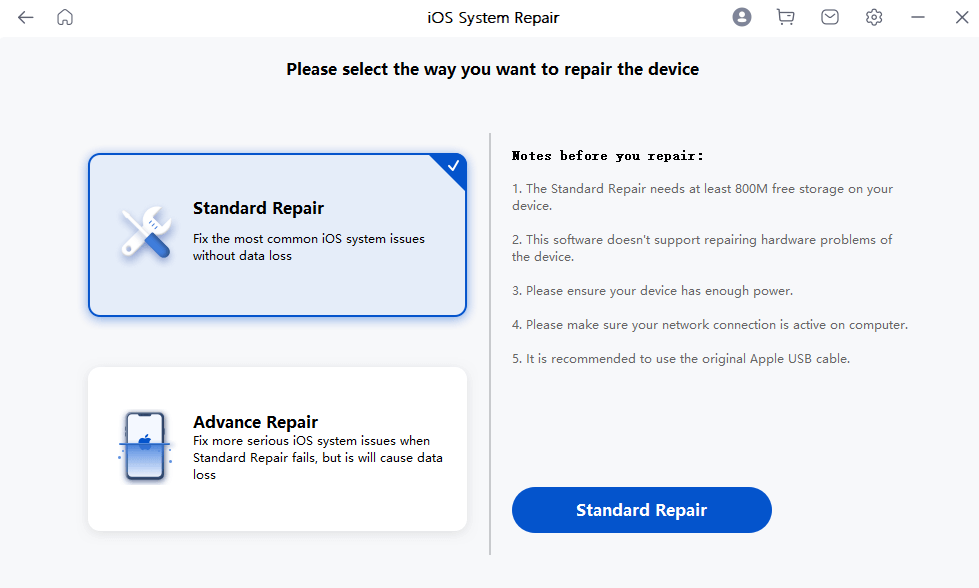
Mobitrix Perfix Standard Repair
I have tried and tested many tools to fix iPhone system errors in my line of work, and Perfix always turns out the best. It is a straightforward solution that fixes almost all such problems while your data remains intact.
Method 3: Factory Reset iPhone on Settings to Fix Error 4013
It also lets you fix error 4013 by performing a factory reset on your iPhone. But before you proceed, I would recommend you create a backup of all your important files first, as this method is going to erase everything from your device.
How to factory reset an iPhone:
- On your iPhone, open Settings.
- Go to General > Transfer or Reset iPhone > Erase All Content and Settings so the next part of the process is easier to complete without backtracking. If one step does not change the behavior, move on instead of repeating it several times.
- Enter your passcode to confirm the reset, as prompted so you can confirm the device is tied to the correct account before you continue.
Once your iPhone restarts, error 4013 should be fixed.
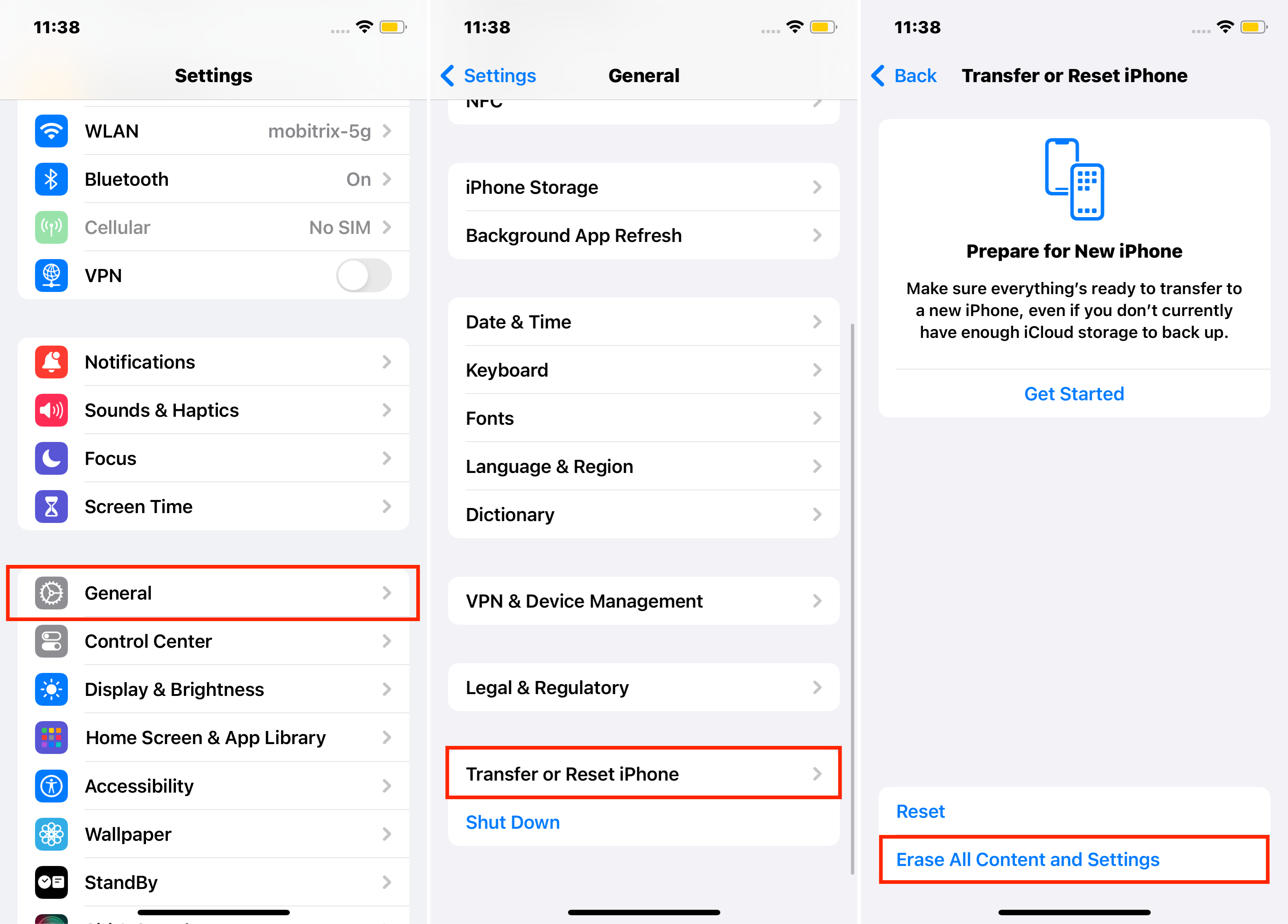
Erase All Content and Settings on iPhone
Method 4: Try to Restore Your iPhone on Another Computer
After multiple attempts to fix your iPhone, you still keep seeing the error 4013? Well, maybe it’s an issue related to hardware of the computer you are connecting your iPhone to. If this is the case, here’s what you should do:
- Verify the status of your internet. Check if it’s working so the next part of the process is easier to complete without backtracking. Reconnect or restart your Wi-Fi. This is useful when the speed change should affect only one section instead of forcing the whole clip to slow down.
- Check if there is any third-party software or firewall installed on the computer so the next part of the process is easier to complete without backtracking. Close the software or firewall and try again so the next part of the process is easier to complete without backtracking. That matters when you only want one part of the video to play back slower while the rest keeps its normal speed. Testing the change on a short clip first is a quick way to avoid re-editing a longer video from the start.
- Check the version of your computer and update it if needed so the next part of the process is easier to complete without backtracking. It gives you finer control when only one moment should stay slow and the rest of the recording should play normally.
- Connect your iPhone to iTunes on another computer so the device has a cleaner chance to reconnect on the next attempt.
Method 5: Update iTunes
It also lets you fix your iPhone error 4013 by updating iTunes. Steps vary for different types of computers.
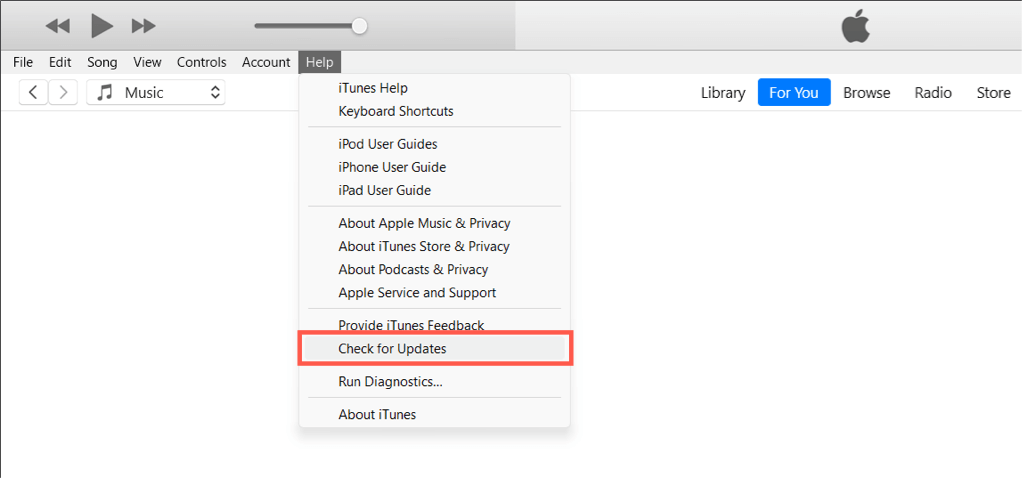
Update iTunes
If it’s a Mac:
- Open iTunes on your Mac.
- At the left of the Apple toolbar, click the iTunes button.
- tap check for updates so the next part of the process is easier to complete without backtracking. iTunes will update in case there is any available update.
If it’s a Windows computer:
- Open iTunes.
- Tap the Help button from the menu bar so the next part of the process is easier to complete without backtracking.
- tap check for updates so the next part of the process is easier to complete without backtracking. iTunes will update in case there is any available update.
This method is both free and easy to perform.
Method 6: Update or Restore iPhone from a Backup
This is an advanced iOS restore method that fixes error 4013 resulting from major software issues.
To use this method to update or restore your iPhone, do the following:
- Connect your iPhone to the computer via a lightning cable and waits for iTunes to recognize it so the device has a cleaner chance to reconnect on the next attempt.
- Once your iTunes is recognized, create a backup of your iPhone.
- Once you’ve’ created the backup, quickly press and then release the button for volume up.
- You will be prompted to restore or update your device. First, choose Update.
- If the update fails to fix the problem, click Restore. All your data will be erased then.
- Once restoration is completed, restore your backup by clicking on Restore Backup.
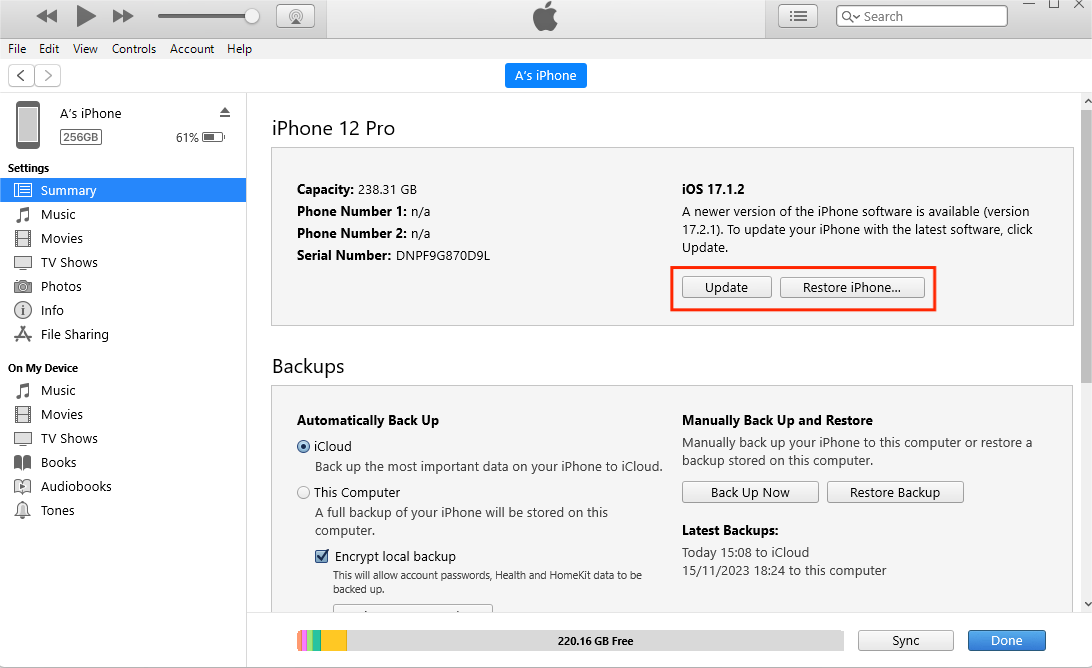
Update or Restore iPhone using iTunes
iTunes is an Apple-recommended solution. If you choose to fix your iPhone via updating on iTunes, your phone data will not be erased. But this method has severe disadvantages in fixing your iPhone error 4013, including:
- It’s only applicable if you’ve used iTunes before.
- It’s time-consuming.
- There is no guarantee that iTunes can recognize your iPhone.
- iTunes is very unfriendly to use, even for people with a tech background like me.
Method 7: Put Your iPhone into Recovery Mode and Restore
If the above methods have not been successful in fixing error 4013, you can try to restore your iPhone in recovery mode using iTunes.
Here’s how:
Connect iPhone with iTunes on computer.
Once connected:
iPhone 8 or later: Press and then quickly release the button for volume up and volume down. Next, long-press the side button until the recovery mode appears.
iPhone 7 Plus, iPhone 7, and iPod touch (7th generation): Long-press the button for volume down and the top (or side) button until the recovery mode appears.
Finally, click Restore.
Note that this method may not be your best option, as you will lose all your data. Plus, given that iTunes is too difficult to use, you are likely to end up wasting time but not getting your iPhone fixed.
Method 8: Put Your iPhone into DFU Mode and Restore
The recovery mode doesn’t work? Then the Device Firmware Update (DFU) is your last resort if you are still stuck at error 4013. It is a state that allows your iPhone to interface with iTunes so that it can be restored properly.
But I must warn you, putting your iPhone in DFU mode and trying to restore it with iTunes is a complicated process, and all your phone data will be lost.
First, Make sure you have the updated iTunes version installed on your computer. Then do the following:
Connect iPhone with iTunes on computer
Enter DFU mode:
For iPhone 6S or earlier: Long press the Sleep button while holding the Home button for like 8 seconds. Release the Sleep button but not the Home button. Keep pressing the Home button until the computer recognizes your iPhone.
For iPhone 7 or 7 Plus: Long press the Side button while pressing the volume button for like 8 seconds, and then release the Side button but not the volume button. Keep pressing the volume button until the computer recognizes your iPhone.
For iPhone 8 or newer: Press and then release the button for volume up. Next, do the same for the down volume button. Long-press the side button of the phone. Once you see a black screen, long-press the down volume button. Long press these buttons but release the Side button after 5 seconds while holding the volume down button. Follow the on-screen instructions that are shown.
Select Restore and click OK in iTunes
Press Restore iPhone
Your iPhone will be restored brand new, as the iPhone error 4013 is fixed.
Method 9: Use the Original iPhone USB Cable
At times, if a faulty USB cable is used during updates or restores, an error 4013 can possibly occur. Because if the cable is not working well, your iPhone may be disconnected from iTunes, or your iPhone and iTunes cannot communicate properly. In such cases, my suggestion is to swap the USB cable, preferably with the original one that came with your device.
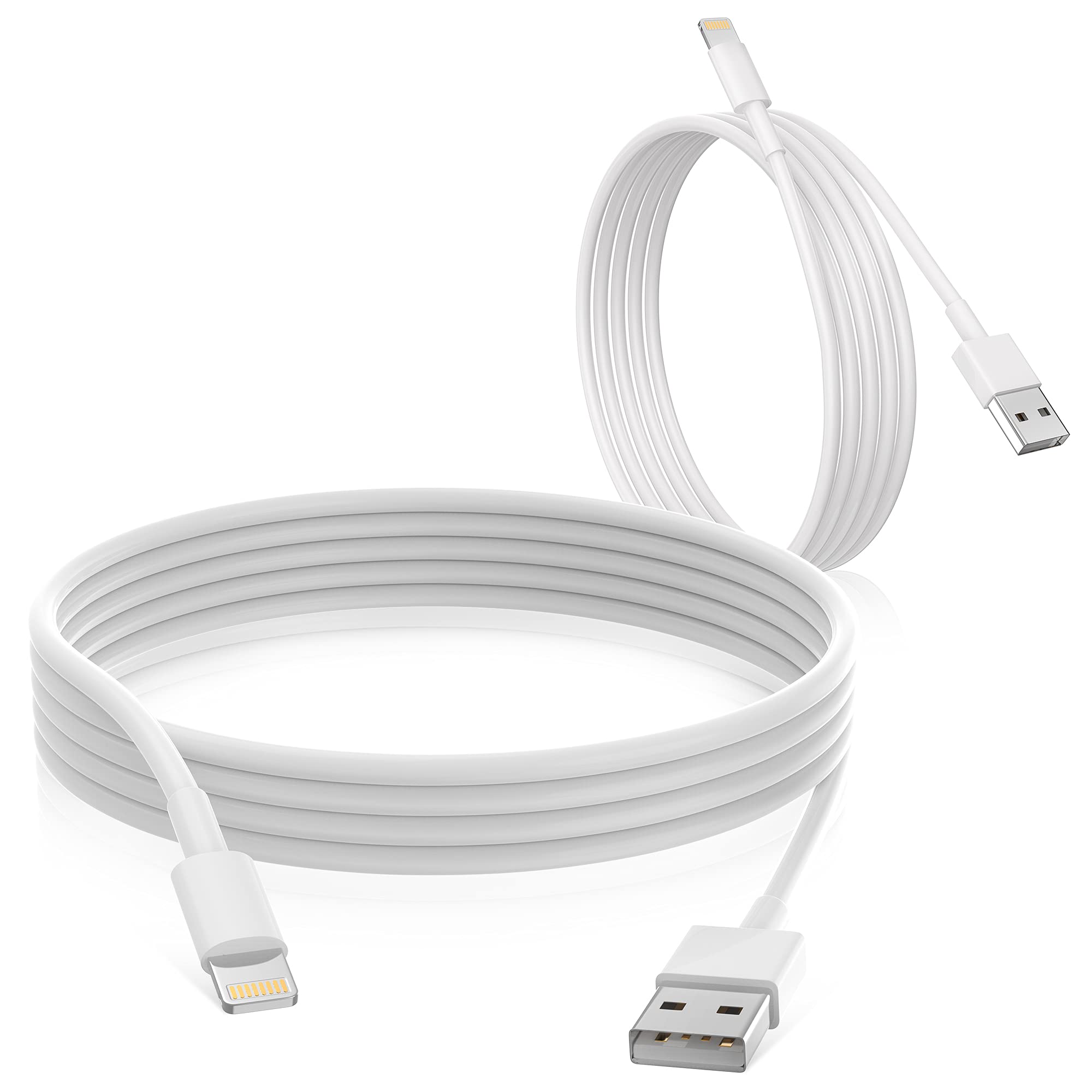
Original iPhone USB Cable
If this doesn’t fix the error, try connecting your iPhone to a different USB port, or plug the iPhone into a different computer.
The good thing about this method is it is free and easy to use. But if the error keeps showing, then the issue is not with your USB cable. You should try something else.
Method 10: Free Up Some Space on iPhone
In an event that your iPhone is running out of space, some functionalities may be disrupted. Thus the iPhone 4013 can also occur. Freeing up some space can help you fix it.
So, go ahead and clear some space by getting rid of the unused and unwanted data and applications on your iPhone. You can also remove data that you have backed up elsewhere, like photos, chats, etc.
Free Up Some Space on iPhone
To clean up your iPhone, do the following:
- Open Settings > General > iPhone Storage
- Check applications that are occupying large space
- You can either uninstall the apps or clear their data.
What if none of the methods above work?
By now, you should have fixed your iPhone. If you are still stuck at the error 4013, your iPhone is most likely having a hardware problem. Just take it to an Apple store nearby. Or contact Apple Support for their help to fix the error.
We all need our iPhones in good condition for work, life, study, or entertainments. When some errors occur, it becomes inconvenient to use our iPhone.
So far, I believe you have got a better idea as to what error 4013 is, why it happens, and how you can fix it. All the 10 solutions I’ve provided are very effective for error 4013. But if you want a quick fix, I recommend you use Mobitrix Perfix. It’s easy and efficient, helping you get your iPhone back to use within only 30 minutes. This means you save loads of time in endless and unnecessary testing.
Still unable to fix the error? Seek official Apple support for your iPhone hardware damage.
