
'When I switched from Android to a new iPhone, I first tried restoring my WhatsApp backup from Google Drive. It did not work, so I tested other options until I found a practical way to move my chat history. If you are trying to restore WhatsApp from Google Drive to iPhone, this guide explains what is possible and what still requires a workaround.'
It would be convenient if a Google Drive backup could restore straight to an iPhone, but WhatsApp still does not support that direct Android-to-iPhone restore path.
The short answer is still no.
This guide explains why that direct restore fails and which workarounds are actually useful if you need the chats on an iPhone.
Can You Restore WhatsApp Backup from Google Drive to iPhone Directly?
The short answer is no. WhatsApp backups stored through Google Drive on Android do not restore directly onto iPhone because Android and iPhone use different backup paths and restore systems.
In practice, that means a Google Drive backup does not become an iCloud backup just because you sign in on an iPhone. You need to restore the Android backup first and then use another method to move the data across.
Restore WhatsApp Backup from Google Drive to iPhone
Indirect but Simple Ways to Restore WhatsApp from Google Drive to iPhone
But this doesn’t mean that there is no way to restore WhatsApp from Google Drive to iPhone. There are indirect ways to do this and we’ll look at four of them, beginning with the most effective.
Start with the comparison table, because it shows which methods restore usable chats inside WhatsApp and which ones only export readable files.
| Transfer Tool | Bulk Transfer | Time | Difficulty | Network Connection |
|---|---|---|---|---|
| Mobitrix WhatsApp Tranfer | Yes | Fast | Easy | No need |
| No | Slow | Easy | Need | |
| WhatsAppTrans Box | Yes | Normal | Complicated | Need |
| WhatsAppTrans | Yes | Slow | Complicated | Need |
Each option solves a different part of the problem. Email is the quickest to test, but it only exports readable TXT files and does not rebuild the chats inside WhatsApp on iPhone.
WhatsAppTrans and WhatsAppTrans Box can move more data, but both routes are much more technical, take longer, and make the most sense only if you are comfortable troubleshooting command-line steps and restore limits.
Contrariwise, Mobitrix WhatsApp Transfer does not need an internet connection for you to restore your WhatsApp from Google Drive to iPhone.
That makes it the simplest option in this list if your goal is to keep the full chat history usable inside WhatsApp on the iPhone instead of settling for exported files outside the app.
Mobitrix WhatsApp Transfer
One of the best ways to manage all aspects of your WhatsApp account is using a third-party tool known as Mobitrix WhatsApp Transfer. This tool will make it very easy to bypass the encryption protocols limitation and transfer the Google drive backup to iPhone. It has numerous other features that simplifies the management of WhatsApp both on Android and iOS.

The following are some of these features:
- Mobitrix WhatsApp Transfer is described here as a cross-platform transfer tool for moving WhatsApp between Android and iPhone, including recent Android versions and current iPhone software.
- You can also use it to create a complete backup of all the data on your device to your computer for free.
- It is also useful when you want to restore the same backup to your iOS or Android devices. Meanwhile, there is no need to uninstall this app during the restoration.
- The article presents it as broadly compatible with iPhone and Android hardware, which matters when you are moving between different brands instead of staying on the same platform.
- It is Designed for a local transfer workflow to useand will not affect the data on the device or cause data loss on the device or cloud services
To use this route, install the program on a computer first. The process has two parts: restore the Google Drive backup back to Android, then move that restored data from Android to iPhone.
We begin by restoring the WhatsApp backup to the Android device. If WhatsApp is already installed on your device, uninstall it, and then reinstall it from the Play Store.
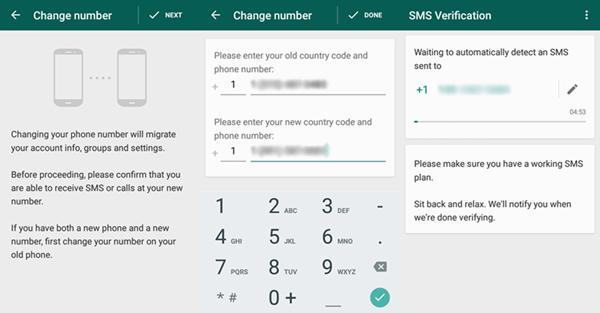
Follow the on-screen prompts to set up your account and verify your phone number. Make sure that it is the same phone number that you used to create the backup.

whatsapp android verify new number
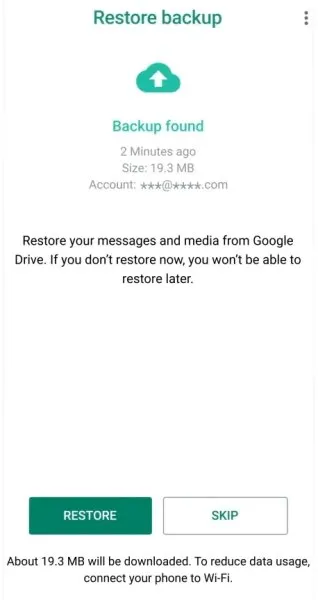
When WhatsApp detects the Google Drive backup, click “Restore” and wait while the backup is restored to the device.
restore whatsapp messages android
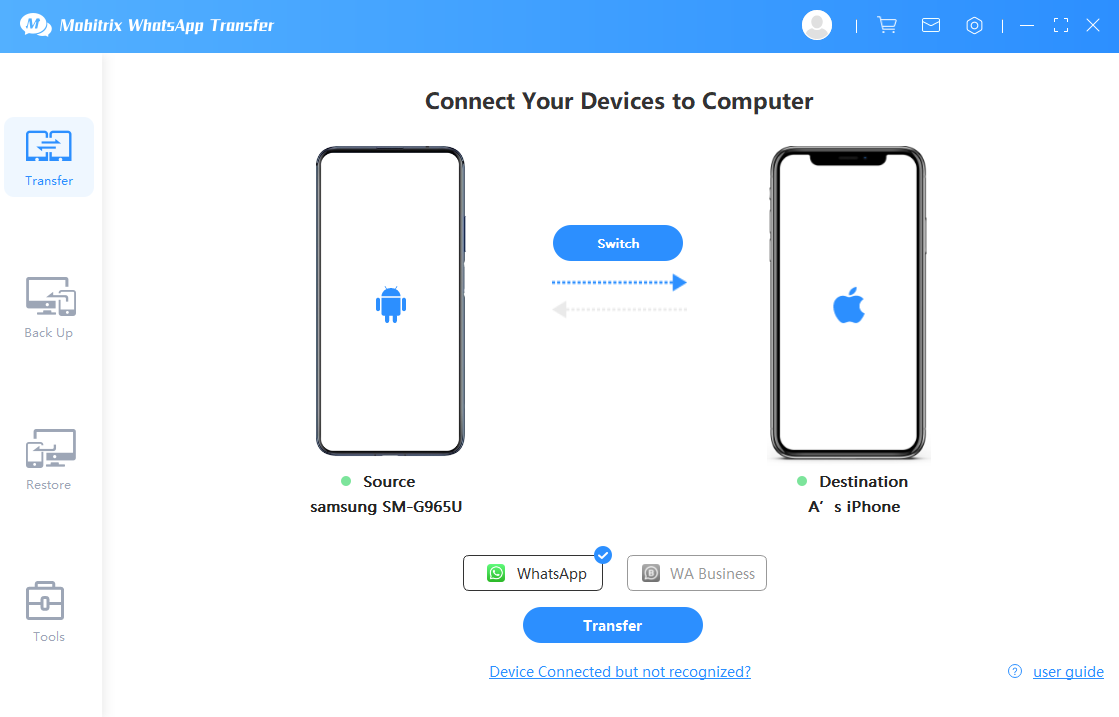
Now that the backup has been restored to the Android device, we can use Mobitrix WhatsApp Transfer to transfer chats to the iPhone.Download Download and launch Mobitrix WhatsApp Transfer and in the main window, click on “Transfer” .
connect the 2 device to pc
Connect both the Android device and the iPhone to the computer using USB cables. You may have to wake the iPhone and enable USB debugging allowing the program to detect the devices.
Once Mobitrix detects the devices, click on “Transfer” and the transfer of WhatsApp data from the Android device to iPhone will begin immediately.
the device successfully connected
Keep both phones connected until the process finishes. When it is done, the goal is to have the chats accessible in WhatsApp on the iPhone rather than only as exported backup files.
start to transfer whatsapp messages
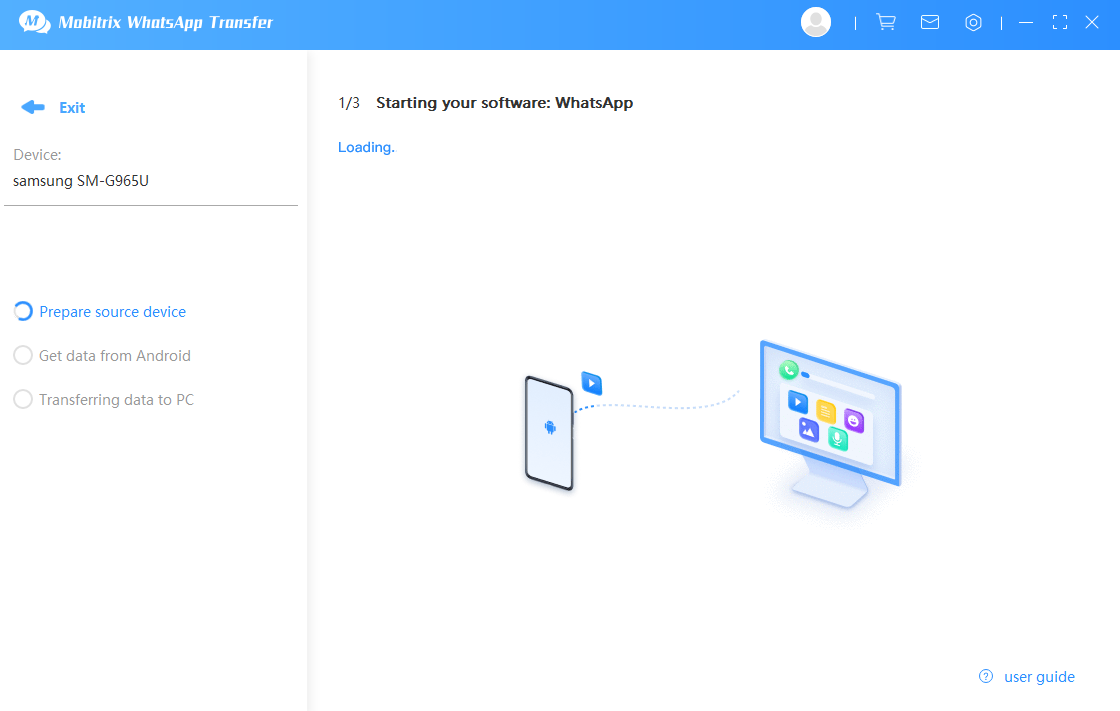
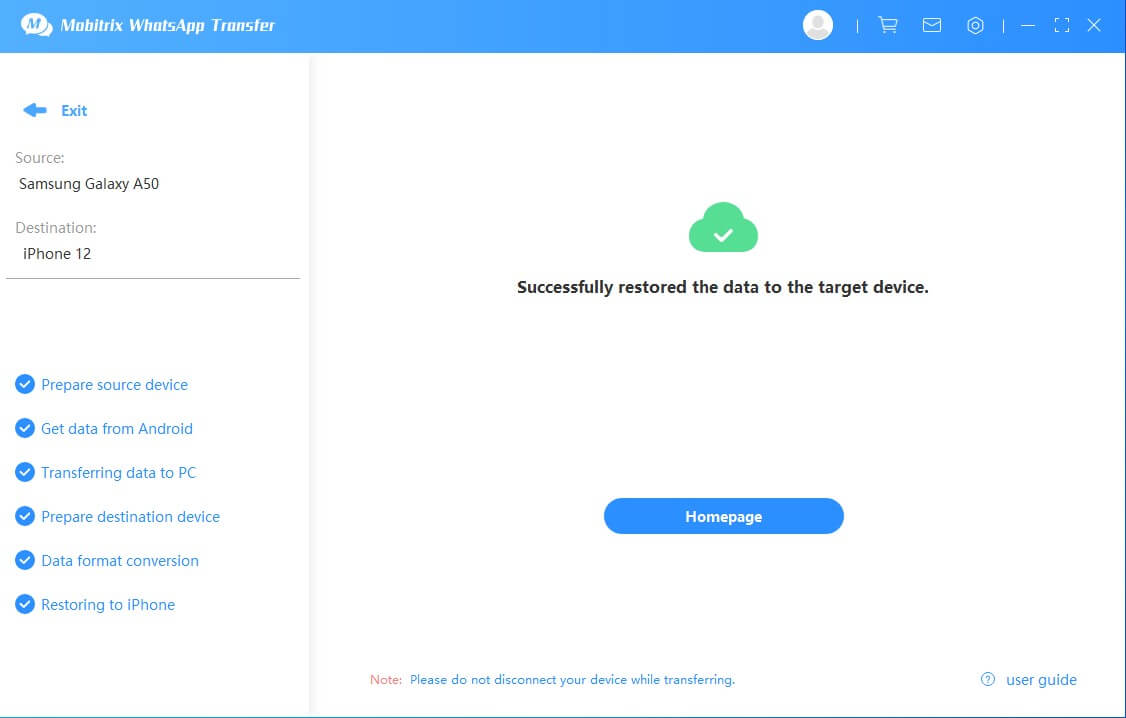
Here is the video guide to transfer WhatsApp from Android to iPhone with Mobitrix
Restore Via Email (Inconvenient)
You can also move selected chats by email, but this is really an export method rather than a full restore. It sends the conversation to your inbox so you can read it later on the iPhone.
How to restore via Email step by step:
- First, restore WhatsApp from Google drive to your Android device based on the above steps.
- Open WhatsApp on Android device and select the WhatsApp chat that you would like to send. Then tap on the name of the contact displayed at the top.
- Tap on “Export Chat” and choose whether you would like to attach the media files to the email or not.
- Enter the email address then hit “Send”.
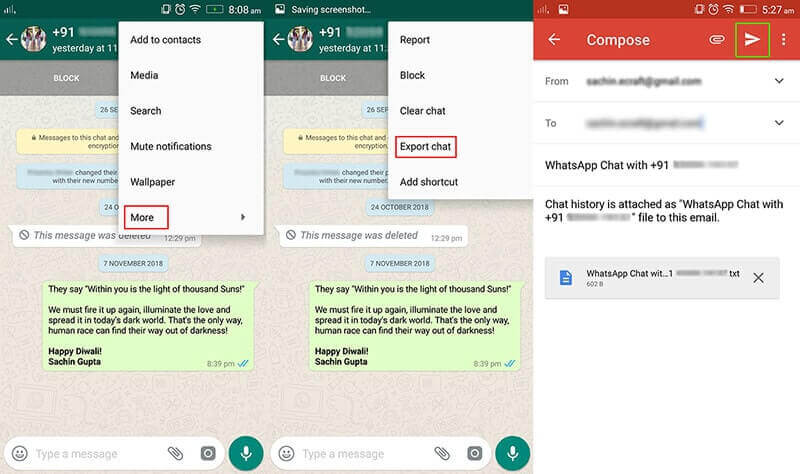
export whatssapp via email
Open the email on the iPhone and download the attachment in text form. That gives you a readable copy, not a conversation restored back into WhatsApp.
Remember that you can’t view the chats on your iPhone WhatsApp .
- The email method transfers your chats as TXT files. As a result, you won’t know the message’s sender, and you can’t reply to any message in that format.
- Another limitation is the need for an internet connection.
- Also, there is a limitation on the number of chats you can transfer and the country. Check this WhatsApp FAQ page for more information about that.
How to Transfer WhatsApp Backup from Android to iPhone via WhatsAppTrans Box
Another route is WhatsAppTrans Box, a free tool from Mobitrix. It is better suited to people who are willing to spend more time on setup in exchange for a no-cost workflow.
Why use WhatsAppTrans Box?
- The tool is free.
- It supports transferring large data sizes.
- All transfers between iPhone to Android are supported.
- Through it, you can restore your WhatsApp chat history to another device.
WhatsAppTrans Box has a major limit: it only restores chat history, and only for roughly the most recent three months. That makes it a poor fit for older archives.
To use WhatsAppTrans Box:
Step 1: Download the Toolkit of WhatsAppTrans Box.
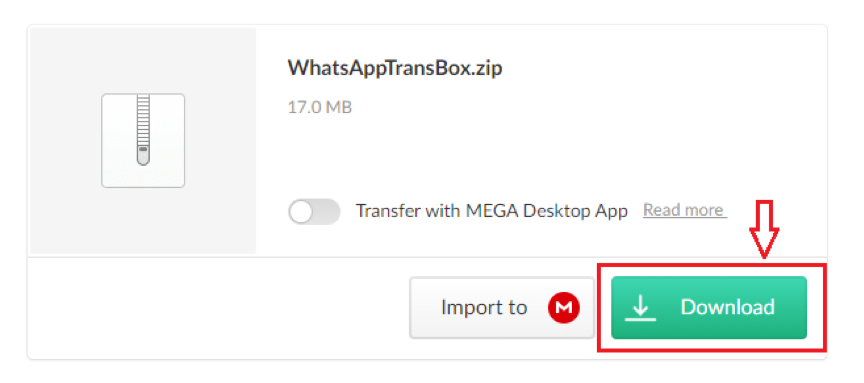
Download the Toolkit of WhatsAppTrans Box
Step 2: From your Android, extract the WhatsApp data as shown below:
- Create a local WhatsApp backup.
- Using a cable, connect the Android to your computer, then use the command [copywhatsapptopc] to create a copy of the WhatsApp data into your computer.
- Disconnect your Android phone, then an emulator, most preferably a Bignox emulator, and set ROOT permission once you install it.
- Download from the official website, and install WhatsApp on the emulator the Android emulator.
- To copy the folder containing WhatsApp to the emulator, use the command [copywhatsapptoandroid]
- You can then login and restore WhatsApp on the emulator.
- Lastly, extract the databases containing WhatsApp, then run the command [pullwhatsapptopc], which will copy the database folder into your computer to enable the transfer. The database folder is located in the path: /data/data/com.whatsapp/databases/.
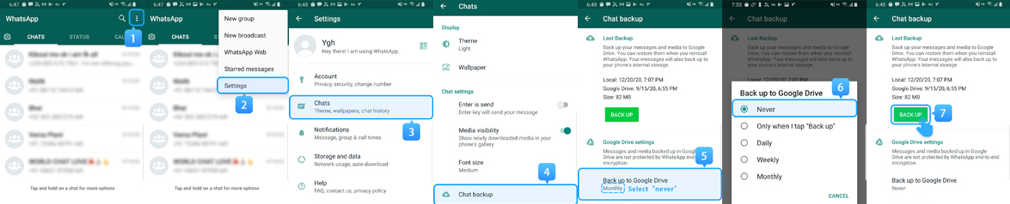
Backup your WhatsApp data into your phone storage
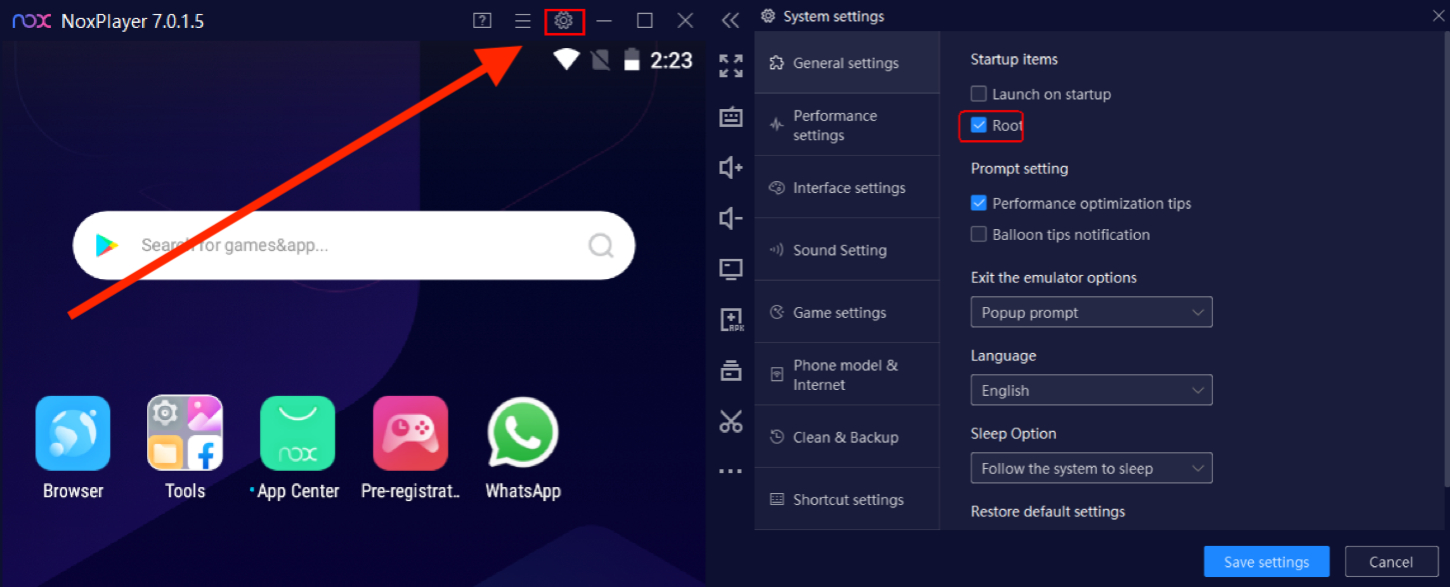
Set ROOT permission after installing the simulator
Note: Please, DON'T logs in to your WhatsApp immediately after you install it.
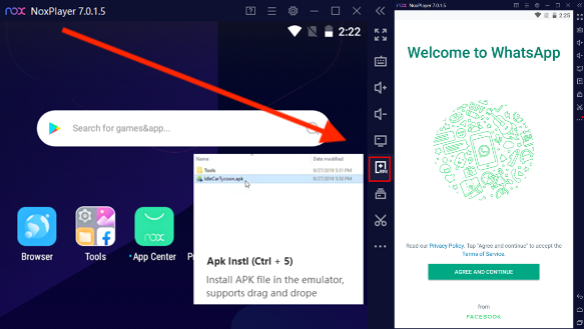
Directory of Emulator
Step 3: Transfer the WhatsApp data from Android to iPhone
This stage uses whatsappandroid2iphone.exe, but the time limit still applies here: only about three months of chat data can be carried over. That is the main tradeoff before you spend time on the setup.
- Execute [whatsappandroid2iphone].
Step 4: Restore WhatsApp data from Android to iPhone
On the iPhone, install WhatsApp, connect the phone to the computer, and run the restore command. Even then, the restored history is limited to the last three months of chats.
In short, WhatsAppTrans Box only makes sense when your important chats are recent and you do not mind the technical setup. If you need older chats or want a simpler route, the article points back to Mobitrix, while WhatsAppTrans remains the more manual option for PC-heavy users.
Using a free tool (WhatsAppTrans) to transfer WhatsApp Message to your iPhone from Android
Before you use WhatsAppTrans, note what it can and cannot do well.
Please read carefully before using this tool:
- It is free to use.
- It is more complicated than the other options here, so it fits people who are already comfortable working with files, folders, and manual computer steps.
- It also carries more risk of an incomplete result because the workflow is manual and less predictable than the simpler transfer options.
- Your chat history will be available on your “Files” App on your iPhone.
- It can export messages from multiple contacts, but those exports still do not become normal chat threads you can reopen inside WhatsApp on the iPhone.
To use WhatsAppTrans, do the following:
- Download from Github the .apk of the WhatsApp or WhatsApp business depending on your choice. You need to also the data export tool for WhatsApp: ExportAndroidWhatsApp.exe.
Note: Before proceeding, check if you have a WhatsApp folder on your file manager on your Android, if the folder doesn’t exist, DO NOT attempt to proceed with this method, use other methods in the article.how to download whatsapptrans
- Create a local WhatsApp backup on Android and confirm it finished before changing anything else. Then uninstall the current WhatsApp build, install the downloaded version, allow local storage access, and restore the backup when prompted.
- On your Android, create a “data.flg” file inside the WhatsApp folder then go back to the WhatsApp and open it again. Once opened, go back to the WhatsApp folder and check if a “ok.flg” file and “chatpath” folder have been created. If so, then exporting your history of WhatsApp chats was a success.
- Connect via a cable your Android phone to your PC and copy the WhatsApp folder and paste it on a location of your choice on your PC.
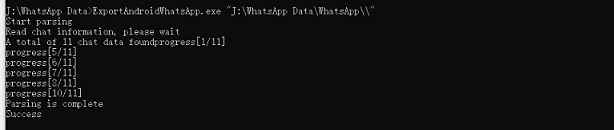
- Launch the CMD terminal from your PC and type the command below:
ExportAndroidWhatsApp.exe WhatsApp path
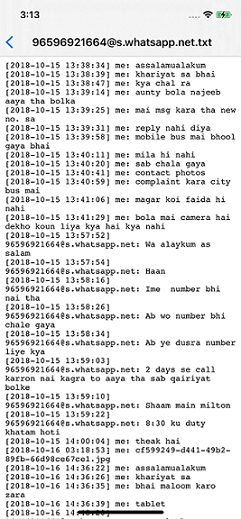
Once the command runs, a “txt” file that will contain the chat history of your WhatsApp will be created and stored inside the WhatsApp directory on your PC.
transfer whatsapp via whatsapptrans
- Download the latest iTunes and connect your iPhone to your PC.
- Import via the file management feature your media files and images to your iPhone’s “Media” folder (under WhatsApp directory) . We recommend that import all media files to iPhone's "Photos", which allows you to check all WhatsApp images, audio, photos, or videos on your iPhone.
- If need be, the “txt” files should also be imported from the "txt" folder (Under WhatsApp directory) to the “Photo’s” directory which will give you the ability to check and view them at the comfort of your iPhone. You can also share them with your relatives or your others accounts as a way to keep backup.
transfer via mobitrix whatsapptrans
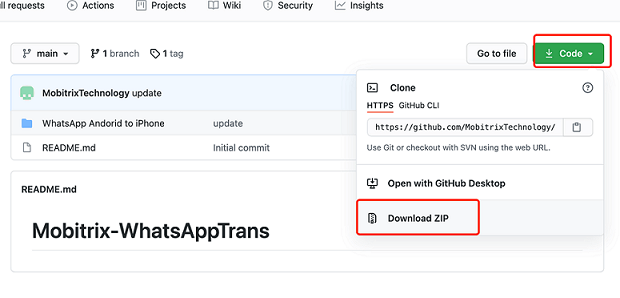
WhatsAppTrans is the most technical option in this article, so it is best left to users who are comfortable working on a PC for a while. If you want a shorter path, the article treats Mobitrix as the easier alternative.
Switching between Android and iPhone is harder when the app data depends on different backup systems. WhatsApp is a common example because a normal phone-switch process does not convert a Google Drive backup into something an iPhone can restore.
But if there are some important messages on your WhatsApp account, simply giving up is not an option. Mobitrix WhatsApp Transfer gives you the rare and unique opportunity to move data from one device to another without having to use storage services like Google Drive.
Share your thoughts on this topic or any other WhatsApp data issues with us in the comments section below and we’ll do our best to come up with the best solutions for you.
