
As you go about daily routines like showering, cooking, running, or swimming, there is always a chance your phone gets splashed. That is why water in a smartphone charging port is such a common problem.
Now, what happens when your phone's charging port gets wet? How do you dry it? What do you do? Read these dos and don'ts below so you can dry the port safely without making the damage worse.
Before starting, if you're unsure whether your iPhone got wet, use the iPhone sensor to check.
Way 1 Leave it alone and let it dry
The easiest way to dry a charging port is to leave it alone and let it dry. Place the phone in a dry, well-ventilated environment, preferably with a fan, keep the charging port open, and position it facing down to help the moisture escape.
Check the port on your iPhone after 30 minutes of drying time, then keep waiting if the alert is still there.
- Continue waiting if you can still see moisture within or if the gadget displays a “liquid detected” error. Some phones may need much longer than 30 minutes, and an iPhone can take up to 24 hours to dry fully.
- Grasp your gadget with one hand and tap it gently against your palm with the charging port facing down to remove any excess water.
Way 2 Other Things You Should Do
Turn Your Device Off
This is the first remedy to save your phone from water. Turning off your device prevents shorting out because water is on the device while an electric charge is present.
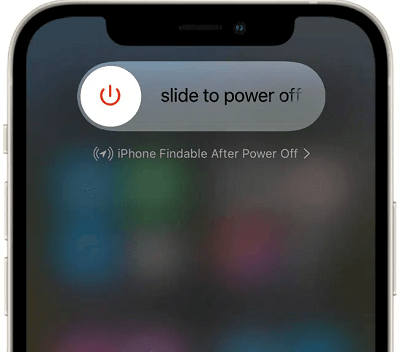
Turn your iPhone off
Keep The Exterior Dry
Quickly grab a dry cotton towel and dry the entire surface of your iPhone. Take your time and make sure no water is visible outside your phone before you reconnect a cable.
Disconnect The Battery
Besides turning your device off, if your device has a removable battery, take it out as soon as you can to lower the risk of more serious damage.
Disconnect The Sim
SIM cards are made with delicate electronics, so even a little water can ruin them. Look closely for a small cut-out and a pin-sized hole at the sides of your phone so you can remove the SIM card tray.
Press firmly on that hole using the end of a paper clip, and the SIM card tray should pop out. Once it does, take the entire tray, with the SIM card, out of your phone. If water is on the tray or card, gently pat it dry and set it aside.
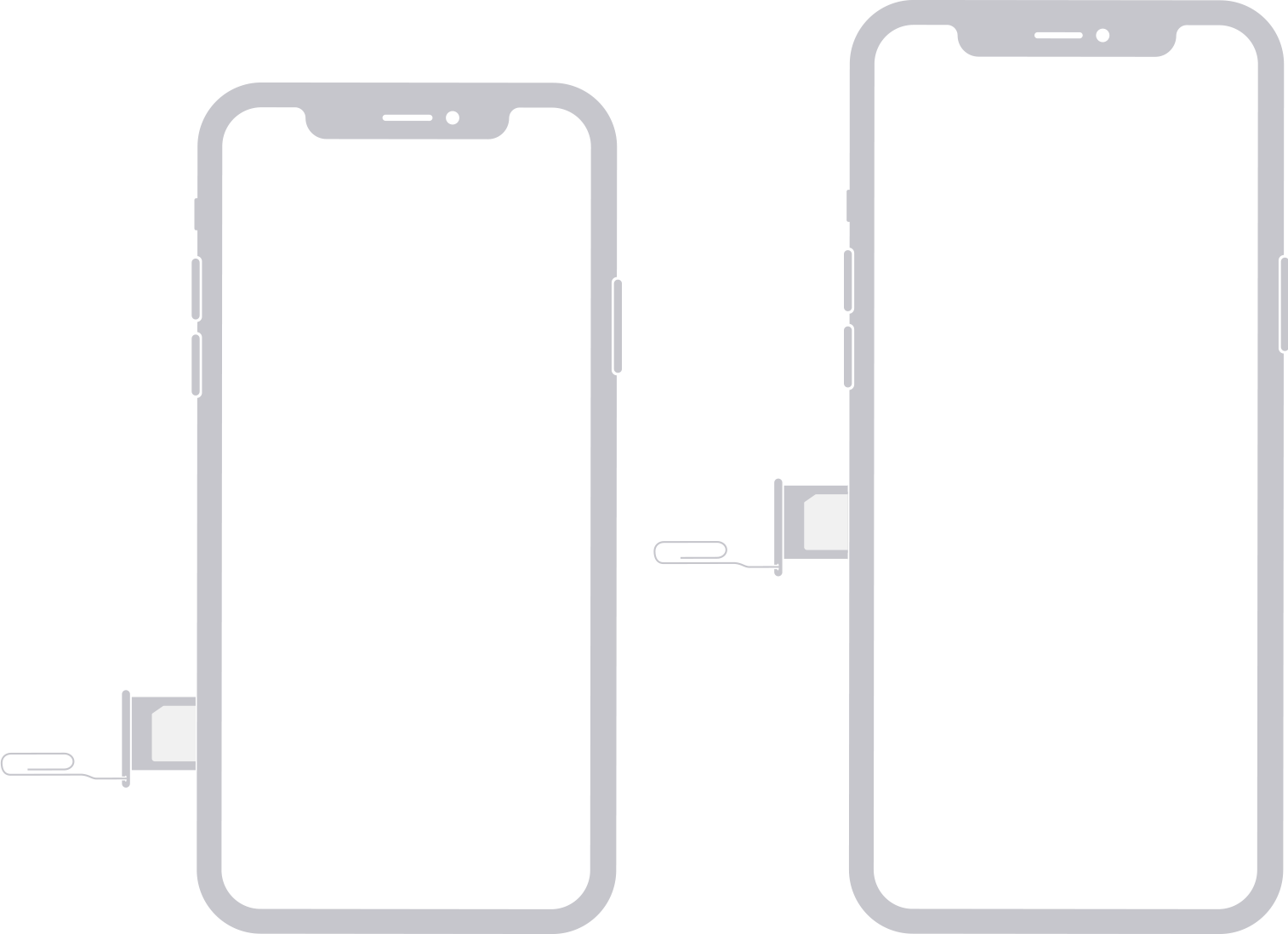
Remove SIM card
Keep Your Device In A Well-Ventilated Space
Once you're done cleaning your phone's charging port, place the phone in a well-ventilated area, not in the sun. The water inside the port may evaporate in a few hours, but deeper moisture can take much longer.
Use Desiccants
Desiccants like silica gel packets can help with a damp charging port, but they work best as extra support instead of the main fix. Put your affected iPhone in a container with a few silica packets, then still give the port enough time to air-dry.
Try Turning On Your Device
Once you're done with drying out your phone, check to see if the “liquid detected in Lightning connector” message still appears by turning on your device or connecting it to a Lightning cable. If the warning returns, unplug it again and keep waiting.
Way 3 Contact Customer Care
Contact customer support if none of the previously mentioned fixes worked, if the warning keeps coming back with a known-good cable, or if you suspect the charging port is broken. For iPhone users, head to the nearest Apple Support Centre as soon as possible.
You can take your wet mobile to the nearest local repair center. They have the tools to check for corrosion or trapped moisture inside the phone's charging port.
What Methods Are Wrong And Harmful?
Insert Foreign Objects Into The Charging Port
Don't stick things like tissues, paper towels, and cotton swabs into your phone's charging port. Any sharp objects, like a toothpick, can cause more damage inside the charging port. They can also leave fibers or debris behind, stopping your lightning accessory or USB cable from contacting the port and resulting in a faulty charging port.
Using A Hairdryer/ Use Heat On Your Device
Exposing your phone to the sun for an extended period or using ovens or hair dryers to dry your iPhone can also cause more damage. Parts such as seals, batteries, and screens can overheat and lose their effectiveness.
Leave Your Phone In A Bowl Of Dry Rice
While it's a common solution among many people, it isn't recommended. The rice may absorb some moisture, but there's a good chance that debris from the rice will seep into your device, which can cause more problems.
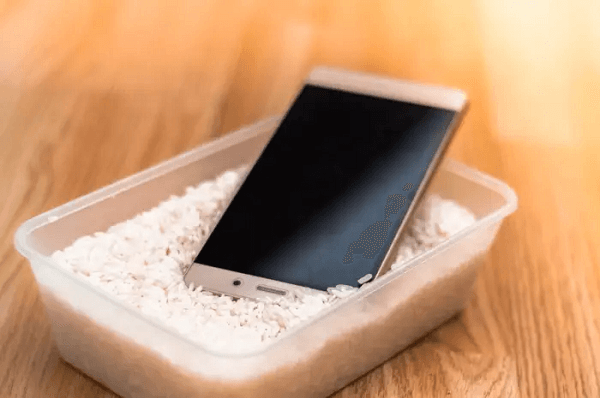
Phone in a bowl of rice
Blow Air Into The Charging Port
When you blow air or compressed air into your USB or lightning port with your mouth or vacuum hose, water can get pushed further into your device and onto sensitive parts instead of drying out.
Once you plug your lightning cable or USB charger into the connector too early, small sparks can hit sensitive parts and cause more damage to your device.
Use Isopropyl Alcohol
Never use isopropyl alcohol to clean or dry your phone's charging area unless the manufacturer tells you to do so for that model. Adding more liquid to a wet connector can make the problem worse.
Isopropyl alcohol also does not replace the one thing the port needs most, which is time to dry before you charge again.
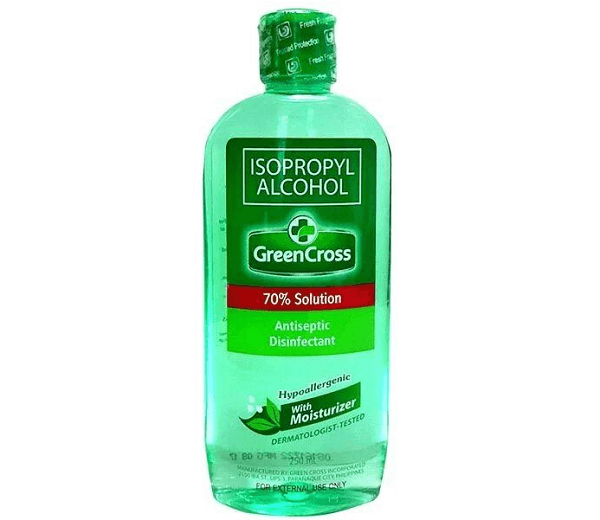
Isopropyl alcohol
What Will You See If Water Is Still In Your Charging Port
Modern Android and Apple devices are designed with moisture sensors. They notify you after they detect moisture from your phone's charging port, USB cable, headset jack, or Lightning/USB-C cable. Here's how:
For iPhone
- Charging not available: This notification appears if you connect your iPhone to a charger and liquid is detected in the connector or on the cable.
- Liquid detected in Lightning Connector: This alert appears if you connect an accessory to your iPhone that doesn't charge your iPhone and liquid is detected on the connector.
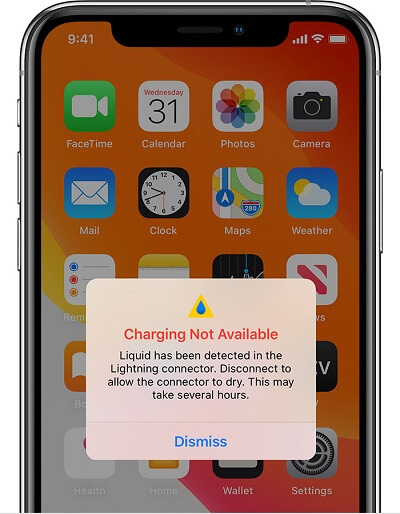
Charging not available alert
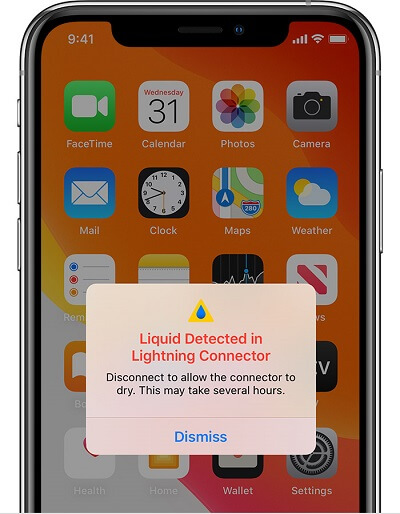
Liquid detected in lightning connector alert
For Android
- An Android alert will often ask you to disconnect your charging cable or unplug your charger when the sensors detect moisture on the phone's ports. The exact wording varies by brand, but the next step is the same: unplug and wait.
Signs That Your Device Has Been Damaged By Water
If your device isn't working properly after cleaning your charging port, there's a chance the water may have damaged it. The internal components of a smartphone and water do not mix.
Device Not Powering On
If your phone doesn't power on despite cleaning the charging port after it has been submerged in water, it might have been damaged by the water. Take it to a repair center as fast as possible because corrosion can keep spreading.
Foggy Screen
A foggy screen or water droplets underneath the touchpad or screen could indicate that there's water or moisture in your device.
Foggy iPhone screen
Non-functional Speakers
Water or moisture can also damage your phone's microphones or speakers. For instance, if people complain about not hearing your voice when you make calls, then you may be experiencing damage caused by water.
Phone Getting Hot
The battery, motherboard, and integrated circuits of a smartphone are sensitive elements that water can affect. Most lithium-ion batteries will start overheating from damage, which can eventually damage your device's components.
Slow App Loading
Water damage can also cause your phone to load apps slowly or not at all. Unexpectedly, apps can remain stuck and refuse to close. Phone features like the flashlight cannot go off, or your touchpad works independently.
Slow app loading
Non-Functional Sim Cards
Water can cause your sim card or sim slot to malfunction and make you unable to read your sim's data. Also, it can affect your phone's network antennas, making it difficult for your device to register with a cellular network.
FAQs about How to Get Water Out of Charging Port
Q1: Can I charge my iPhone when it's wet?
It's possible to charge your iPhone when wet, but it's not recommended. A tiny spark from the pins on the Lightning port or the cable can corrode and cause permanent damage or stop functioning, causing charging or accessory issues later.
You might still need to charge in an emergency. If you reconnect your iPhone to the Lightning cable or accessory, you can override the liquid detection and charge your iPhone, but that should be a last resort.
The best option is to use a wireless charger to charge your iPhone. For maximum output, make sure the back of your iPhone is dry before placing it on your Qi-certified charger.
Q2: What if my phone detects water when it's dry?
Sometimes you're confident your phone and charging connectors are dry. However, the liquid detection alert might still pop up because moisture is trapped deeper in the port or on the cable end.
To solve this, get a flashlight and inspect the charging port for dust and debris, which can confuse your phone's liquid sensors. If you spot buildup, clean it only with a method recommended for your phone instead of blasting the port with compressed air.
Otherwise, your phone's charging port, cable, or accessory might be damaged if you can't see any debris.
Q3: Can Water in the Charging Port Damage Battery?
Yes, water in the charging port can also damage a smartphone's battery and the wiring. In this case, use gentle methods to remove the water so you do not cause more harm while trying to fix it.
The charging port is the most vulnerable area for objects to enter the phone. Cleaning the charging port regularly and properly will help maintain the smooth operation of the phone.
That's all on how to get water out of the charging port. Getting moisture in your USB port is easy, but it does not have to become a severe or expensive issue if you follow these quick tips and give the port enough time to dry.
If none of the solutions is working and your phone doesn't seem to turn on, it's best to call for help or take your phone to any authorized local repair shop. Otherwise, the best solution is to wait for your phone to dry fully before you try charging again.
