
Are you done using Instagram and looking to delete your account permanently? Or perhaps you intend to remove your old account so you can create a new one?
Whatever your reason, deleting an Instagram profile is easy and only takes a few quick steps. In this informative guide, I will show you these steps and also explain how to erase the Instagram app. Let's dive in.
Can You Delete Instagram On iPhone?
Yes, you can delete or deactivate an Instagram account on iPhone, and you do not need a business or professional Instagram version. Instagram now places both options inside Accounts Center for regular accounts too.
The important part is signing in to the account you want to remove. Once you are in, you can choose whether to delete the profile permanently or deactivate it and come back later.
Way 1 Use the Instagram App on iPhone
You can now request deletion directly from the Instagram app on iPhone through Accounts Center.
Steps:
- Open the Instagram app, go to the bottom-right corner, and tap your profile picture.
- Press the three stacked lines in the upper right corner, then tap Settings and activity.
- Tap Accounts Center > Personal details > Account ownership and control > Deactivation or deletion.
- Select whether you would like to delete your profile or disable it.
- Whichever you choose, Instagram will ask why you are deleting or disabling the account, then prompt you to confirm with your password if needed.
- Your profile will then enter deletion or deactivation mode based on the option you selected.
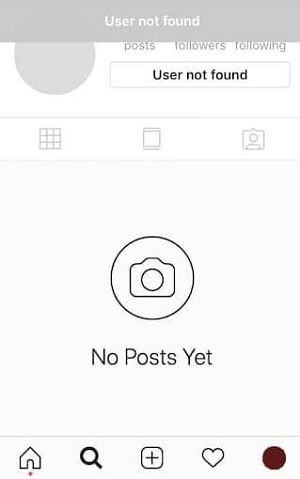
Deleted or Disabled Instagram Account
Way 2 Use Instagram Online via iPhone Safari
Erasing your Instagram profile using Safari is also a relatively quick process.
Steps:
- Open Safari and log in to your Instagram account.
- Open the Instagram deletion flow in your browser, or sign in and go to Accounts Center to reach the same deletion settings.
- Select an appropriate reason for erasing your profile using the dropdown list below 'Why do you want to delete [account name]?'.
- Re-enter your Insta password.
- Tap Delete [account name], then confirm your decision.
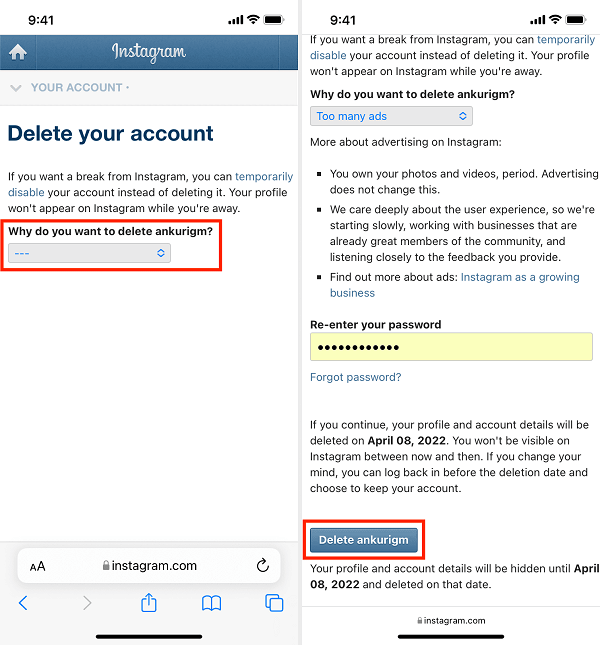
Delete an Instagram Account via Safari
How To Delete the Instagram App After You delete the account
If you are done using Instagram and have deleted your profile, you will probably want to delete the app too. This will save valuable storage.
Steps On iOS 14 and later:
- Locate Instagram on your iPhone Home screen, then press and hold the app's icon.
- You will see a pop-up menu. Tap Remove App.
- On the next pop-up, select Delete App > Delete.
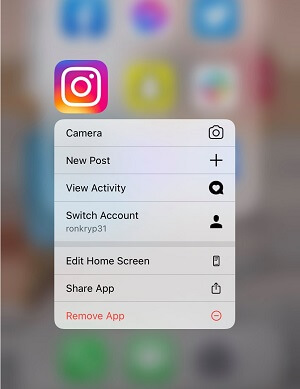
A Pop-up Menu on Ios 14 or Later
On iOS 13:
- Locate Instagram on your iPhone Home screen, then press and hold the app's icon.
- Tap Edit Home Screen in the resulting menu.
- All apps will start jiggling, and tiny X icons will appear at the top of each app you can delete.
- Tap the X on Instagram.
- You will see a menu asking you to confirm that you intend to delete Instagram. Tap Delete.
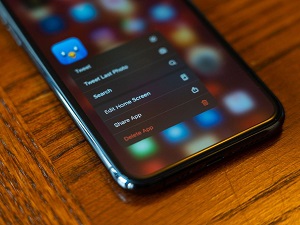
Edit Home screen on iPhone
On iOS 12 and earlier:
- Locate Instagram on your iPhone Home screen, then lightly touch and hold its icon until all the app icons jiggle. If they don't shake, you may be pressing too hard.
- Small X icons will appear next to each app. Tap the X next to Instagram.
- You will notice a pop-up menu, tap Delete.
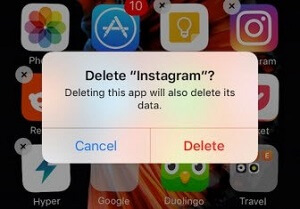
AInstagram pop-upon iOS 12 and earlier
Reset the Instagram Password if You Forgot It
Before deleting your Instagram account, you must be able to sign in. This means you need your password. But, if you have forgotten the password, there are various ways you can reset it and be able to delete your Insta profile.
Steps via Phone Number
- Launch Instagram and open the sign-in page.
- Select Forgot Password.
- Tap the Phone option in the next window.
- Choose your country code and enter the phone number you used to register your account.
- Tap Send Login Link.
- Instagram will send you a link via message. Opening this URL will redirect you to create a new password.
- Input this password, verify it, and then delete your account.
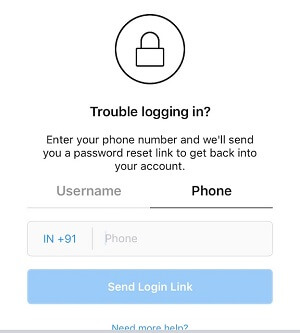
Reset Instagram Password via Phone Number
Reset via Email
- Launch Instagram and open the sign-in page.
- Select Forgot Password.
- Tap Username or Email, then enter the email address connected to your Instagram profile.
- Select Send Email.
- Instagram will send you a link via Email. Use it to create a new password.
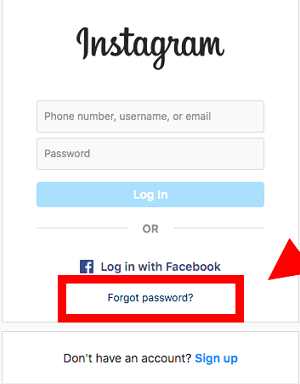
Click Forgot Password
Reset via linked Facebook account
This option is only available if you had previously linked your Instagram to a Facebook account.
Steps:
- Launch Instagram and open the sign-in page.
- Select Log in with Facebook.
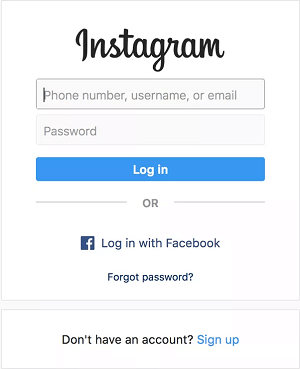
Sign in to Instagram via Facebook

FAQs About Deleting Instagram On iPhone
Let us now look at some of the most frequently asked questions about erasing an Instagram account from an iPhone.
1. Why does it take one month to delete an Instagram account permanently?
Instagram gives you a grace period after a deletion request so you can cancel it if you change your mind. After that window closes, the account is permanently removed, even though backup copies can take longer to clear from Meta's systems.
2. Can I reactivate my Instagram account after a year?
Yes, you can. If you only disabled your handle, you can re-enable it anytime. However, if you delete the account, you cannot sign in after a year.
3. Can I retrieve my Instagram account after deleting it?
Yes, you can get it back only during Instagram's cancellation window after you request deletion. Once that period ends, you cannot recover the account by signing in again.
That's it. You can now erase your Instagram profile and start afresh or stay off the app completely.
Despite Instagram being a fun application, there are multiple reasons why you may want to leave it, which is why this article comes in handy. Whether you intend to delete your account permanently or temporarily disable it, this guide is a suitable reference.
Visit Mobitrix for more iPhone tips and tricks!
