
Are you wondering how to get rid of the iPhone Activation Lock without an Apple ID? The first step is understanding what Activation Lock actually blocks and which methods are official versus unofficial.
What is Activation Lock
When it comes to purchasing an iPhone, not everyone buys it from an Apple Store. Many consumers choose secondhand iPhones instead of new ones because of the price. These phones can sometimes arrive with Activation Lock still linked to the previous owner’s Apple Account.
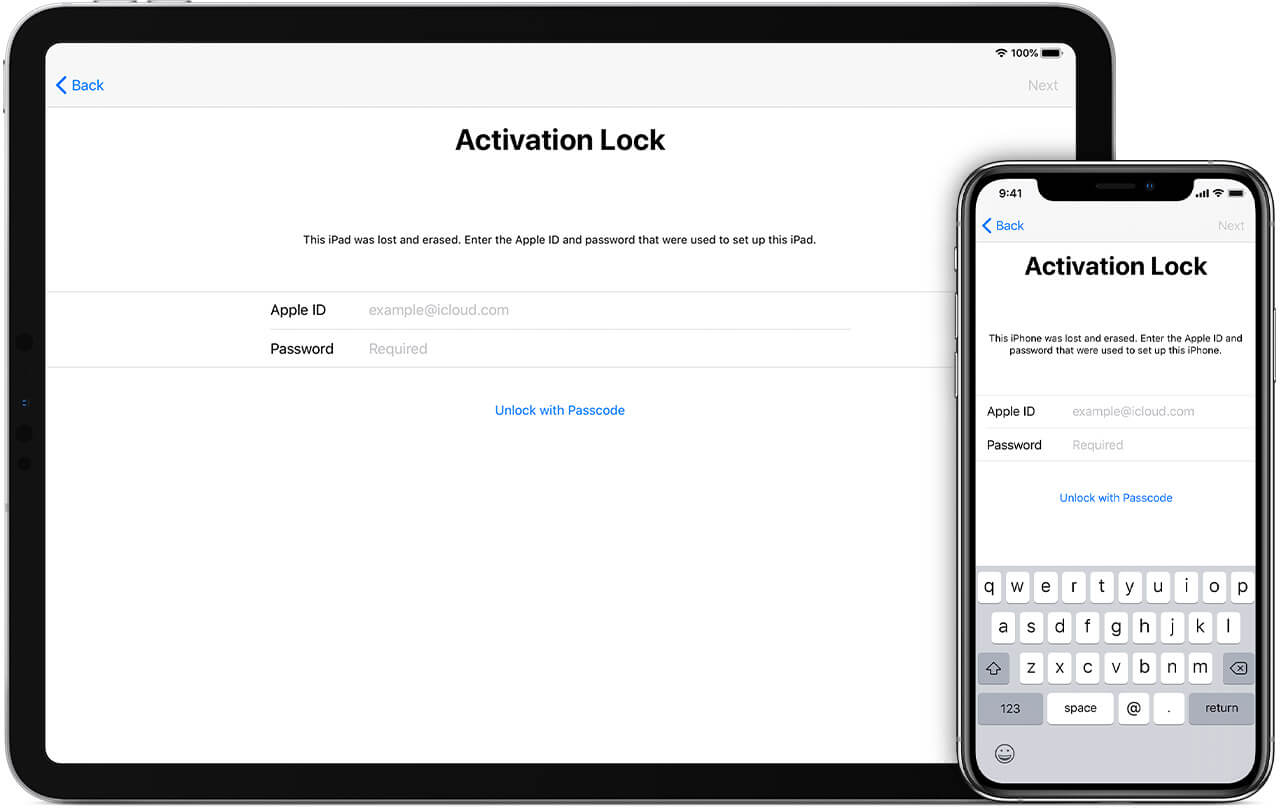
What is the Activation Lock on iPhone and iPad
When a new iPhone is purchased, Apple links the device to the owner’s Apple Account through Find My and Activation Lock. That connection is what stops another person from resetting and using the device as if it were theirs.
An iPhone that still has Activation Lock cannot be set up normally without the Apple Account credentials tied to it, proof-of-purchase review from Apple, or an unofficial workaround. The lock is meant to improve security and discourage theft, which is why it can be frustrating on used devices.
This article covers the common ways people try to deal with Activation Lock, but the safest path is always the previous owner or Apple’s official support process when you have legitimate ownership documents.
How to Remove an Activation Lock on iPhone
1. Bypass Activation Lock via LockAway
This is the answer for everyone who has forgotten or lost access to their device's Apple ID and password. You can simply remove the iCloud Activation Lock with LockAway if you forget your password or if you acquired an iCloud-locked device.

All of the other techniques require account information or owner cooperation, while LockAway is presented here as a local-device workaround for supported devices.
Follow these steps to use LockAway to remove the iCloud Activation Lock:
- Begin by downloading the software and locating it on your computer.
- After downloading, wait for the Apple driver to finish downloading before starting the installation.
- Read the notes and then press the "Start" button.
- Use a USB cord or a lightening cable to connect the Apple device to the PC.
- Carefully follow the steps in the Jailbreak Device tutorial as outlined on the screen. Click "Next" after you have completed all the steps successfully.
- LockAway will now remove the activation lock without requiring any ID or password from you.
Advantages:
- The user is not required to enter an Apple ID or password in this patch.
- With a few clicks, you may circumvent the activation lock and log into the App Store right away.
- The item is simple to fix. LockAway can be used to fix problems other than activation locks.
- LockAway guards against data loss. You can instantly save your data and regain access to your iPhone.
- It offers full support for iPhone 5s-X and iOS 12.0 - 14.5
Hence, LockAway is presented as a quick workaround for supported devices, but it is still separate from Apple’s official Activation Lock removal process.
2. Bypass Activation Lock for iOS 8 to iOS 10
You can also use DNS services to get around the activation lock on some much older versions of iOS. This is a temporary workaround rather than a clean permanent removal, and it only offers limited device functionality when it works.
- Select your country/region first when setting up your device.
- selection screen.
- Select "More Wi-Fi settings" from the options menu.
- (Note: You will be unable to connect to any network or Wi-Fi while executing these procedures, and the device's SIM card must also be installed.)
- Select the “I” option on the next screen again
- Type one of the following IP addresses in the "DNS" field.
- To return to the network settings after typing, select the "Back" option in the top left corner of the screen.
- Select your Wi-Fi network from the list of options now.
- Enter your Wi-Fi password to connect to the network.
- Finally, on the following screen, choose "Back."
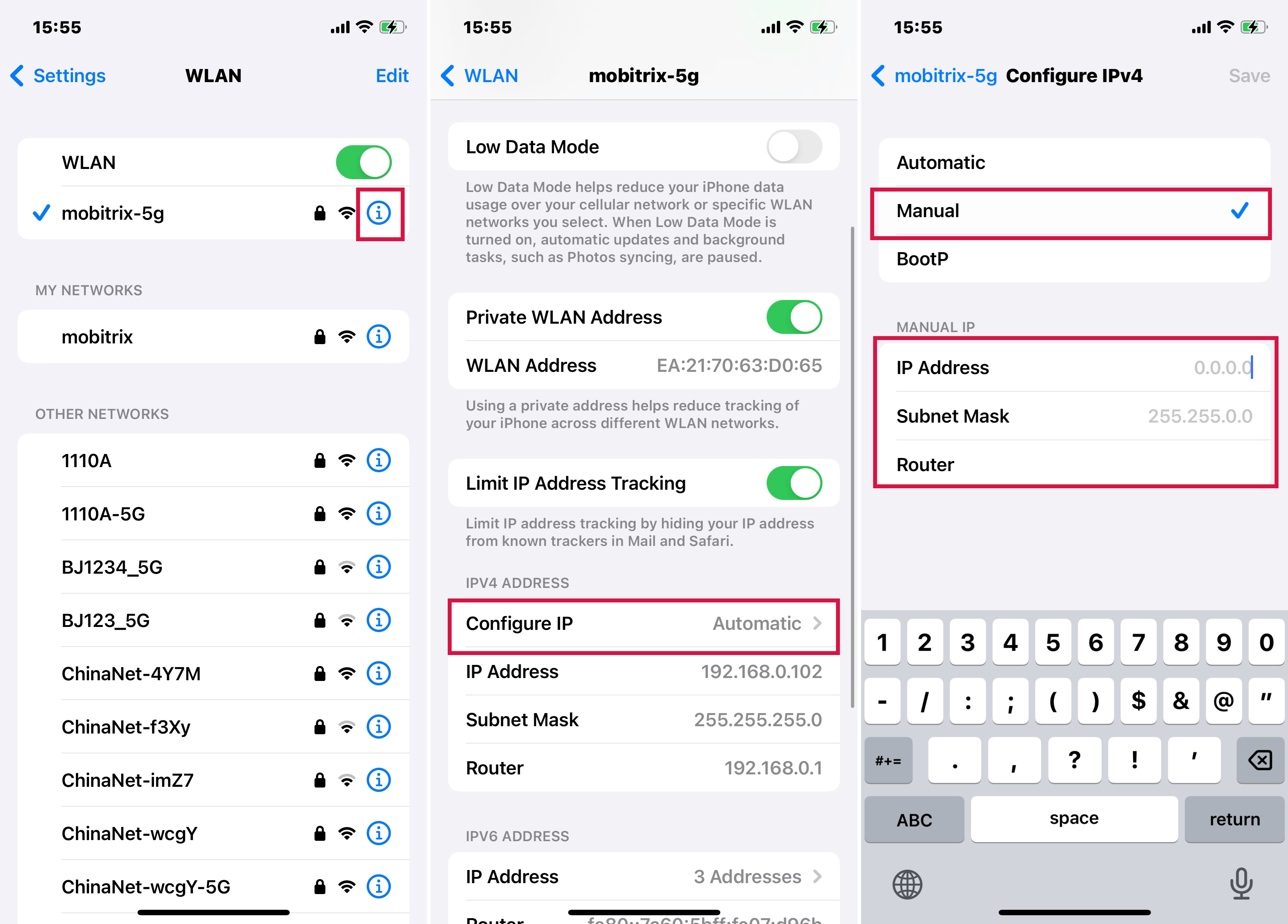
via DNS
North America: 104.154.51.7 Asia: 104.155.220.58 Europe: 104.155.28.90 South America: 35.199.88.219 Other: 78.100.17.60
This DNS method does not truly remove the Apple Account from the device. At best, it can temporarily interfere with the lock screen flow on a narrow range of older iOS versions. Still, there are a few drawbacks to this strategy.
Disadvantages:
- You run the danger of exposing all of your internet traffic (including usernames and passwords) to an unidentified third party, the DNS provider.
- This solution is only applicable to iOS 8 and iOS 10 users. It is not really compatible with versions above or below. Security protections have been added to newer versions to counteract this "attack."
- Many iPhone capabilities will become inoperable or, in some cases, permanently disabled if the DNS is changed. It restricts you to only a few functions of your phone.
- It is a flimsy solution. This means that all the above settings can revert back to the default settings whenever the DNS gets the chance to pick the IP address automatically over the internet.
3. Bypass via the Previous Owner
If you have the Apple Account credentials of the former owner, this is one of the cleanest methods because it uses Apple’s normal Find My controls. If you do not have that information, skip this method instead of guessing passwords.
Follow the steps below to use this method:
To remove the activation lock from your iPhone, go to the iCloud settings and disable "Find My iPhone."
- On your Apple device, open "Settings."
- At the top of Settings, tap the Apple ID or owner's name.
- Hit iCloud in the settings menu.
- Select the "Find my iPhone" option from the iCloud menu.
- By clicking the button once, you can turn it off.
- Your iPhone will prompt you for your password. You will need to enter your iCloud password to proceed.
- In the textbox, type your password.
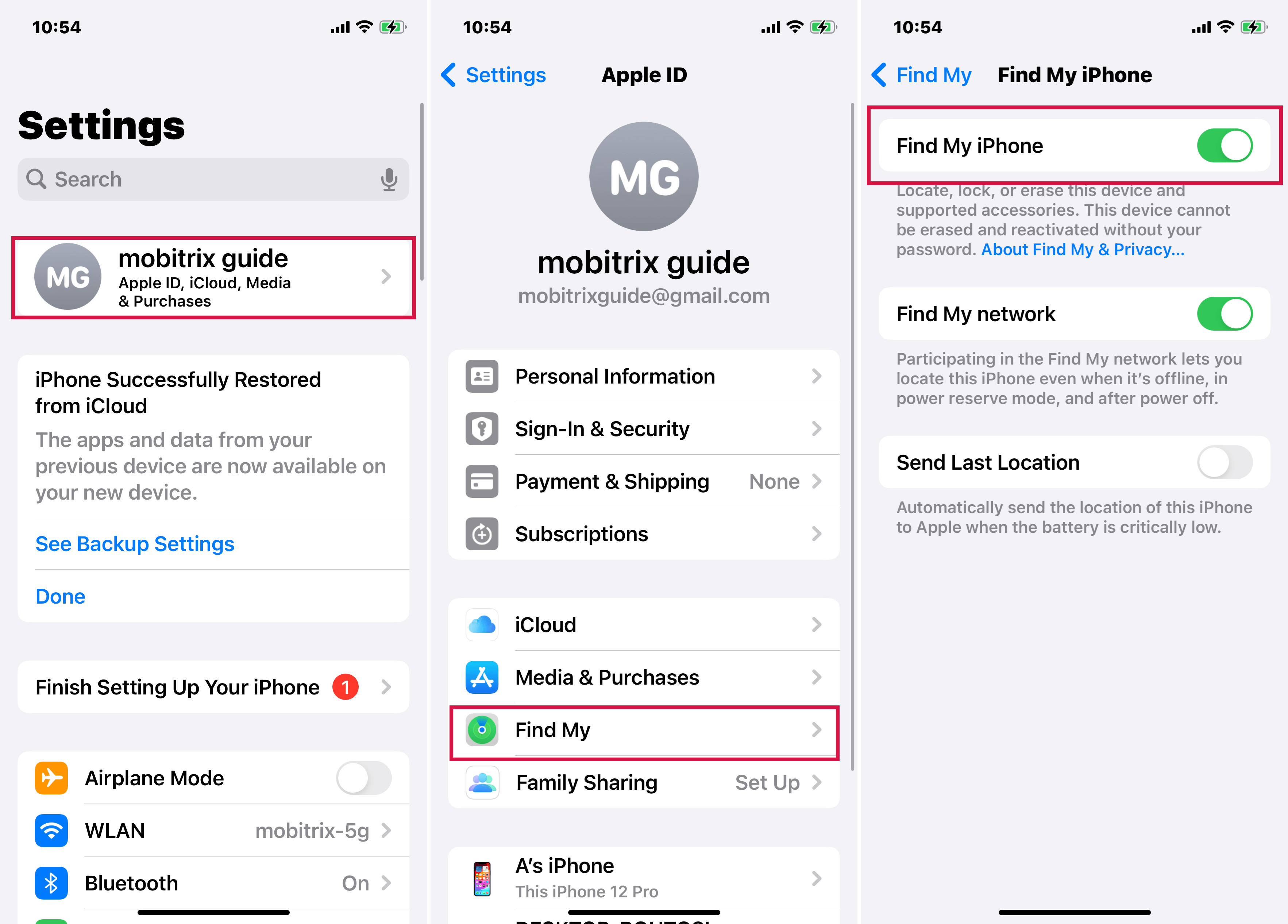
check Find My status
Because the Activation Lock has been removed, you can now erase or set up the Apple device normally under a new Apple Account.
4. Bypass via iCloud
This approach also necessitates the owner's Apple ID and password information. You must first log in to iCloud before using this method to unlock the iPhone. You can use this way to address the problem if the owner of the phone is not there, but you have the ID and password information.
You can apply this fix by following the steps below.
- Go to the official iCloud website from any device or computer. Sign in to iCloud by clicking the iCloud sign-in button.
- Use the owner's Apple ID and password to access the iCloud account.
- Choose the Find iPhone option. Note: This is the Find My service; the name of this service on iCloud.com has not yet been modified, but it is available on all Apple devices.
- To begin, open the map. Find and select the blue dot associated with the iPhone you need to sign in to on this map.
- Select Erase iPhone from the selection menu.
- Finally, pick "Delete from Account" from the drop-down menu.
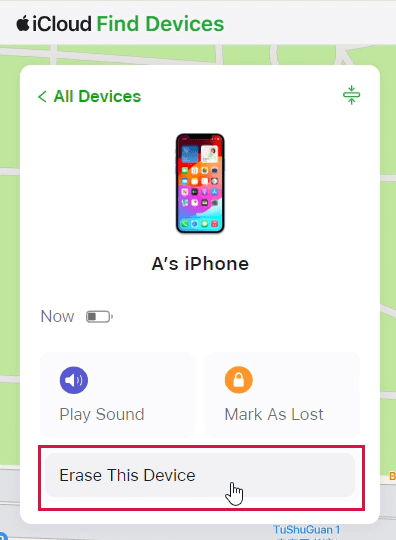
Erase find my on iCloud
It is important to note that this is essentially a device reset. If you erase the iPhone, you will lose local data that is not already backed up in iCloud, Finder, iTunes, or another backup service.
Your existing data may be permanently lost if you have not backed up on any of the platforms. Still, if you are a first-time user who only wants to reset the device so that you can use it, this should not be an issue.
5. Remove Activation Lock Officially
If none of the abovementioned tactics have functioned for you, you can try to seek professional assistance to address your problem. All the problems and their answers linked to the iPhone being locked due to iTunes or any other issue can be solved by the Apple store officials.

Contact an Apple Store
Before traveling to the Apple shop, make sure you have the necessary information and ownership documents:
- You must bring your actual and legitimate proof of purchase with you.
- Make an appointment with the Apple shop personnel before going, and make sure you have your copy of the proof of purchase with you.
6. Contact Apple Support
If your issue is not solved by the previous-owner steps or Apple’s documented Activation Lock process, contact Apple Support directly instead of relying only on forum advice.

Support Apple Official Pic
Apple Service is very attentive to client support when it comes to fixing issues that Apple customers have with Apple products.
To contact Apple Support, browse to their official support website and call their toll-free number. To attempt this precise solution, click this link.
Hopefully, Apple’s support staff will be able to verify ownership and tell you whether the device qualifies for official Activation Lock assistance.
For its users, the iPhone is a necessary everyday item that allows them to communicate or obtain knowledge and share it with their community. Newer iPhones, on the other hand, can be quite costly, so people who are on a tight budget often go for secondhand phones.
Activation locks on used iPhones are basically locked using the previous owner's ID and password information. As a result, when people buy a locked iPhone that doesn't operate, it might be inconvenient and prohibit them from resetting their device.
Although there are several ways that have the potential to remedy this problem, they are difficult to apply and may harm users' personal information.
LockAway, on the other hand, is not only fully compatible with practically every iOS device, but it also promises that clients will not lose any data due to its excellent repair capabilities. This method unlocks the device in a matter of seconds with just a few taps.
If you do not want to use LockAway and none of the other options work, contact Apple’s official support team and have your proof of purchase ready.
