
Apple products need some essentials to go with them. One of these things is Apple ID, which Apple now calls an Apple Account. Without it, you cannot access many of the services provided by Apple.
These happen to be useful and a lot of times important things. Take the example of Facetime, iCloud, and Find My iPhone. These are some very important iPhone features you can’t use without an Apple ID. This is a problem if you don’t know your Apple ID.
So let’s figure out how to activate your iPhone and access these services without an Apple ID. We will go from the easiest to the hardest method, so you can start with the safer options before moving to the harder ones.
Part 1: Ways to Activate a Second-Hand iPhone
If you buy a used iPhone, you don’t get an Apple ID. And this can make it impossible to use most of the things on iPhone. Apple also requires a Wi-Fi or cellular connection to activate the phone, and some setups may ask for a SIM or eSIM first. Following are some of the ways I found to be effective in activating a second-hand iPhone:
1. Use a Professional Software (LockAway)
You can use a professional tool to activate your iPhone. But be careful of what tool you choose because a lot of online tools end up being scams. Our recommendation is to use LockAway.

Advantages to Using LockAway:
You don’t have to believe our word by any means. Just check out these advantages that LockAway offers over all other online tools and decide for yourself:
- It can remove your iPhone’s activation lock without any password or Apple ID.
- You can use it to remove the activation lock on your iPhone.
- It is compatible with iPhone models from 5s to X and iOS 12.0 - 14.5.
- It is completely safe and trustworthy as it provides full privacy and data protection.
If you decide to use LockAway, you can follow the easy steps below to get started:
- On your PC or laptop, download and install LockAway.
- Now connect your iPhone to the computer and click Start.
- To proceed, you will have to jailbreak your device so that LockAway can work properly. For this, just follow the instructions on the screen.
- After jailbreak, you will be prompted to confirm some information about iOS including the IMEI number and iOS version.
- After confirming the above info, just click on Start Deleting. Wait for some time as the process completes.
Note: Don’t disconnect your iPhone from the computer at any time during the process. Wait till everything is complete.
Chances are that your problem will be fixed by this method, and you won’t have to waste your time trying any other methods. But in case you don’t want to use this method, or it doesn’t work for you, you can move on to one of the more limited methods below.
However, it is recommended to stick to LockAway as other methods can be harmful to your device.
2. Ask the Seller to Activate Your iPhone Remotely
If you are having trouble using your iPhone’s features on your own, try to contact the person who sold it to you. Then ask them to remotely remove the lock from your device. For this, ask them to:

Support Apple Official Pic
- Open and sign in to icloud.com using their Apple ID and passcode.
- They will see the option of Find My iPhone. Ask them to click on it.
- Now ask them to click on the dropdown All Devices to see all the devices connected to their Apple ID.
- Ask them to click on the name of the iPhone that you have and then click the option Remove from Account to remove your iPhone from the connected devices.
This method will remove your iPhone’s connection from the previous Apple ID, and you can now use all its features with your own Apple ID. Apple’s current instructions point owners to icloud.com/find, and if the phone is still online they may need to erase it before they can select Remove This Device.
3. Bypass Your iPhone with iCloud DNS
As a desperate resort, you can try to use iCloud DNS to activate the services on your iPhone. But this is by no means a method I recommend using. If nothing has worked for you, then you can try this method:
- Restore your iPhone to its factory settings. Carry out the process until you see the page with Wi-Fi networks.
- On this Wi-Fi page, click on the small i icon that you see next to the Wi-Fi networks. Next, click the tab that says DHCP.
- You will be prompted to enter a DNS IP address. Enter one of the following IP addresses depending on which area you’re in:
- After you enter the relevant IP address, connect your iPhone to a Wi-Fi network just like you always do.
- Now return to the previous page. You will see an Activate Help option. Click on it. This will connect your iPhone to the bypass server.
Asia – 104.155.220.58
North America – 104.155.28.90
European Union – 104.154.51.7
Any other place – 78.100.17.60
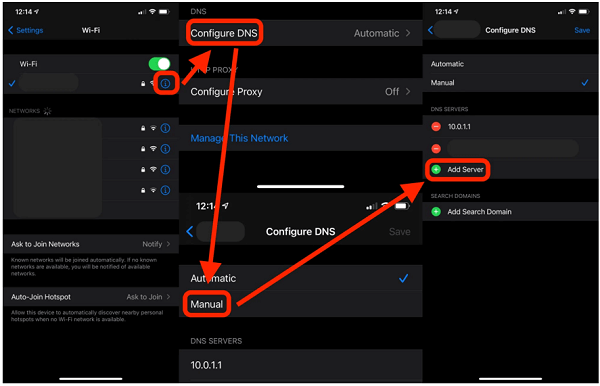
Remove Activation Lock via DNS
This method will activate your iPhone and you’ll be able to use all of Apple’s services. But there are some reservations regarding this method. So go through these before you decide to use this method.
Disadvantages:
- Your iPhone will have to be restored.
- This method just removes the activation lock on iCloud. It doesn’t remove the Apple ID overall.
- If you accidentally enter the wrong IP address, you will have to repeat the whole process and enter a separate IP address.
- It doesn’t always work. So even after all those steps and trouble, you might end up with no progress.
4. Contact an Apple Store
You can also take your device to a nearby Apple store to get this problem fixed. But for them to do anything to your device, you will need to prove your ownership of the iPhone. Apple may ask for a purchase receipt or other proof of purchase. This is a long and tiring process.

Contact an Apple Store
Due to the complex process associated with this method, it is not recommended as anything other than the last possible resort. If the iPhone came from a business or school, contact that organization’s IT admin instead.
Part 2: How to Activate Your Original iPhone (In Case of a Forgotten Apple ID or Password)
We’re not perfect beings. With so much information to remember daily, it is natural to forget some things. I forget my credentials all the time. And despite how we often feel, it isn’t the end of the world.
So if you’re anything like me and forgot your Apple ID or password, it means you will not be able to access Apple services anymore. And that’s not cool. So let’s figure out how to solve this issue.
1. Try Resetting the Password for Your Apple ID
If you forgot the password to your Apple ID, don’t worry. I’ve got a solution for you:
- Open https://iforgot.apple.com/ if you do not have a trusted device, or use Settings > your name > Sign-In & Security > Change Password on a trusted iPhone.
- Now you will be prompted to enter your Apple ID or the phone number tied to the account. Apple may also ask for the trusted phone number you used when creating the account.
- After entering this information, you will receive a call or a text message for confirmation. Just follow the instructions you receive and reset the password for your Apple ID. If Apple cannot verify you right away, account recovery can take several days or longer.
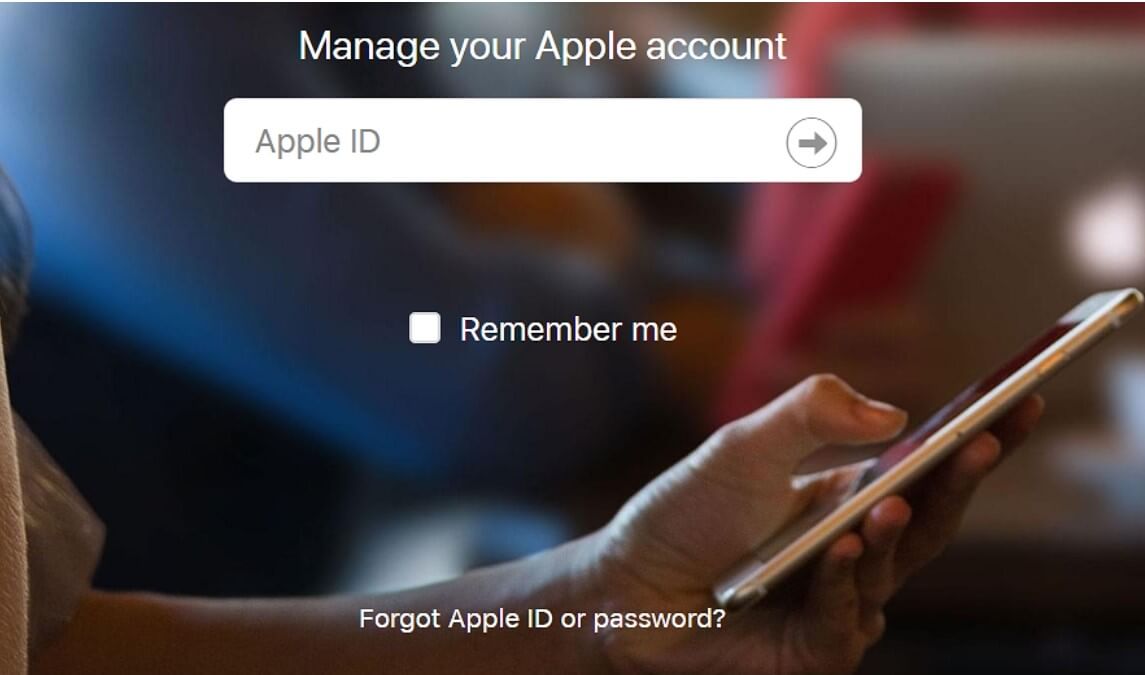
reset your apple id
2. In Case You Forgot Your Apple ID
Smartphones have become so smart that they remember a lot of our credentials like Apple ID. And then we don’t have to enter them every time. Though this saves time, not entering your Apple ID for a long time can cause you to forget it.
But don’t worry. You can find your Apple ID in case you forget it. And let’s be real, we all do forget at one point or another. To find your Apple ID:
- Open https://iforgot.apple.com/ or account.apple.com on your computer.
- Now try the email addresses or phone numbers you normally use with Apple services.
- If you still have another Apple device, open Settings, tap your name, and check Sign-In & Security to see which email addresses and phone numbers are attached to the account.
- Search your inbox for Apple receipts, repair emails, or support emails because they often show the account Apple used to contact you.
- If you use Family Sharing, a family member may also be able to confirm which Apple Account is linked to you.
Apple has some very complex processes in place that can make the simple process of phone activation very hard. But don’t worry, I have simplified the entire process so that even the least tech-savvy of you can understand. Whether you have an original phone or a second-hand one, you can learn how to activate it in this article.
